1 Where to set them
Open the item's shop settings with Edit — in Software Administration for packages, applications and software groups, or in Custom Shop Items — and go to the Custom Action tab (Action for custom shop items).
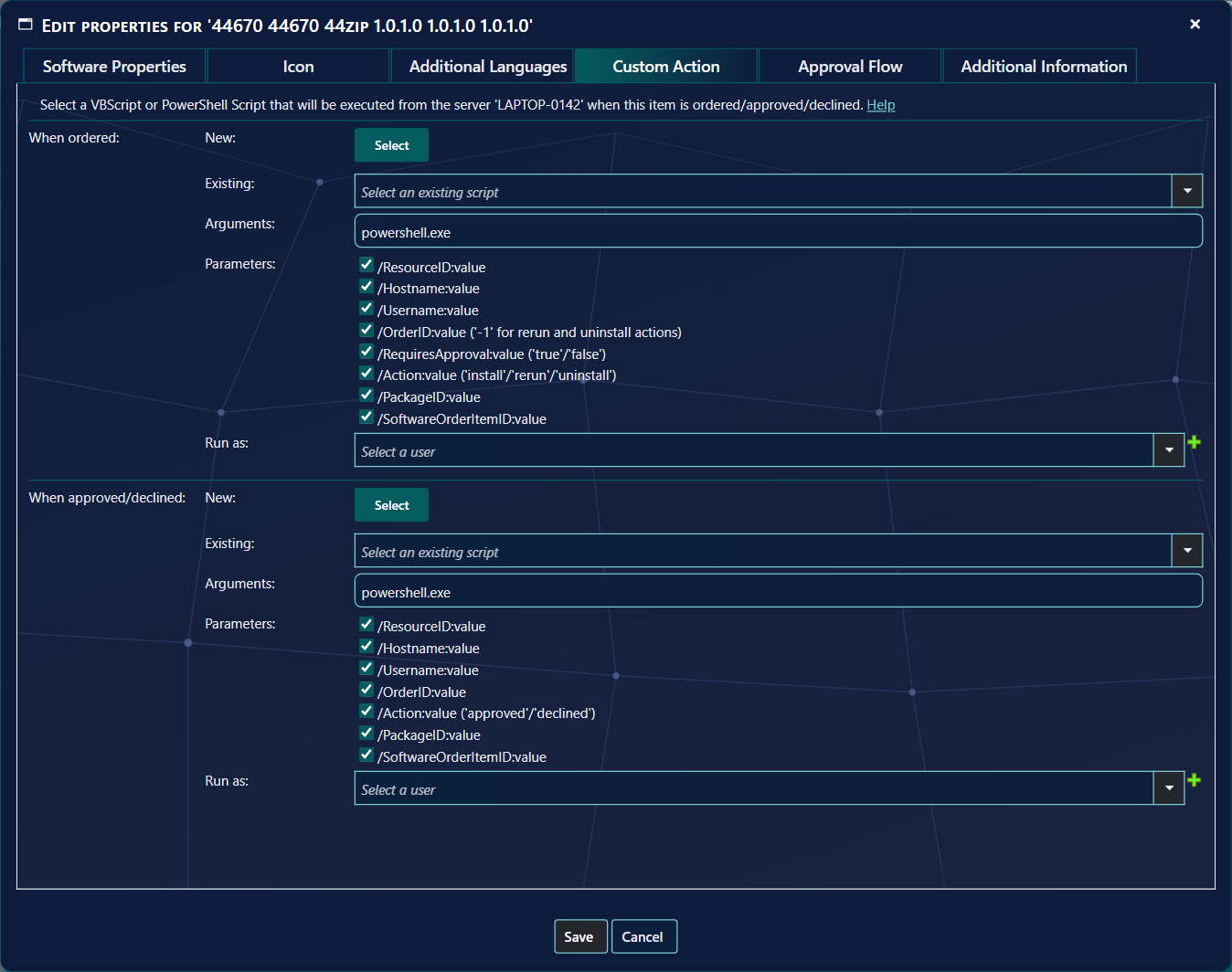
Each item can have two scripts: one that runs when ordered, and one that runs when approved or declined. The tab shows the server the scripts run on. Only roles allowed to use custom actions see the tab.
2 Scripts and the command line
Only PowerShell (.ps1) and VBScript (.vbs) are supported. Click Select to upload a new script, or choose
one under Existing. Scripts are stored in <SoftwareCentral install folder>\Uploads\CustomScripts\.
If several SoftwareCentral installations share one database, copy the scripts to each of them yourself.
For each script you set Arguments and tick the Parameters to pass. The command line is built like this:
[arguments] "filepath\scriptname" [parameters]
VBScript example:
Cscript.exe //b "C:\inetpub\SoftwareCentral\Uploads\CustomScripts\YourScript.vbs" /ResourceID:123456 /Username:domain\username
PowerShell example:
PowerShell.exe -file "C:\inetpub\SoftwareCentral\Uploads\CustomScripts\YourScript.ps1" -ResourceID 123456 -Username domain\username
The file path is added automatically — do not add it yourself. For PowerShell, powershell.exe and
-file are added if missing, and each /Name:value parameter is passed as -Name value.
The script starts a few seconds after the order or decision.
3 Parameters
| Parameter | Value |
|---|---|
| ResourceID (integer) | The resource ID of the computer the order is for. Not available when SoftwareCentral only manages Intune. |
| Hostname (string) | The name of that computer. |
| Username (string) | The domain\username of the user who ordered. |
| OrderID (integer) | The ID of the order; -1 for reinstall and uninstall. |
| RequiresApproval (string) | true or false. When ordered only. |
| Action (string) | When ordered: install, rerun or uninstall. When decided: approved or declined. |
| PackageID (string) | The ID of the package, application or software group. |
| ShopItemID (integer) | The ID of the custom shop item, instead of PackageID. |
| SoftwareOrderItemID (integer) | The ID of the ordered item. Use it to read its software variables, or to approve or decline it through the web service. |
For security, software variables are not passed as parameters. Read them with the web service instead — see Reading software variables.
4 Security
Scripts do not run as the application pool user automatically: choose, for each script, the Windows account that runs it under Run as. The + button adds an account; accounts are managed in the Password Manager. Make sure the account may run the script and reach whatever the script uses, such as databases or shares.
5 VBScript example
This script reads ResourceID, Username, OrderID, RequiresApproval, Action and PackageID or ShopItemID and writes them to a
text file. It is included with SoftwareCentral as VBScriptExampleOrdered.vbs; choose it under Existing,
with the arguments Cscript.exe //b and those parameters ticked.
' SoftwareCentral VBScript Example
'
' This script reads the parameters from SoftwareCentral and writes them to a text file.
'
' Get current username (RunAs in SoftwareCentral)
Set wshShell = WScript.CreateObject( "WScript.Shell" )
strUserName = wshShell.ExpandEnvironmentStrings( "%USERNAME%" )
' Load parameters into the output string
output = "RunAs: " & strUserName &_
        " ResourceID: " & WScript.Arguments.Named("ResourceID") &_
        " Username: " & WScript.Arguments.Named("Username") &_
        " OrderID: " & WScript.Arguments.Named("OrderID") &_
        " RequiresApproval: " & WScript.Arguments.Named("RequiresApproval") &_
        " Action: " & WScript.Arguments.Named("Action") &_
        " PackageID: " & WScript.Arguments.Named("PackageID") &_
        " ShopItemID: " & WScript.Arguments.Named("ShopItemID")
' Write values to a text file
WriteFileText "c:\temp\SoftwareCentralVBScriptExampleOutput.txt", output
Function WriteFileText(sFilePath, sText)
    Dim objFSO
    Dim objTextFile

    Const ForReading = 1
    Const ForWriting = 2
    Const ForAppending = 8

    Set objFSO = CreateObject("Scripting.FileSystemObject")
    If objFSO.FileExists(sFilePath) Then
        Set objTextFile = objFSO.OpenTextFile(sFilePath, ForAppending, True)
    Else
        Set objTextFile = objFSO.CreateTextFile(sFilePath, True)
    End If

    objTextFile.WriteLine (sText)
    objTextFile.Close
End Function
From line 10 the script reads the parameters ticked in SoftwareCentral; at line 20 it writes them to the file.
6 PowerShell example
This script reads ResourceID, Username, OrderID, Action and PackageID or ShopItemID and writes them to a text file. It is
included as PowerShellExampleReviewed.ps1; choose it under Existing.
# SoftwareCentral PowerShell Example
#
# This script reads the parameters from SoftwareCentral and writes them to a text file.
#
# Load parameters:
Param
(
[Int32]$ResourceID,
[string]$Username,
[Int32]$OrderID,
[string]$Action,
[string]$PackageID,
[Int32]$ShopItemID
)
# Get current username (RunAs in SoftwareCentral)
$runas = [Environment]::UserName
$output =
(
"RunAs: "+$runas+
" ResourceID: "+$ResourceID+
" Username: "+$Username+
" OrderID: "+$OrderID+
" Action: "+$Action+
" PackageID: "+$PackageID+
" ShopItemID: "+$ShopItemID
)
# Write values to a text file
Add-Content -Value $output -Path C:\Temp\SoftwareCentralPowerShellExampleOutput.txt
7 Reading software variables
To read the answers a shopper gave to the item's software variables, call Shop – Get Software Order Variables in the Web Service API with the SoftwareOrderItemID. This example reads a variable named Location and prints it when the order is approved:
# Load parameters:
Param
(
[string]$Username,
[string]$Action,
[Int32]$SoftwareOrderItemID
)
# Set the name of the variable you want to retrieve
[String]$variableName = "Location"
[String]$variableValue = ""
# The object that will make the call to the Web Service
$proxy = New-WebServiceProxy -Uri "https://softwarecentral/Api/WS_Shopping.asmx" -Class "Proxy" -UseDefaultCredential
try
{
    # Call the Web Service
    $variableList = $proxy.GetSoftwareVariablesForOrder($SoftwareOrderItemID)
    $variable = $variableList | Where-Object {$_.Name -eq $variableName}
    $variableValue = $variable.Value
}
catch
{
    # Catch and print any error messages
    $ErrorMessage = $_.Exception.Message
    Write-Host $ErrorMessage
}
if ($Action -eq "approved")
{
    Write-Host $variableValue
}
Replace https://softwarecentral with the address of your SoftwareCentral.
8 Debugging
The output and error messages of your scripts are sent to SoftwareCentral and saved in the log.
VBScript
Use WScript.Echo for output, or the standard streams:
Set fso = CreateObject ("Scripting.FileSystemObject")
Set stdout = fso.GetStandardStream (1)
Set stderr = fso.GetStandardStream (2)
stdout.WriteLine "This will go to standard output."
stderr.WriteLine "This will go to error output."
PowerShell
Use Write-Host for the standard output and $host.ui.WriteErrorLine for the error output, or
this function for the error output:
function Write-StdErr
{
     param ([PSObject] $InputObject)
     $outFunc =
     if ($Host.Name -eq 'ConsoleHost')
     {
          [Console]::Error.WriteLine
     }
     else
     {
         $host.ui.WriteErrorLine
     }
     if ($InputObject)
     {
         [void] $outFunc.Invoke($InputObject.ToString())
     }
     else
     {
         [string[]] $lines = @()
         $Input | % { $lines += $_.ToString() }
         [void] $outFunc.Invoke($lines -join "`r`n")
     }
}
For example:
Write-Host "This will go to standard output."
Write-StdErr "This will go to error output."

9 Best practice
- Enter the Run as user name as
domain\username. A name without a domain is refused when you save. - Give every script a Run as account with a valid password. SoftwareCentral checks the password when you save; if it is wrong, the item is not saved.
- Use only
.vbsand.ps1files. The upload picker accepts no other file types. - Write what you need to see to the output. The output of a script is written to the log, and a script that ends with exit code 0 is logged as successful.
10 Troubleshooting
| Symptom | Cause | What to do |
|---|---|---|
| “A valid user is required for script actions 'When ordered'.” (or 'When approved/declined') | A script is chosen, but no Run as account is selected. | Select the account under Run as, then save. |
| “Invalid username or password for script 'When ordered'.” (or 'When approved/declined') | The password for the Run as account is wrong. If the message ends with “Please enter the domain in the username.”, the user name has no domain. | Enter the user name as domain\username, or correct the password in the Password Manager. |
| The log says “Failed to execute 'script' from 'computer' with user 'user'.” and the script did not start. | The password stored for the account is not valid on the server. | Correct the password in the Password Manager, then run the order again. |
| The log says the script “exited with code” a number other than 0. | The script finished with an error. | Read the output entries written before that line in the log, and fix the script. |
| The log says “Make sure that the script exists and the user has permission to execute it.” | The script file cannot be found, or the Run as account is not allowed to run it. | Check that the script is in the custom scripts folder, and that the account may run it. |
| The log says “Failed to upload custom script for shop item with ID 'id'.” | The script could not be stored on the server. | Read the entry and the entries before it in the log, fix the cause, and upload the script again. |