1 Choose an approver
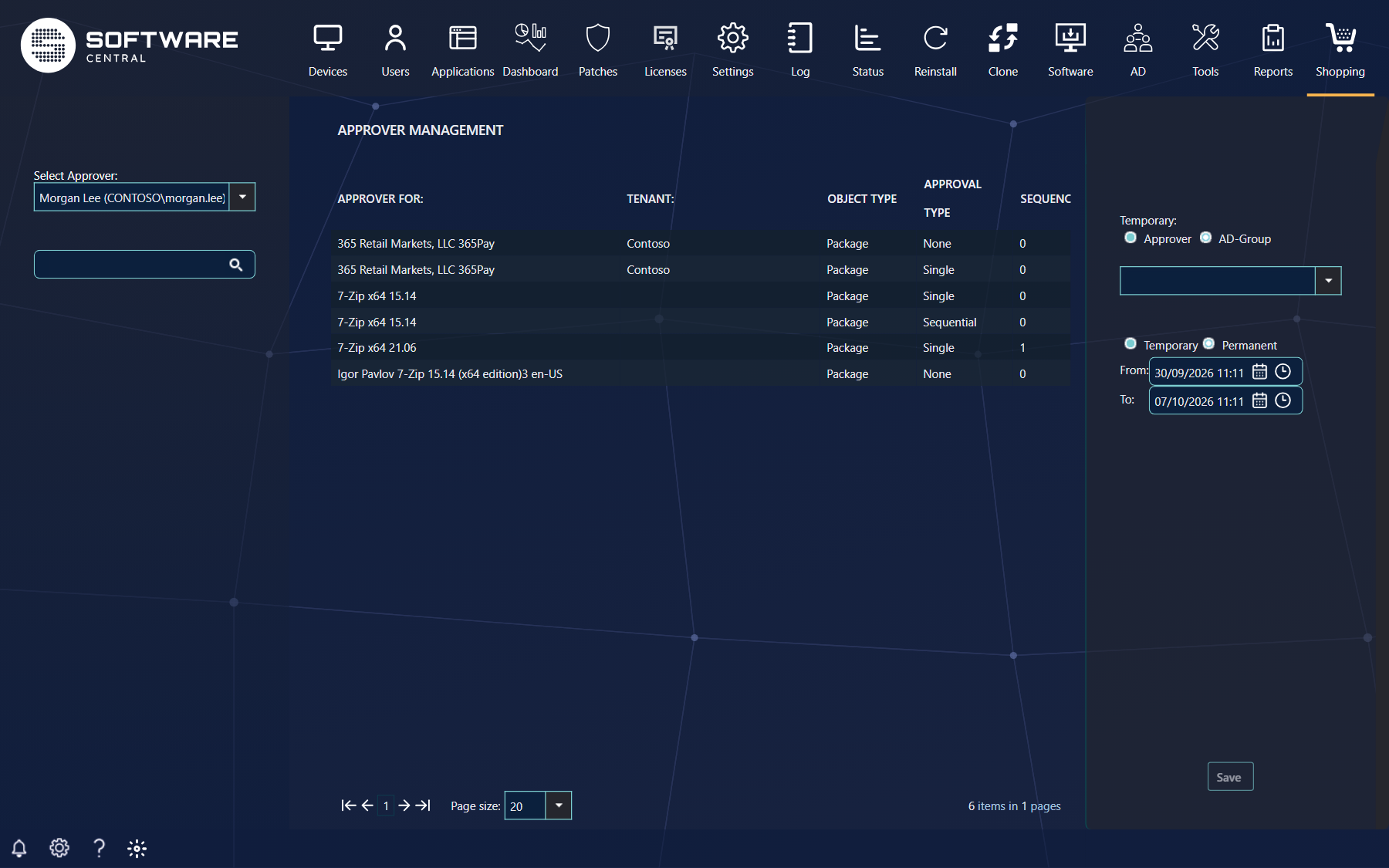
Search for the approver under Select Approver. The list then shows every application they approve; the search box below it filters that list by name. With several Intune tenants, choose the tenant at the top first.
| Column | What it tells you |
|---|---|
| Approver for | The application or custom shop item. |
| Tenant | The Intune tenant, when Intune is used. |
| Object Type | Package, App or Custom Item. |
| Approval Type | None, Single, Multiple or Sequential. |
| Sequence | The approver's place in the flow, starting at 0. |
2 A temporary approver
- Under Temporary, choose Approver for a person or AD-Group for a group, and search for them.
- Choose Temporary and set From and To — the next seven days by default.
- Click Save.
In that period the temporary approver can decide everything that waits for the approver, and the approver can still decide too. Remove Temporary Approver ends it early.
3 Replace an approver permanently
Choose the new approver, select Permanent and click Save. The new approver takes over on every application in the list, and the old approver can no longer decide. Use it when someone changes job or leaves.
4 Best practice
- Choose the tenant first when you have several Intune tenants. The box shows “Select tenant” until you do.
- Read the warning before you save a temporary approver. The page shows it when the person you choose has a temporary approver of their own.
- Use Remove Temporary Approver to end a temporary approver early.
5 Troubleshooting
| Symptom | Cause | What to do |
|---|---|---|
| “Please note that 'name' has assigned 'name' as a temporary approver.” (shown when you choose the temporary approver) | The person you chose already has a temporary approver. Temporary approvers do not chain, so that second one is not used. | Choose someone who does not have a temporary approver, or first end that person's temporary approver. |
| “This user does not have a mail address registered in Entra ID.” | The user selected from Entra ID has no mail address. The page does not stop, so the approver is saved without a mail address and approval mails cannot be sent to them. | Add a mail address to the user in Entra ID, then select the user again and click Save. |