1 The tab
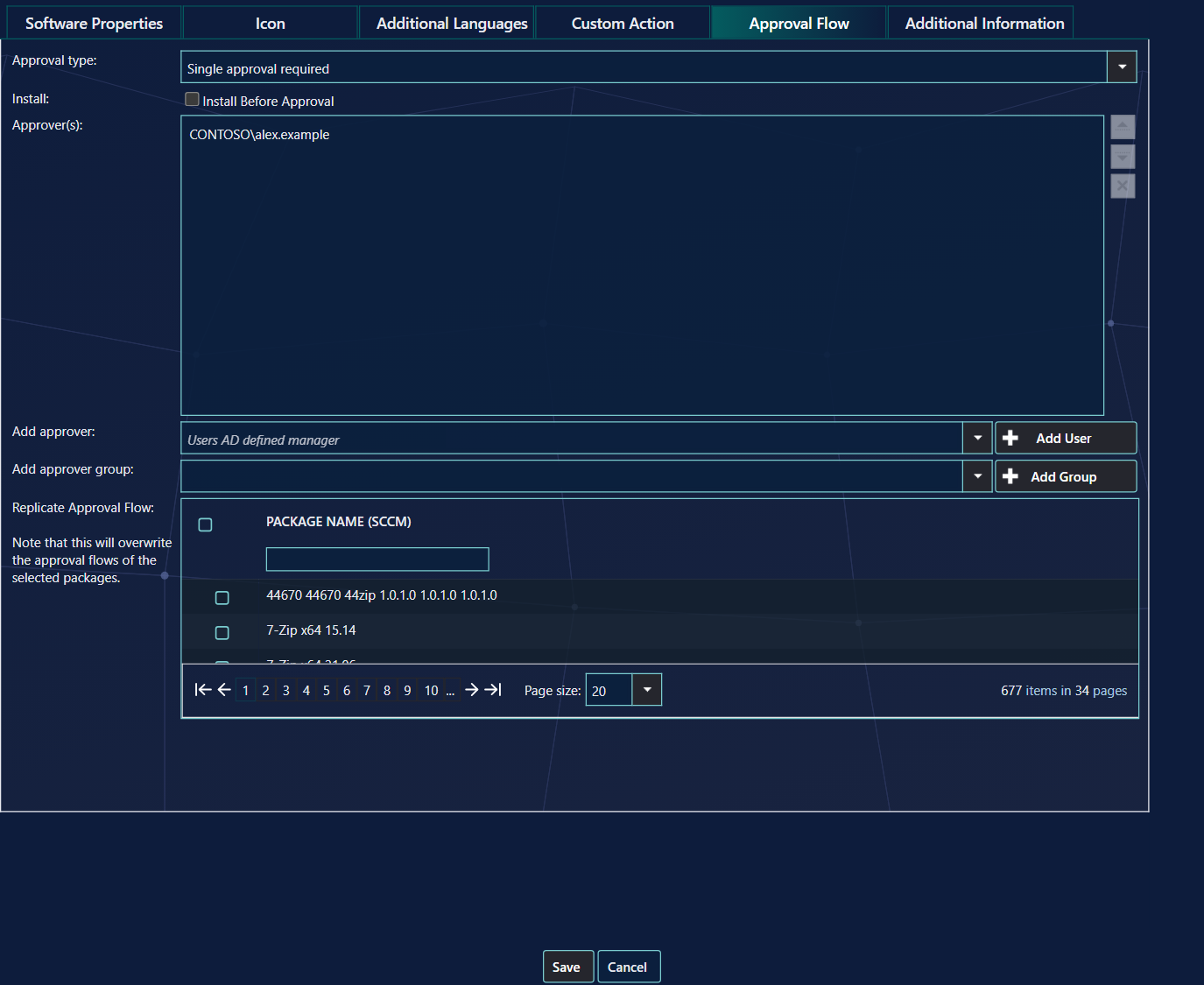
The tab is only there for roles that may change approval flows.
2 Approval types
| Approval type | Meaning |
|---|---|
| This item does not require approval | The order is installed at check-out. |
| Single approval required | One of the approvers must approve. |
| Multiple approval required | All approvers must approve, in any order. |
| Multiple sequential approval required | All approvers must approve, one after the other, in the order of the list. |
In every type, one decline stops the order. Approvers are mailed a link to the approvals page. By default an approver who already has orders waiting is not mailed again for each new one; Always send mail under Settings › Shop changes that.
3 Install before approval
Install Before Approval installs the application at once and runs the approval afterwards. If the order is declined, the application is uninstalled again. Combine it with an automatic decline (Settings › Shop) so an order nobody decides does not stay installed for ever. It cannot be used for software groups.
4 Adding approvers
| Approver | How to add |
|---|---|
| A person | Search under Add approver and click Add User. |
| The requester's manager | Choose Users AD defined manager — or leave Add approver empty — and click Add User. The manager defined in Active Directory approves. |
| A group | Choose the domain, search under Add approver group and click Add Group. With Entra, groups come from your Intune tenant; choose the tenant first when there are several. |
You can mix people and groups. Every member of a group is mailed, and the first member to decide decides for the group; the flow then moves on.
5 The approvers and their order
Approver(s) lists the approvers. Drag them, or use the arrows, to change the order — it matters for sequential approval. × removes one. A flow with no approvers needs no approval.
6 Conditions
The button next to an approver opens Approver Condition. With a condition, the approver is only asked when it is true:
| Condition type | Example |
|---|---|
| Requester computer must be member of collection | The Denmark team leader approves orders for computers in Clients – EU – Denmark. |
| Requester must be member of Organizational Unit | A department's manager approves orders from that department's users. |
An approver with a condition shows a different icon. Conditions are not available when approvers come from Entra, or when SoftwareCentral only manages Intune.
7 Copying a flow
Replicate Approval Flow copies this flow to other applications. Tick them in the list — the box at the top ticks all — and click Save. You are asked to confirm, because their own flows are overwritten.
8 Best practice
- Set an automatic decline when you use Install Before Approval. The setting Days before automatically decline orders that have install before approval enabled and is not approved sets after how many days such an order is declined. Use 0 to turn it off.
- Install Before Approval uninstalls the application when an approver declines. The checkbox tooltip says: If it is rejected by an approver it will be uninstalled.
- Check the flow before you click Save with Replicate Approval Flow. The approval flows of the selected applications are overwritten, and you are asked to confirm first.
9 Troubleshooting
| Symptom | Cause | What to do |
|---|---|---|
| “This user does not have a mail address registered in Entra ID.” | The approver comes from Entra ID and has no mail address there. The approver is not added. | Add a mail address to the user in Entra ID, then add the user again. |
| An approver you added is missing after you click Save. | The approver has no mail address. The entry “Failed to get mail address for user…” is written to the log, and that approver is left out of the flow. | Open the Log, find the entry, add a mail address to the user, and add the approver again. |
| “Failed to save approval flow for package with id…” in the log. | The flow could not be saved. The error is written to the log as a critical entry. | Open the Log, read the entry, and click Save again. |