Open it from Shopping › Shop Statistics. The figures cover orders from both the new shop and the classic shop, because both write to the same order tables. Choose a tab at the top.
1 Top 10 Items
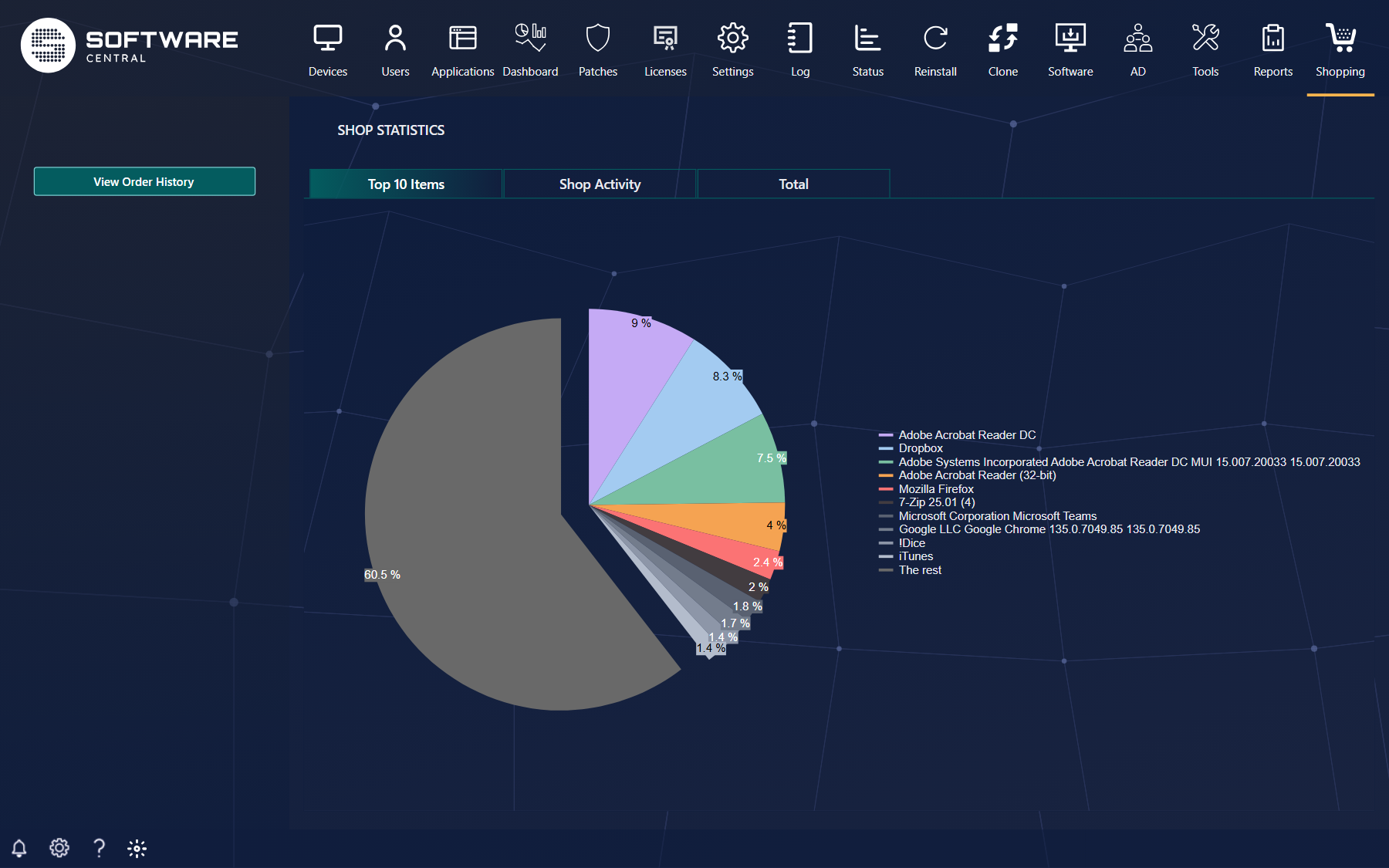
The ten items ordered most often, with each one's share of all orders in percent. The rest is every other item together. Point at a slice to see its value.
2 Shop Activity
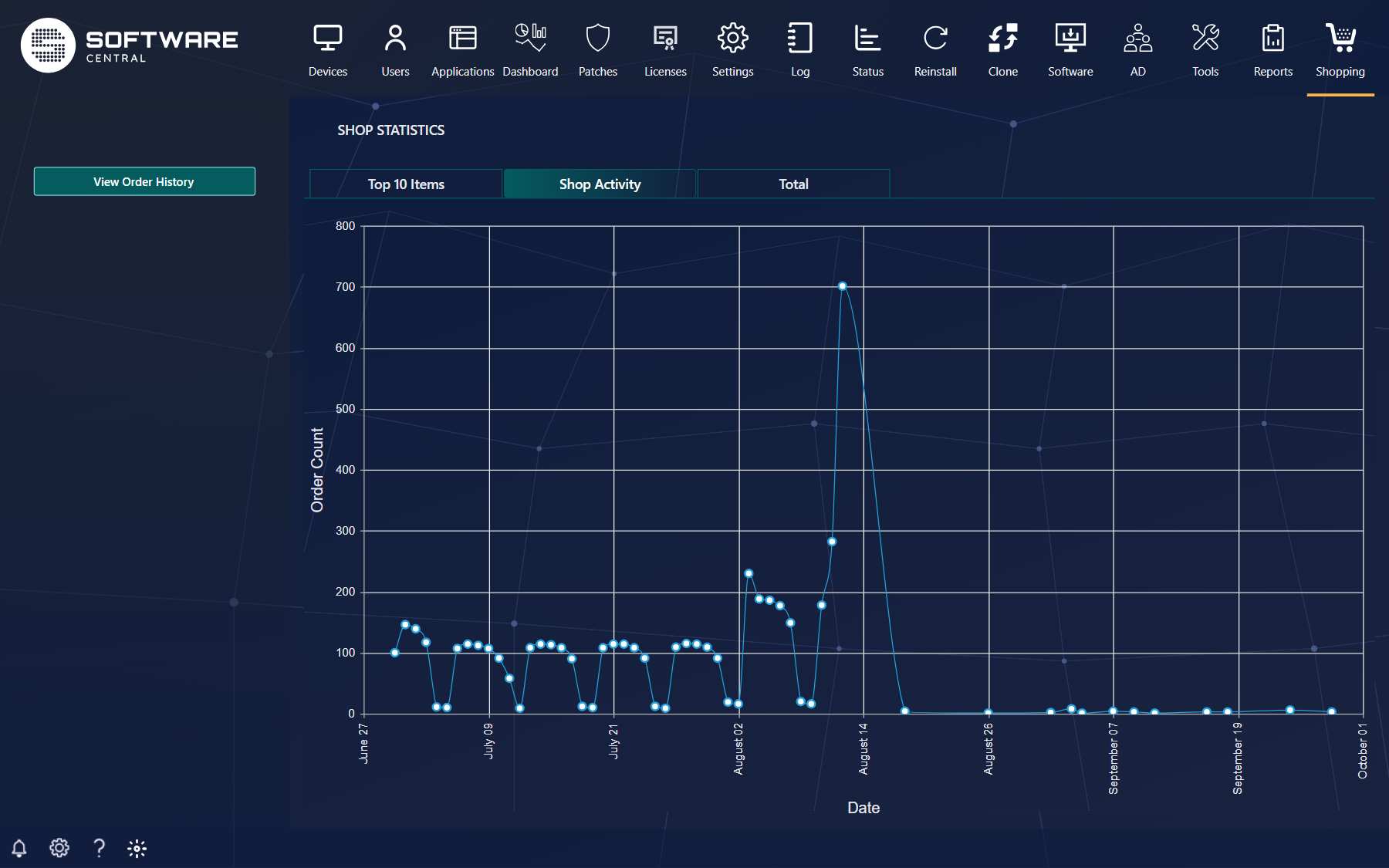
The number of orders placed each day for the last three months. Point at a dot to see the date and the count. Use it to see the effect of a campaign or a new message in the shop, or to plan for a busy week.
3 Total
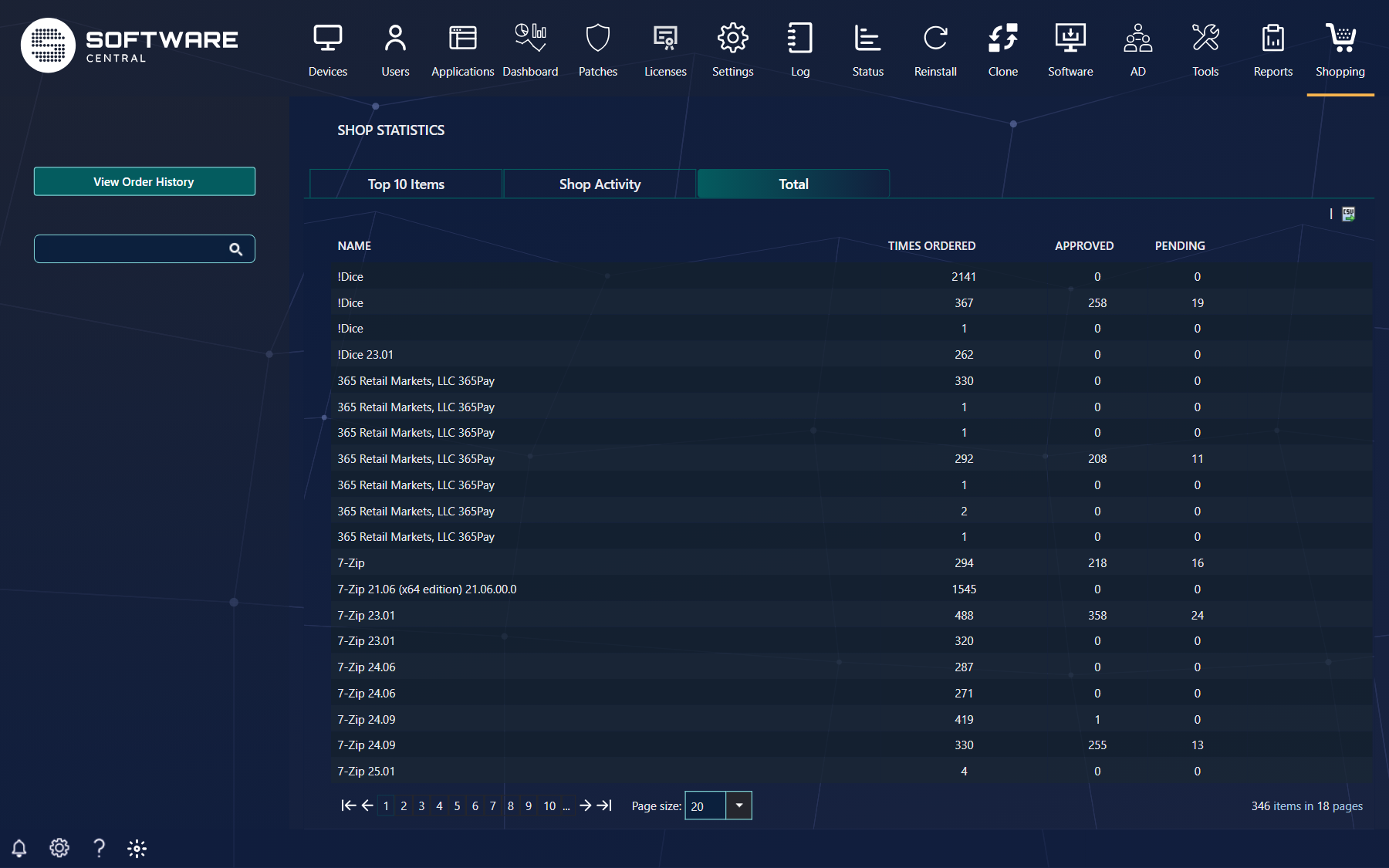
| Column | What it tells you |
|---|---|
| Name | The application or custom shop item. Each row is one package, application or item, so a name can appear more than once, for example for a program that exists both in Configuration Manager and in Intune. An item that has since been deleted shows as Deleted object with id. |
| Times Ordered | All orders for it, whatever happened to them. |
| Approved | Orders whose last approval step is approved. |
| Pending | Orders whose last approval step is still waiting for an approver. |
Orders that needed no approval count in Times Ordered only, so Approved and Pending can both be 0 for a popular free item. The search box on the left, shown on this tab only, filters the list by name: type part of a name and press Enter. The CSV button above the grid exports every row, not just the page you see.
4 Order history
View Order History on the left opens the history of every order in the shop. See Order History.
5 Best practice
- Use the CSV button to get the whole list. The export ignores paging, so the file has every row, not only the page on the screen.
- Search by name and press Enter. The search finds the items that contain the words you type.
6 Troubleshooting
| Symptom | Cause | What to do |
|---|---|---|
| A row is named “Deleted object with id: number”. | The package or shop item was deleted after orders were placed for it, so its name is no longer known. Its orders are still counted. | Nothing to do. |