1 The list
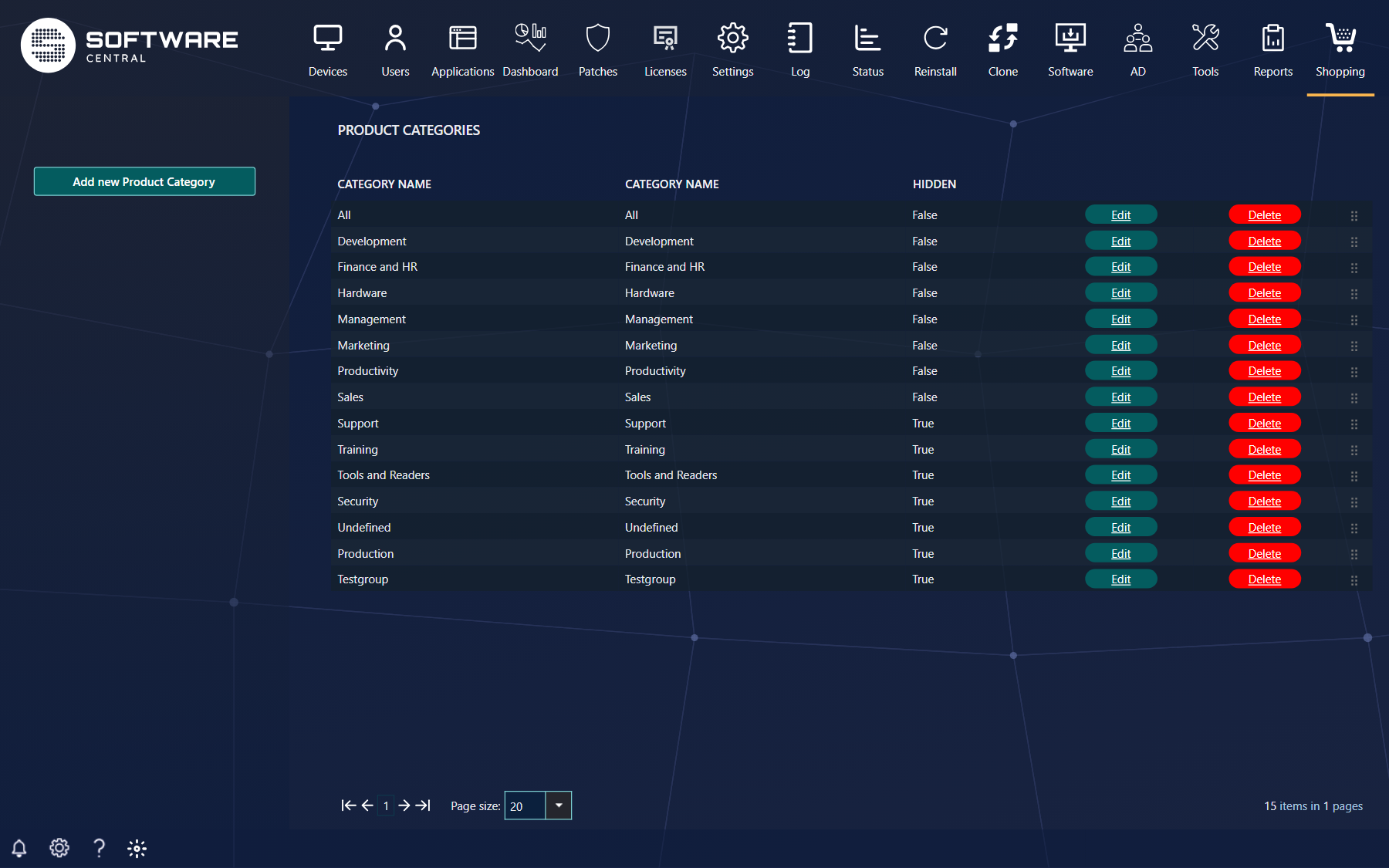
The categories in the order shoppers see them. Drag a row by its handle to move it; the new order is saved at once. Hidden categories exist but are not offered in the shop.
2 Creating and editing
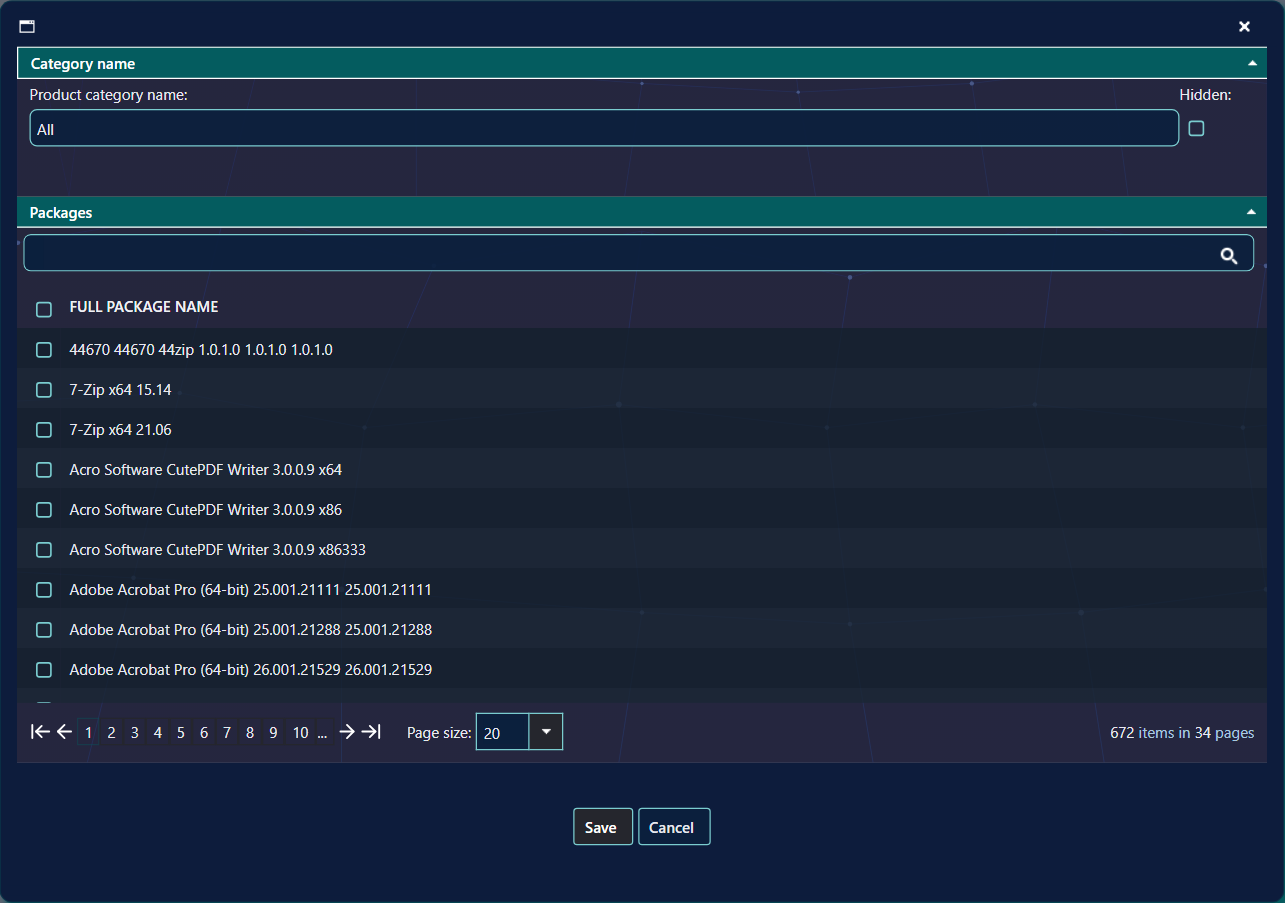
Click Add new Product Category, or Edit on a row. Give the category a name, choose whether it is hidden, and tick the applications that belong in it — search to find them. Click Save. You can also put an application in categories from its own shop settings, in Software Administration and Custom Shop Items.
3 In the shop
Shoppers filter by category when Show Category Dropdown-menu is on (Settings › Shop). The shop opens on the Default Category set there; All means no filter. In the new shop the chosen category shows as a chip above the results, and hidden categories are never offered.
4 Best practice
- Drag a row to change the order. Each move is saved straight away, so there is no separate save step for the order.
- Use Hidden to keep a category out of the shop. A hidden category is left out of the categories that shoppers can choose.
- Choose a name that is not used yet. A new category with the name of an existing one is refused.
5 Troubleshooting
| Symptom | Cause | What to do |
|---|---|---|
| “Category name cannot be empty” | The Category name box was empty when Save was clicked. | Type a name, then click Save. |
| “* Category already exists with this name” | A new category was saved with a name that is already in the list. | Type a different name. To change the existing category, click its name in the list instead. |
| A category does not appear in the shop. | Hidden is ticked for the category. The Hidden column in the list shows it. | Click Edit on the category, untick Hidden, and click Save. |