1 Classic and new approvals page
The address is https://<your SoftwareCentral>/Approve, and the approval mails link to it. Who
gets which page follows the new shop's rollout switch:
| Approver | Page |
|---|---|
| Uses the classic shop | This page, Approvers View. |
| Uses the new shop | The new approvals page — see Approving orders. |
| On a phone | The mobile approvals page. |
2 The page
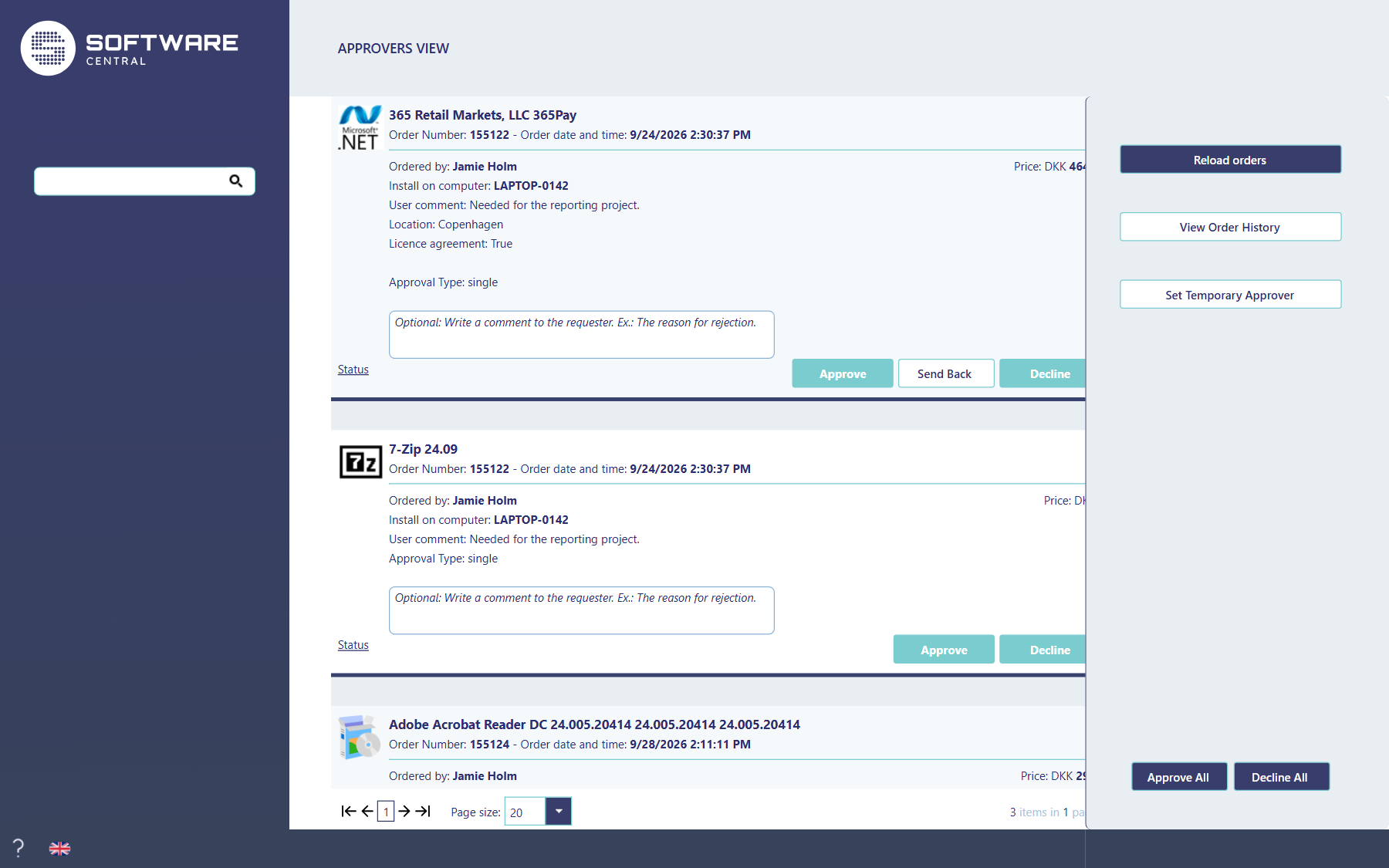
| Part | What it does |
|---|---|
| Search (left) | Narrows the list by application, requester, computer or order number, the same way as in Manage Orders. |
| The orders | The orders waiting for you: your own, those for the groups you are a member of, and device reassignment requests. The cards show the same details as in Manage Orders. |
| Status | The approval flow of the order: who else approves and who has done so. |
| Reload orders | Fetches orders that arrived since the page opened. |
| View Order History | Your own decided orders; see Order History. |
| Set Temporary Approver | See below. |
| Approve All, Decline All | Decide every order on the page you are looking at. |
| ? and the flag | This help, and the language of the page. |
3 Deciding
| Button | What happens |
|---|---|
| Approve | Your step is approved; the order moves on to the next approver, or is installed. |
| Send Back | Returns the order to the requester to change the order details. Only shown for orders with order details. |
| Decline | The order is declined and not installed. |
The comment field sends a message to the requester with your decision, for example the reason for a decline or what to change when you send it back.
4 Temporary approver
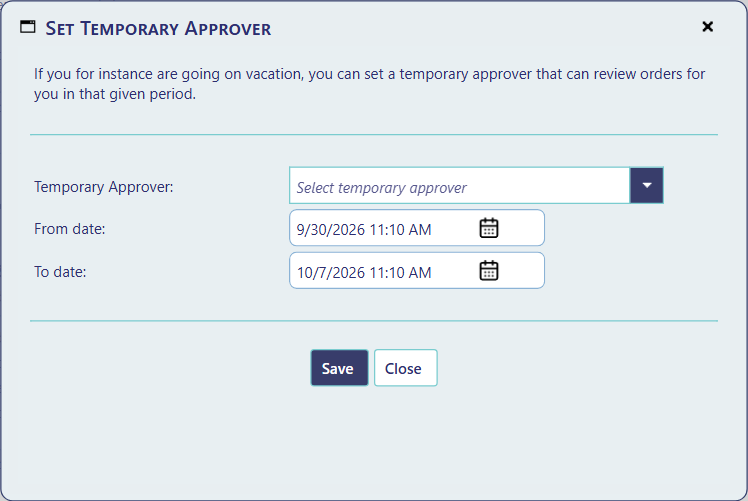
Going on holiday? Choose a colleague and a period, and click Save. In that period your colleague can review the orders waiting for you. Remove Temporary Approver ends it early.
The button is only there when approvers may choose their own stand-in (Settings › Shop › Show the 'Set Temporary Approver' option in approvers view). Administrators can also set temporary approvers for anyone in Approver Management.
5 Mails and language
Approvers are mailed when an order is waiting for them, with a link to this page, and reminded after the number of days set under Settings › Shop. The language chosen on this page is the language of the mails the approver receives.
6 Best practice
- Turn on the temporary approver option if approvers should choose their own stand-in. The button Set Temporary Approver is only shown when Show the 'Set Temporary Approver' option in approvers view is on, under Settings › Shop.
- Use Reload orders to fetch orders that arrived after the page opened.
7 Troubleshooting
| Symptom | Cause | What to do |
|---|---|---|
| No Send Back button on an order. | The order has no order details, and the button is hidden for it. | Use Decline with a comment that says what must change. |
| No Set Temporary Approver button. | The option Show the 'Set Temporary Approver' option in approvers view is off under Settings › Shop. | Ask your administrator to turn the option on, or to set the temporary approver in Approver Management. |
| “Failed to approve all orders.” is in the log, and some orders stay open after Approve All. | An error stopped the bulk approval. The error is written to the log as a critical entry. | Open the Log, read the entry, and approve the remaining orders one at a time. |