1 The page
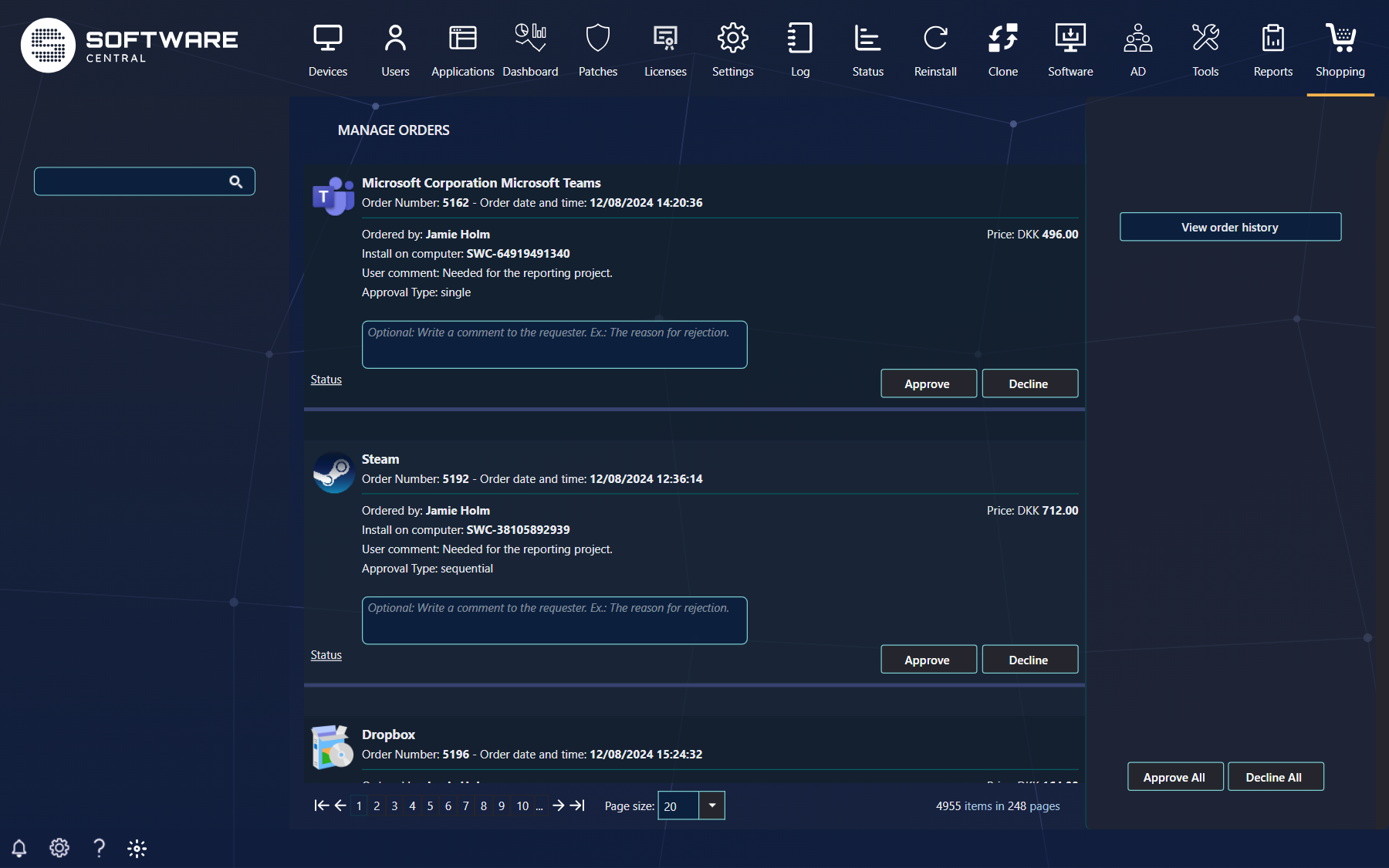
| Part | What it does |
|---|---|
| Search (left) | Narrows the list. See Searching. |
| The orders (middle) | Every waiting order, one card each, with the page size at the bottom. |
| View order history | Opens the history of decided orders; see Order History. |
| Approve All, Decline All | Decide every order on the page you are looking at — not the orders on other pages. |
2 An order
| On the card | What it tells you |
|---|---|
| Application | The name, the order number and when it was ordered. |
| Ordered by | The requester's user name, or full name when Full name instead of user name is on (Settings › Shop). |
| Install on computer | The device, with its organisational unit. |
| Lease | The number of months, for leased applications. |
| User comment | The requester's message to the approver. |
| Order details | The requester's answers, one line each, when the application asks for them. |
| Approval Type | single, multiple or sequential. |
| Download Attachments | The files the requester attached, when there are any. |
| Price | What the application costs. |
Requests to make a device another user's primary device appear here too, as Assign computer … to user …. They have no Status link.
3 Approving and declining
Write a comment to the requester if you like — for example the reason for a decline — and click Approve or Decline. An approved order is installed, and a declined one is not, as if the approver had decided. The comment is mailed to the requester, when mails are on, and shown in their My Account.
4 Searching
Type in the search box and pick a suggestion. Each choice becomes a token; several tokens narrow the list together, and the × on a token removes it. Plain text finds orders by application, requester, computer or order number. To search by approver, pick an approver from the suggestions.
5 Approval status
The Status link under the application's icon shows the approval flow of that order: every approver, who has approved and who is still waiting. Green is approved, blue is you, and grey is waiting.
6 Best practice
- Check the approval flow before you decide. Click Status under the application icon. It lists every approver, who has approved and who is still waiting, so you can see whether your decision is the last one needed.
- Use Approve All and Decline All only for the page you are looking at. They act on the orders listed on the current page; orders on other pages are not changed. Narrow the list with the search box first.
- Write the reason in the comment before you decline. The comment is saved with the order as the message from the approver, and it shows as Message from approver in View order history.
7 Troubleshooting
| Symptom | Cause | What to do |
|---|---|---|
| The Approve and Decline buttons, and Approve All and Decline All, are not shown. | Your security role does not have the permission to approve or decline orders for others. Without it the page only lists the orders. | Ask your SoftwareCentral administrator to give your role the permission to approve or decline orders. |
| “Data is unavailable. Try again later.” is shown in place of the approval flow. | The approval flow could not be loaded. The error is written to the log as the critical entry “Failed to load approval status.” | Click Status again later. If it keeps happening, open the Log and read the entry for the error. |
| The order stays in the list after you click Approve or Decline. | The decision could not be saved. The page writes the critical log entry “Failed to approve or decline item.” and does not show it on the screen. | Open the Log, read the error behind that entry, fix it, and decide the order again. |