1 Overview
The Password Manager is used to manage passwords for the service accounts which execute scripts. The application pool user is not included in the Password Manager.
The Password Manager can be found in the Settings menu:
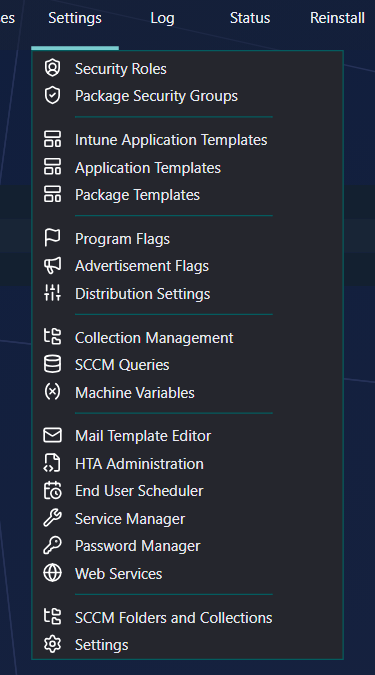
Users from the Password Manager will be available in the “run as” drop-downs in Manage Tools, Software Administration, Custom Items and Custom Actions.
2 Find a user
Use the search bar in the left menu to find a user.
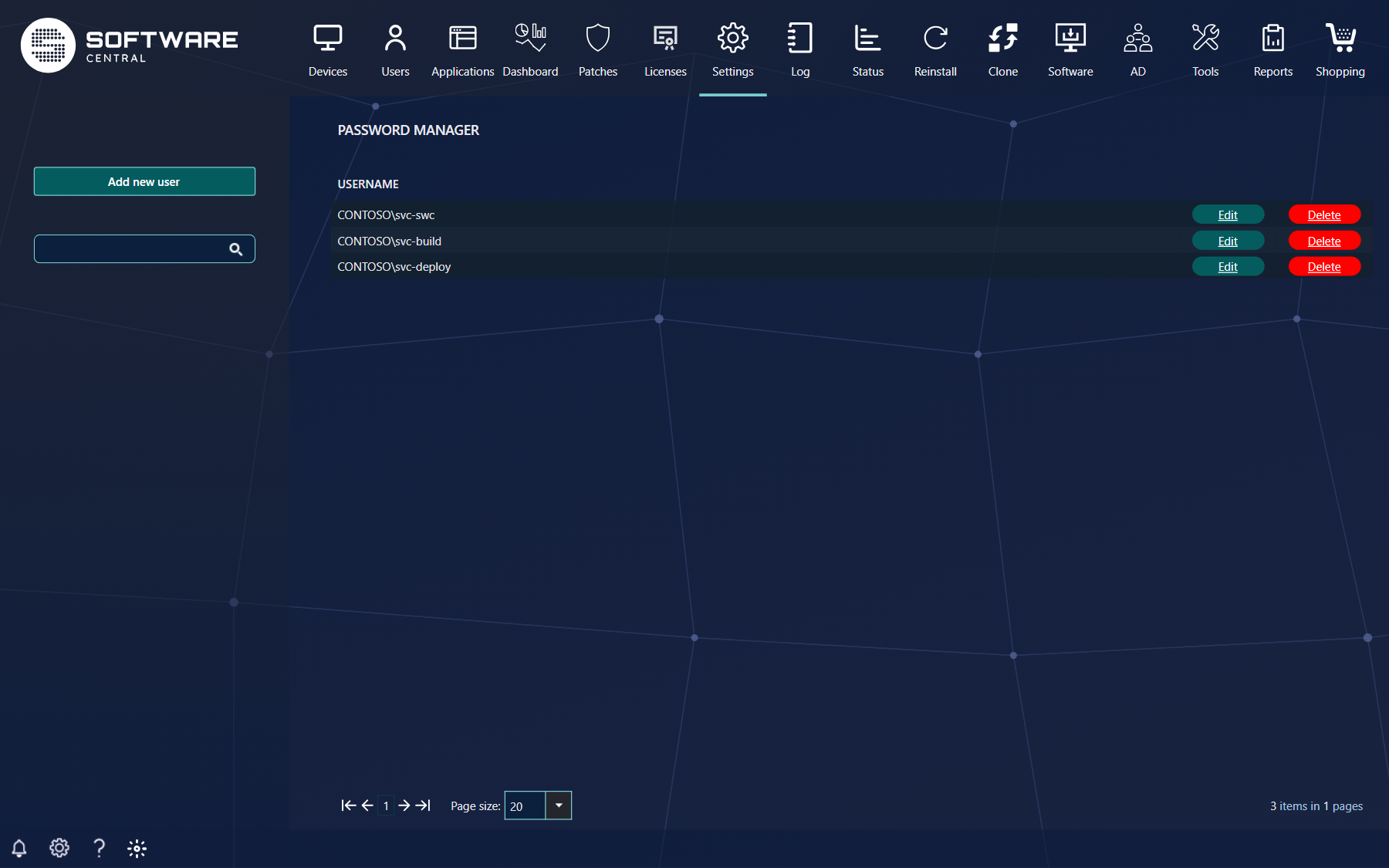
Type part of the user name in the search box and press Enter. The list shows the users whose names contain every search value.
3 Add a user
To add a new user, click on the Add new user button in the left menu. A new window will open:
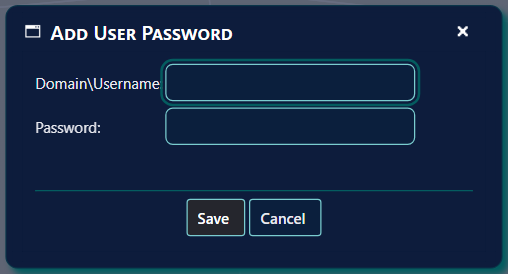
Type in the username and the password. Note that the username must contain the domain name, for example
CONTOSO\svc-swc.
Click “Save” to save the user. Before it is saved, SoftwareCentral checks the user name and password against the domain. The user is saved only if the domain accepts them. When the user is saved, the window closes and the list is updated.
4 Edit a user
To edit a user, click on the Edit button next to the user. A new window will open:
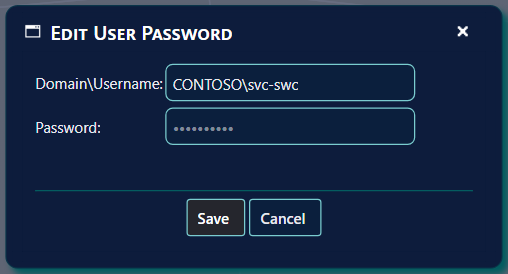
Change the password or username and click Save.
- To keep the stored password, leave the dots as they are.
- To change the password, type the new password in the Password box.
Save always checks the user name and password against the domain, as when you add a user.
5 Delete a user
To delete a user, click on the Delete button next to the user. A window asks whether you want to delete the user.
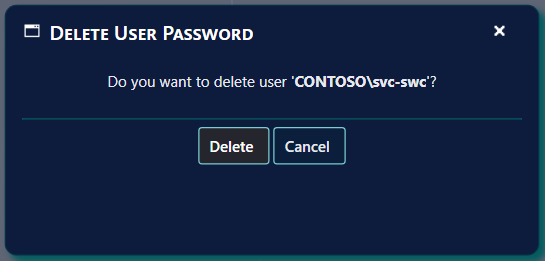
If the user is used to execute any actions, the window says so, for example User is used to execute 3 actions., and the Delete button is greyed out. Hold the pointer over the message to see the list of actions. Give those actions another user first, in Manage Tools, Custom Items or Custom Actions. Then delete the user.
6 Best practice
- Passwords are never shown again. The stored password is encrypted, and the window shows only dots. Keep your own record of the password, because it cannot be read back here.
- Do not add the application pool account here. The application pool user is not included in the Password Manager.
- Enter the new password after a change in Active Directory. The Password Manager keeps the password you entered. A script that runs with an old password fails. Edit the user and type the new password.
- Reassign the actions before you delete a user. The Delete window does not allow it while actions use the user.
- Check the log after you add a user. When a script runs with the account, the log shows Successfully executed with the name of the account. A failed run is logged as a critical message.
7 Troubleshooting
| Symptom | Cause | What to do |
|---|---|---|
| The window shows "Please enter the domain in the username." | The user name has no domain, for example only svc-swc. | Type the user name as DOMAIN\username, for example CONTOSO\svc-swc. |
| The window shows "Wrong username or password." | The domain did not accept the user name or the password. The account may be locked, or its password may have expired. | Check the user name and password in Active Directory. Then edit the user and type the password again. |
| The window shows "Username already exists." | A user with the same user name is already in the Password Manager. | Edit the existing user instead of adding it again. |
| The Log shows "Failed to validate the credentials of '...' in the domain '...'." | SoftwareCentral could not check the credentials against the domain, for example because the domain could not be reached from the SoftwareCentral web server. | Check that the SoftwareCentral web server can reach a domain controller of that domain. Then save the user again. |
| The Delete button is greyed out, and the window says "User is used to execute N actions." | One or more tools, custom items or custom actions run with this user. | Hold the pointer over the message to see the actions. Change each action to another user, then delete this user. |
| The Log shows "Failed to execute '...' from '...' with user '...'." | The script did not start with this account. The stored password may be wrong, or the account may not be allowed to run the script. | Check the password of the account in the Password Manager, and check that the account can run the script. Then run it again. |
See also Mail Template Editor and Service Manager.