1 Applications
Open Settings › Intune › Applications. The page has three tick boxes. Click Save Settings to keep your changes.
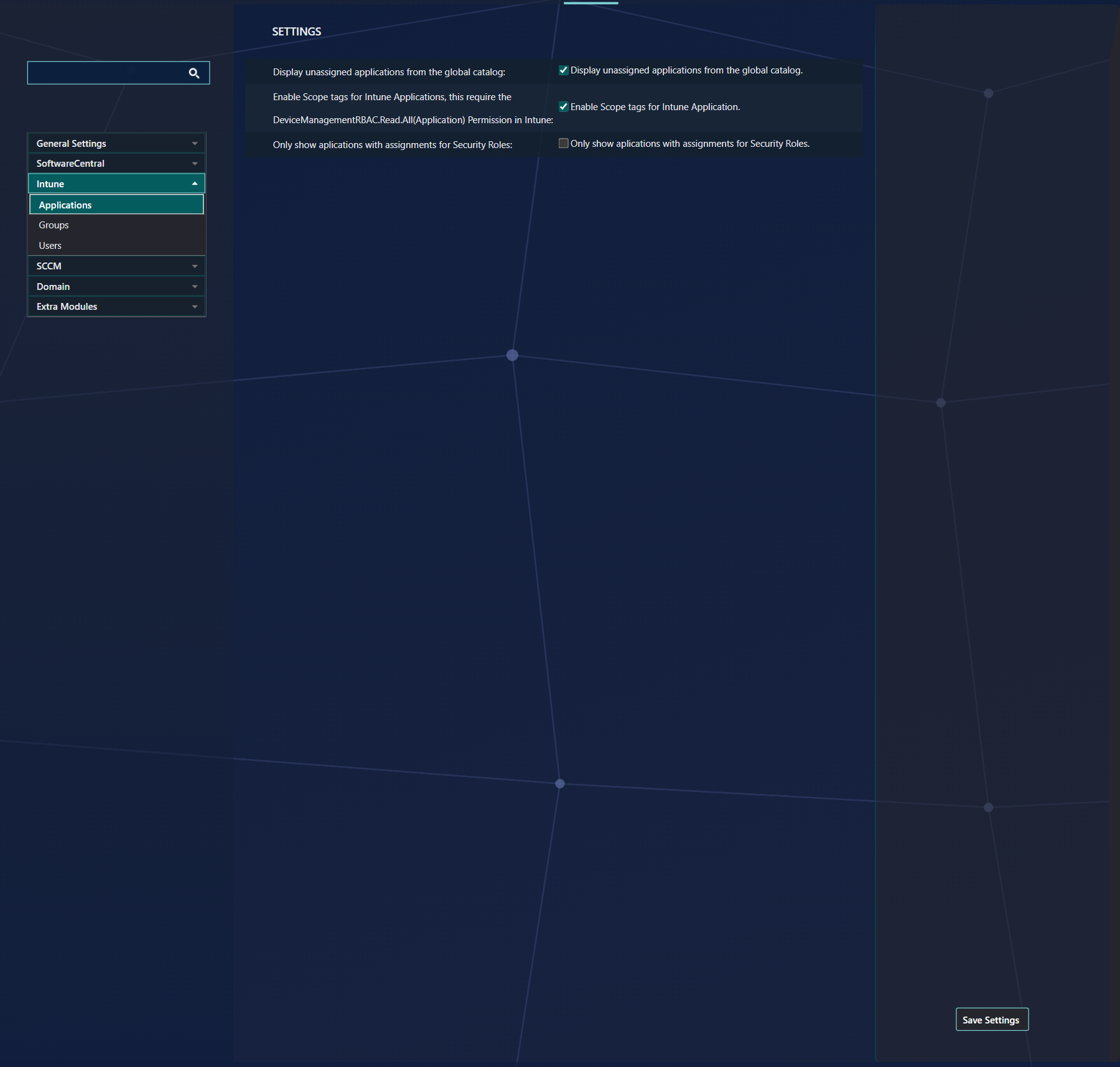
| Setting | What it does |
|---|---|
| Display unassigned applications from the global catalog tick box Display unassigned applications from the global catalog. |
When ticked, applications from the global catalog are shown in SoftwareCentral even when they are not assigned to any group. When not ticked, all applications from the global catalog that are not assigned to any groups are hidden from all interfaces in SoftwareCentral. |
| Enable Scope tags for Intune Applications tick box Enable Scope tags for Intune Application. |
When ticked, the scope tags you choose for a Win32 application are sent to Intune when SoftwareCentral creates the application. This needs the DeviceManagementRBAC.Read.All (Application) permission in Intune. |
| Only show applications with assignments for Security Roles tick box Only show aplications with assignments for Security Roles. |
When ticked, security roles only see the Intune applications that have an assignment. Applications without an assignment are hidden from them. The permission DeviceManagementRBAC.Read.All (Application) is needed for this setting as well. |
Leave Display unassigned applications from the global catalog off if your users should only see the applications you have deployed.
2 Groups
SoftwareCentral creates an Entra ID group for each application deployment, and it finds the groups it created by the prefix. Open Settings › Intune › Groups to set the prefix and the suffixes.
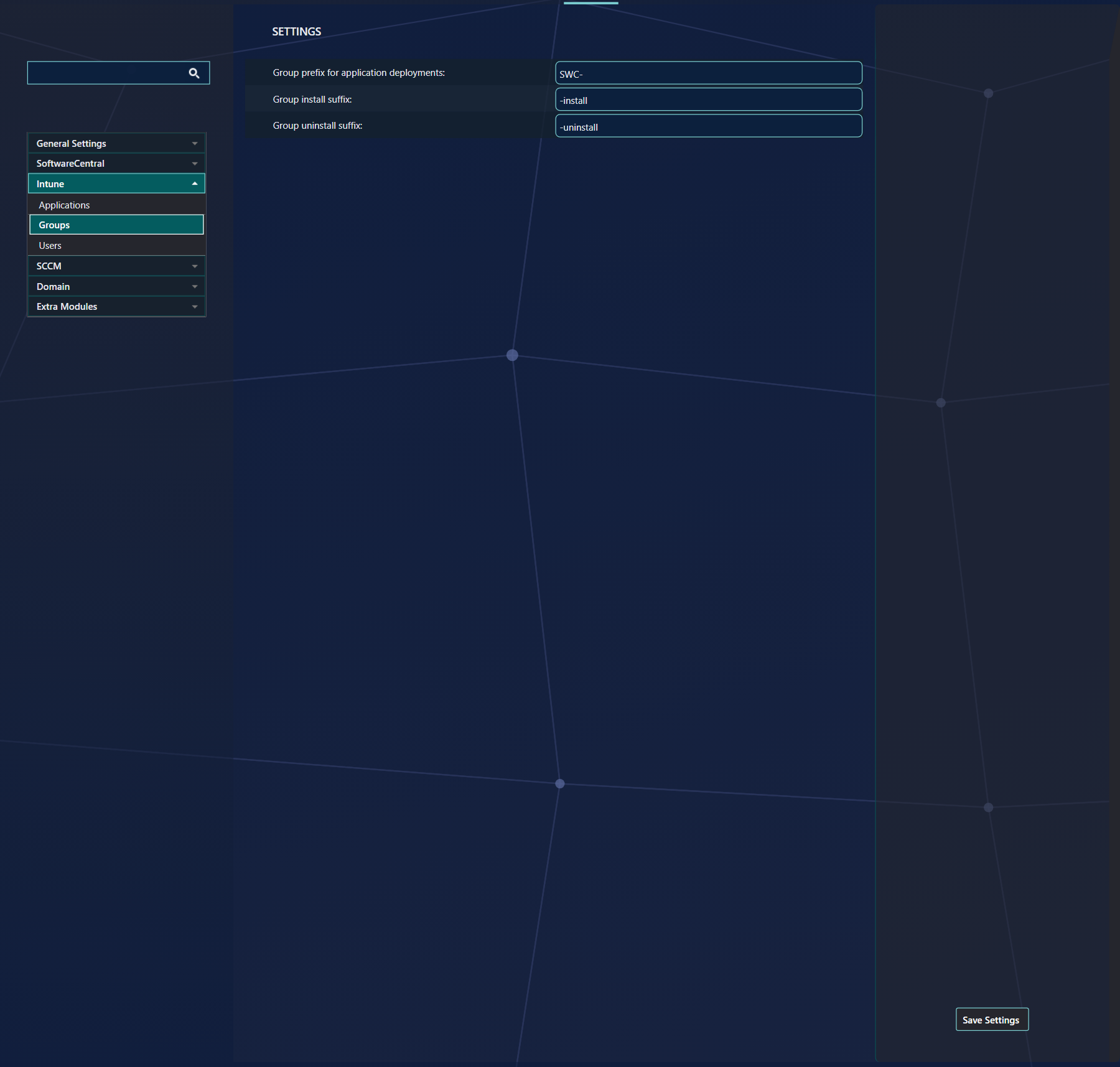
| Setting | What it does | Default |
|---|---|---|
| Group prefix for application deployments | SoftwareCentral will look for groups with this prefix when deploying an application to a user or device. If there are no matches, a new group with this prefix will be created. | SWC- |
| Group install suffix | SoftwareCentral will add this suffix to new groups used to install applications. | If the box is empty, the default install suffix of SoftwareCentral is used. |
| Group uninstall suffix | SoftwareCentral will add this suffix to new groups used to uninstall applications. | If the box is empty, the default uninstall suffix of SoftwareCentral is used. |
Changing the prefix
When changing this value, SoftwareCentral will no longer be able to detect groups created with the old prefix.
Both suffixes are saved together
The install suffix must not be empty, and the install and uninstall suffixes must be different. If not, neither suffix is saved,
the prefix is saved, and the reason is written to the SoftwareCentral log only. Nothing is shown on the page.
3 Best practice
- Choose the group prefix before you deploy anything. Changing it later means SoftwareCentral no longer finds the groups it made with the old prefix.
- Add the Intune permissions the settings need before you tick Enable Scope tags for Intune Applications or Only show applications with assignments for Security Roles. See Intune Permissions.
- If you limit what the security roles see, tick Only show applications with assignments for Security Roles, so each role sees only the applications it is assigned.
- Use two different suffixes for install and uninstall, so that the install and uninstall groups can be told apart by their names.
4 Troubleshooting
| Symptom | Cause | What to do |
|---|---|---|
| “Unable to create group. Prefix and suffix length combined exceeds 120 characters.” | The group prefix and the suffix together are longer than 120 characters. | Use a shorter prefix or suffix, then save and try the deployment again. |
| The suffixes are not saved and no message is shown | The install suffix is empty, or the install and uninstall suffixes are the same. | Enter a non-empty install suffix and an uninstall suffix that is different from it, then click Save Settings. |
| Deployments do not find the groups created before | The group prefix was changed, so the old groups no longer start with the prefix. | Set the prefix back to the old value, or rename the groups so that they start with the new prefix. |