1 The Settings page
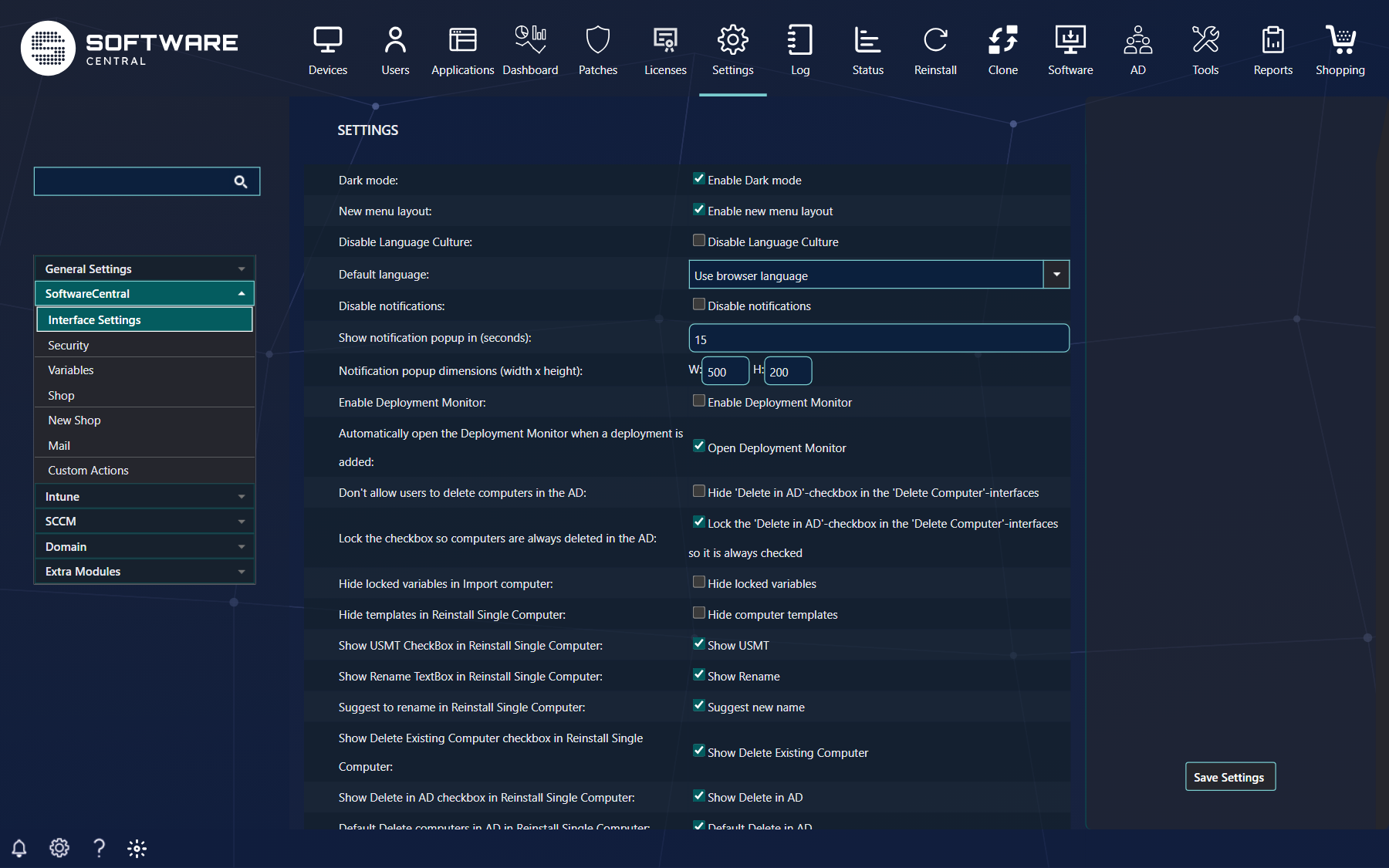
Choose a group on the left, then one of its items. The settings for that item open in the middle. One group is open at a time.
Save Settings saves everything
Save Settings on the right saves all items at once, not only the one you see, so you can change settings
in several places and save once. Changes are lost if you leave the page without saving.
2 Finding a setting
Type a word in the search box above the menu, for example approver or mail. The search looks in the names of the settings on every item, highlights the matches and opens the first one; the < and > buttons below the box move between the matches, also across items and groups.
3 The menu groups
| Group | Items | Described in |
|---|---|---|
| General Settings | SoftwareCentral Update, Server Configuration, Intune Configuration, Maintenance, Configuration | General Settings, Intune Configuration |
| SoftwareCentral | Interface Settings, Security, Variables, Shop, New Shop, Mail, Custom Actions | SoftwareCentral; the shop items in section 4 |
| Intune | Applications, Groups, Users | Intune |
| SCCM | Shares, Clients, Packages, Collections | SCCM, SCCM Folders and Collections |
| Domain | Active Directory, Domains | Domain |
| Extra Modules | SoftwareCentral Plus !, License Module, Patch Management, Dynamic HTA, Prestage Computer (New HTA), ServiceNow, Citrix, Other, PowerBi, Robopack | The guide for each module, for example Patch Management Settings, ServiceNow tickets from the shop and Robopack settings |
Which groups and items you see depends on your licence and the modules you use.
4 The shop settings
The shop is set up in several places, and each has its own guide:
| Where | Guide |
|---|---|
| SoftwareCentral › Shop and New Shop | Shop settings — every setting on both items, row by row, and which shop it affects. |
| The text editors on Shop (left menu, button texts, check-out message) | Shop texts and settings |
| Who gets the new shop | Rolling out the new shop |
| Computer name lookup and the primary-device settings on Shop | Shopping for primary devices and Using the client for the shop |
| SoftwareCentral › Mail | The mails the shop sends to requesters and approvers. |
| Extra Modules › ServiceNow | ServiceNow tickets from the shop |
5 Best practice
- Click Save Settings when you are done. It saves every item at once, not only the one you see: the page has one Save Settings button for all of them.
- Save before you leave the page. Leaving the page does not ask you to save, so changes that have not been saved are lost.
- Search with a word from the setting’s name. Each match is highlighted, and the < and > buttons move between the matches across items and groups.
6 Troubleshooting
| Symptom | Cause | What to do |
|---|---|---|
| The search box shows “Not found”. | No setting name that is shown on this installation contains the word. Settings that are hidden on this installation are not searched. | Try a shorter or different word, or open the group from the menu and look for the setting there. |
| A change you made is not there when you come back to the page. | The page was left before Save Settings was clicked. | Make the change again, click Save Settings, and then leave the page. |