1 Where to find the settings
Open Settings, choose the Domain group, then Active Directory for the settings on this page. The Domains item in the same group lists the domains (see The Domains tab).
The label of each setting says when it applies. Settings marked Only applies to local group in AD-Module are for the local group functions.
Some rows are not shown in some installations: the rows that are only for ConfigMgr (such as AD-Deployment) are hidden in an Intune-only installation, the rows marked for the full product are hidden when SoftwareCentral runs as Application Manager Only, and the whole Domain group is hidden when the installation uses Entra ID sign-in only.
2 Search and AD-Deployment
| Setting | What it does |
|---|---|
| Minimum length of search string in Active Directory (optional for the AD module) | The number of characters you must type in a drop-down box before SoftwareCentral queries Active Directory. Set this value higher than 0 to improve search performance in Active Directory. The tooltip suggests at least 2 characters for big domains. |
| Use AD-Deployment (Use AD-Deployment where possible) | When enabled, SoftwareCentral adds devices to AD groups instead of collections. The install and uninstall collections of the packages need a query rule that points to an AD group. The AD-group name in the query must start with the domain name, followed by a backslash and the group name. If no query rule is found for a collection, SoftwareCentral creates a direct membership rule on the collection instead. See AD-Deployment. |
| Refresh Collection Memebership (Refresh Collection Membership after a deployment) | Refreshes the collection membership after a software deployment, so computers join their deploy collections sooner. This only has an effect when AD-Deployment is enabled. Otherwise it will slow down the system. The tooltip also warns that the refresh adds load to the collection evaluator, so with many deployments the wait before computers become members can grow. |
3 Local group administration
These settings apply to the local group functions. Their labels say Only applies to local group in AD-Module where that is the case.
| Setting | What it does |
|---|---|
| Use pre Windows 2000 domain name (only applies to local group in AD-Module) | Enables support for pre Windows 2000 domain names in the local group administration interface. After enabling this, go to the Domains tab and set up the pre Windows 2000 domain names. |
| Overwrite pre Windows 2000 domain names with normal domain name when users login | Enable this if users sign in to Windows with the pre Windows 2000 domain name, but you require that users are registered with the normal domain name in SoftwareCentral and in the services that SoftwareCentral calls. |
| Ignore ping function in local group (only applies to local group in AD-Module) | Tries to connect to the client even if a ping does not return. This only applies to the local group administration interface. |
| Use Fully Qualified Computer Name in local group functions | When SoftwareCentral adds a user to a computer’s local group, the computer’s fully qualified name is used. |
| Use ObjectSid in local group functions | When SoftwareCentral adds a user to a computer’s local group, the user’s ObjectSid is used. |
| Send mail notificaiton (send local group notification mail, only applies to local group in AD-Module) | Sends a mail notification to users who are added to a local group for a given period. The text of the notification is edited with the Mail Template Editor, in the template named Local Group Notification. |
| Maximum timespan a user can set to be member of a local group (Days and Hours; set to 0 for no limit) | The longest time a user can be a member of a local group, in days and hours. 0 means no limit. Each box accepts 0 to 999. |
| Maximum number of days to try and remove a user from a local group | When a local group membership expires, the user must be removed from the local group by SoftwareCentral. If the device is not online, the user remains in the local group until it is removed. This setting is the number of days SoftwareCentral keeps trying. The value can be from 1 to 365; the default is 365. If you have many users which SoftwareCentral keeps track of, reduce this number to improve performance. |
4 Directory lookups and sign-in
| Setting | What it does |
|---|---|
| Use double wildcard search (when searching for AD groups; this can be slow) | Searches for AD groups with a double wildcard instead of the default “starts with” search. This lets you find a part of a group name, but it slows the search down. The minimum length still applies. |
| Use Global Catalog | Uses the global catalog instead of the domain controller that is defined for the domain. This may slow down AD searches, but it can be necessary depending on the location of the SoftwareCentral web server. |
| Find AD-Group memberships with one query | Finds the nested AD-Groups of a user with one directory query instead of one search per group. This is faster for users who are members of many groups. The search per group is still used when more than one domain is configured, or when Use Global Catalog is ticked. If you turn this on, you can check it in the shop with debug mode: the log then lists both lookups and any difference between them. |
| Show description (after computer name in AD-Computer) | In the AD-Computer interface, the description of the computer is shown in parentheses after the computer name in the drop-down. |
| Organizational Unit with AD-Module templates | The AD module uses existing users as templates for new users. Use this setting to select an organizational unit with the users you want as templates. You could, for instance, create a special OU only with users for templates, such as a “Danish HR worker” and so on. The drop-down shows the OUs that can hold the templates. |
| Validate sign-in with the user principal name (Validate Windows sign-in with the user principal name (UPN)) | When enabled, a sign-in with domain\username is validated with the user principal name of the user, looked up in Active Directory. For example, CONTOSO\jdoe is validated as jdoe@contoso.com. Users still sign in with domain\username. Enable this if sign-in fails for a correct password, for example after a domain controller or web server upgrade. If the user is not found in Active Directory, the user name is used as typed. |
| User names (CN) may be different from sAMAccountNames | Turn this on if the common name (CN) of users can be different from their sAMAccountName, the name they sign in with. |
5 The Domains tab
The Domains tab lists the domains that SoftwareCentral works with. From here you add, edit and delete domains, including untrusted domains that need their own service account.
Everyone with access to Settings can see the list. Only members of the SoftwareCentral administrator role can add, edit and delete domains. Other users see the note Only SoftwareCentral administrators can add, edit and delete domains instead of the buttons.
The list
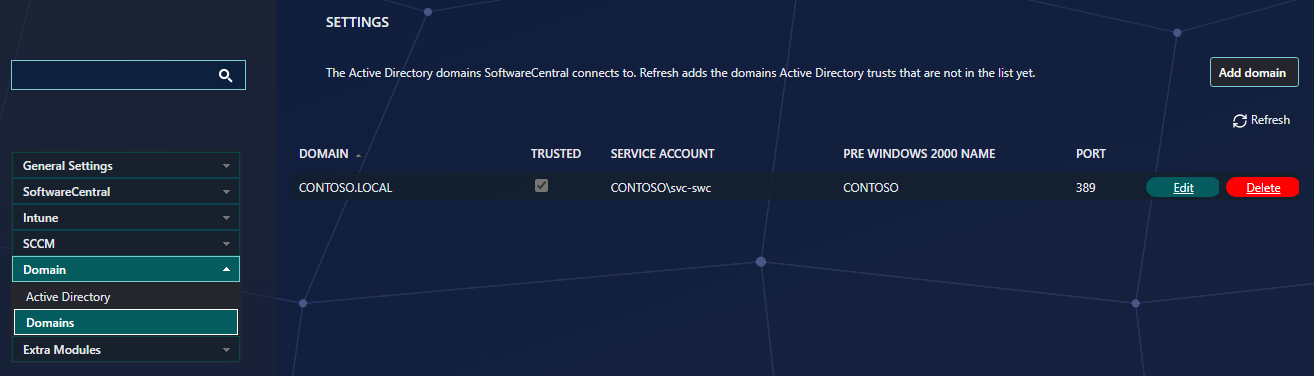
| Column | What it holds |
|---|---|
| Domain | The fully qualified domain name, for example CONTOSO.COM. |
| Trusted | Ticked when there is a trust between the domain and the domain of the app-pool user. |
| Service account | The account SoftwareCentral uses in the domain. The password is never shown. |
| Pre Windows 2000 name | The pre Windows 2000 (NetBIOS) name of the domain. See Pre-Windows 2000 domain names. |
| Port | The LDAP port used for the domain. The default is 389. |
| Edit and Delete | Open a window to change or delete the domain. See below. |
Find new trusted domains
When SoftwareCentral starts with an empty list, it fills the list with the domains that Active Directory trusts. Domains that are trusted later are not added by themselves. Click Refresh at the top of the list to look for them: SoftwareCentral adds each trusted domain that is not in the list yet, and shows the names it added below the list. Domains already in the list are not changed.
Add a domain
Click Add domain, to the right of the description, to open the Add domain window. Use it for a domain that Active Directory does not report as trusted, such as an untrusted domain.
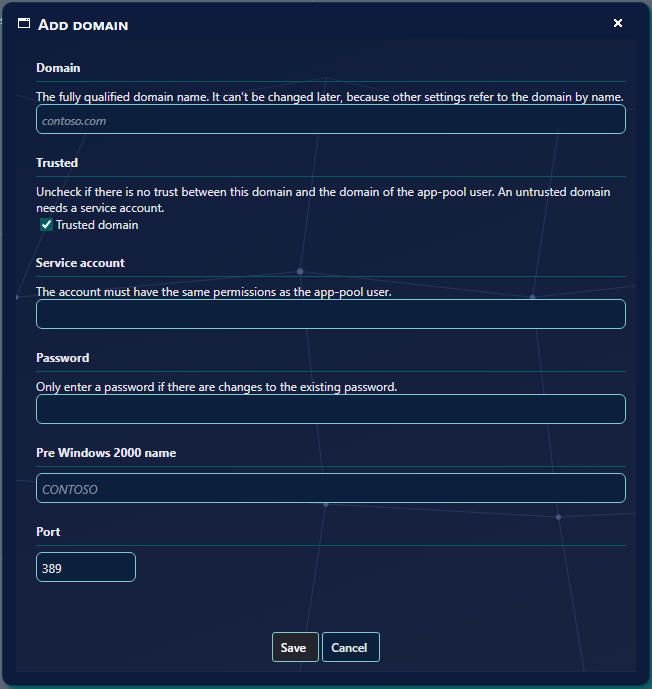
| Field | What to enter |
|---|---|
| Domain | The fully qualified domain name, for example contoso.com. It is saved in capitals. The name can’t be changed later, because other settings refer to the domain by name. |
| Trusted | Ticked by default. Untick it if there is no trust between this domain and the domain of the app-pool user. |
| Service account | The account SoftwareCentral uses in the domain, as domain\username. It must have the same permissions as the app-pool user. Required for an untrusted domain. |
| Password | The password of the service account. It is saved encrypted. Required for an untrusted domain. |
| Pre Windows 2000 name | The NetBIOS name of the domain, for example CONTOSO. It is saved in capitals. |
| Port | The LDAP port, from 1 to 65535. The default is 389. |
Click Save. The window closes and the list is updated. The domain is saved straight away; you don’t need to click Save Settings, and any unsaved changes on the other Settings tabs are kept.
The window does not save the domain when:
- the name is not a fully qualified domain name, or contains a space, an apostrophe, a backslash, a slash or a percent sign;
- the domain is already in the list;
- Trusted is unticked and the service account or the password is empty;
- the service account or the pre Windows 2000 name contains an apostrophe.
Edit a domain
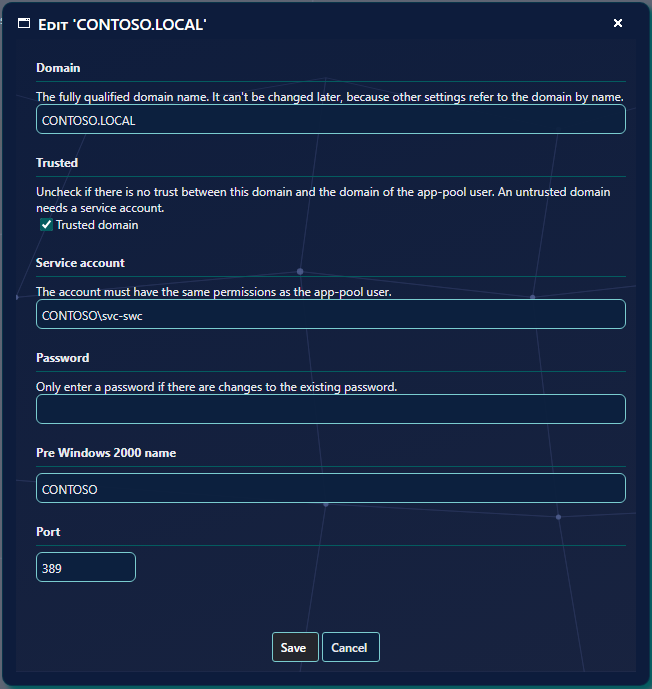
Click Edit in the domain’s row. The same window opens with the domain’s settings. The domain name can’t be changed: to rename a domain, add the new name and delete the old one. Leave Password empty to keep the current password; type a new one only to change it. Click Save, and the change takes effect straight away.
Delete a domain
Click Delete in the domain’s row. If nothing uses the domain, the window asks Do you want to delete ‘CONTOSO.COM’?. Click Delete to delete it, or Cancel.
If the domain is still used, the window lists where, and Delete can’t be clicked. Remove or change those first, then try again.
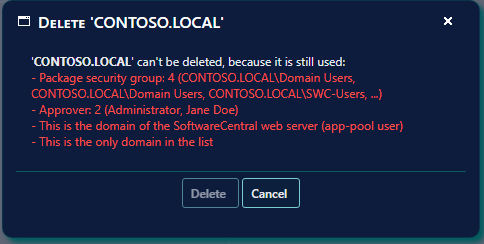
SoftwareCentral checks:
| Where the domain is used | What counts as a use |
|---|---|
| Security role AD group | A security role whose AD group starts with the domain, for example CONTOSO\SWC-Admins. |
| Security role allowed OU/group | An OU or AD group in the domain that a security role is allowed to manage. |
| Package security group | A package security group with an AD group in the domain. |
| Shop item AD group | A shop item with an AD group in the domain. |
| OU/AD group affinity | An OU/AD group affinity with an OU or AD group in the domain. |
| Approver | An approver from the domain. |
| Setting | The portal administrator group, the AD root domain or the AD custom attributes domain is set to the domain. |
| The domain of the SoftwareCentral web server | The domain of the app-pool user can never be deleted. |
| The only domain in the list | The last domain can never be deleted. |
An AD group counts when it starts with the domain’s full name, its pre Windows 2000 name, or the first part of its full name (CONTOSO for contoso.com). So a domain can be reported as used by a group of another domain whose name starts the same way; this is on purpose, so a domain that is still in use is never deleted. The check is made again when you click Delete, in case something started to use the domain in the meantime.
If there isn’t trust to a domain, a service account with the same permissions as the SoftwareCentral service account is required on that domain. See the topic SoftwareCentral Untrusted Domain Support for more information.
6 Best practice
- Set the pre Windows 2000 names first. Turn on Use pre Windows 2000 domain name only after the names are entered on the Domains tab. The tooltip says the names must be added there.
- Click Refresh after a new trust is set up. SoftwareCentral only fills the list by itself when it is empty, so a domain trusted later appears only after Refresh.
- Move the users of a domain before you delete it. The Delete window lists the security roles, package security groups, shop items, approvers and settings that still use the domain. Change those first.
- Keep the wildcard search off unless you need it. Use double wildcard search is slower; the minimum search length helps on big domains.
- Turn on the refresh only with AD-Deployment. Refresh Collection Memebership does nothing without AD-Deployment, and with many deployments it makes the collection evaluator busier.
- Lower the removal period when you track many users. The default of 365 days keeps trying for a long time. A shorter period means less work for SoftwareCentral.
- Give each untrusted domain a suitable account. Set up the service account with Add domain or Edit on the Domains tab, as described in SoftwareCentral Untrusted Domain Support. SoftwareCentral does not check it, so check the account yourself when a lookup or a change in that domain fails.