1 Open the authentication settings
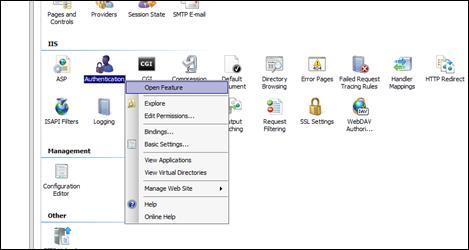
In Internet Information Services (IIS) Manager, expand the tree to Sites › SoftwareCentral, right-click Authentication and select Open Feature from the context menu.
2 Disable Anonymous Authentication
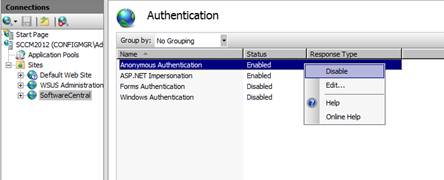
Locate Anonymous Authentication, right-click it and select Disable from the context menu.
3 Enable Windows Authentication
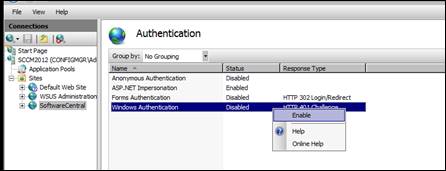
Locate Windows Authentication, right-click it and select Enable from the context menu.
4 What each setting means
| Authentication | Setting for the main site, and why |
|---|---|
| Anonymous Authentication | Disabled. The main site does not allow anonymous users. Anonymous access is only on the separate anonymous site (see Setup Website). |
| Windows Authentication | Enabled. Users are identified by their Windows account, and SoftwareCentral reads the groups of that account to decide what the user may do. |
| Forms Authentication and Basic Authentication | Disabled. SoftwareCentral does not use these sign-in methods for the main site. |
| ASP.NET Impersonation | Not changed by this page. |
Microsoft Entra ID sign-in
If your installation is set to sign users in with Microsoft Entra ID instead, the Windows account is not used to sign in, and this page does not apply to that sign-in. Ask your IT department which sign-in your installation uses.
5 Best practice
- Keep Anonymous Authentication disabled on the main site. Anonymous access is only needed on the separate anonymous site, which is set up on the page Setup Website.
- Use accounts from a domain that the server can query. SoftwareCentral reads group membership from the Windows identity of the user, so a user from a domain the server cannot reach cannot be checked against those groups.
- Confirm the sign-in type before you change anything. If the installation uses Microsoft Entra ID sign-in, Windows Authentication is not what users sign in with (see the note in section 4).
6 Troubleshooting
| Symptom | Cause | What to do |
|---|---|---|
| The browser keeps asking for a user name and password, or shows an HTTP 401 error. | Windows Authentication is not enabled on the site, or the browser does not send Windows credentials. | Enable Windows Authentication (section 3), then sign in with an account from your domain. |
| “Access denied. The account you used does not belong to a tenant with access to SoftwareCentral.” | Microsoft Entra ID sign-in is in use, and the tenant of the account is not enabled in SoftwareCentral. | Sign in with an account from a tenant that is enabled, or ask an administrator to enable the tenant in SoftwareCentral. |
| “Consumer accounts are not supported. Please log in with your work account.” | Microsoft Entra ID sign-in is in use, and a personal Microsoft account was used. | Sign in with your work account. |