1 The Windows Autopilot Devices window
Open the Devices menu and choose Windows Autopilot Devices.

From the main window, you get an overview of all Windows Autopilot devices.
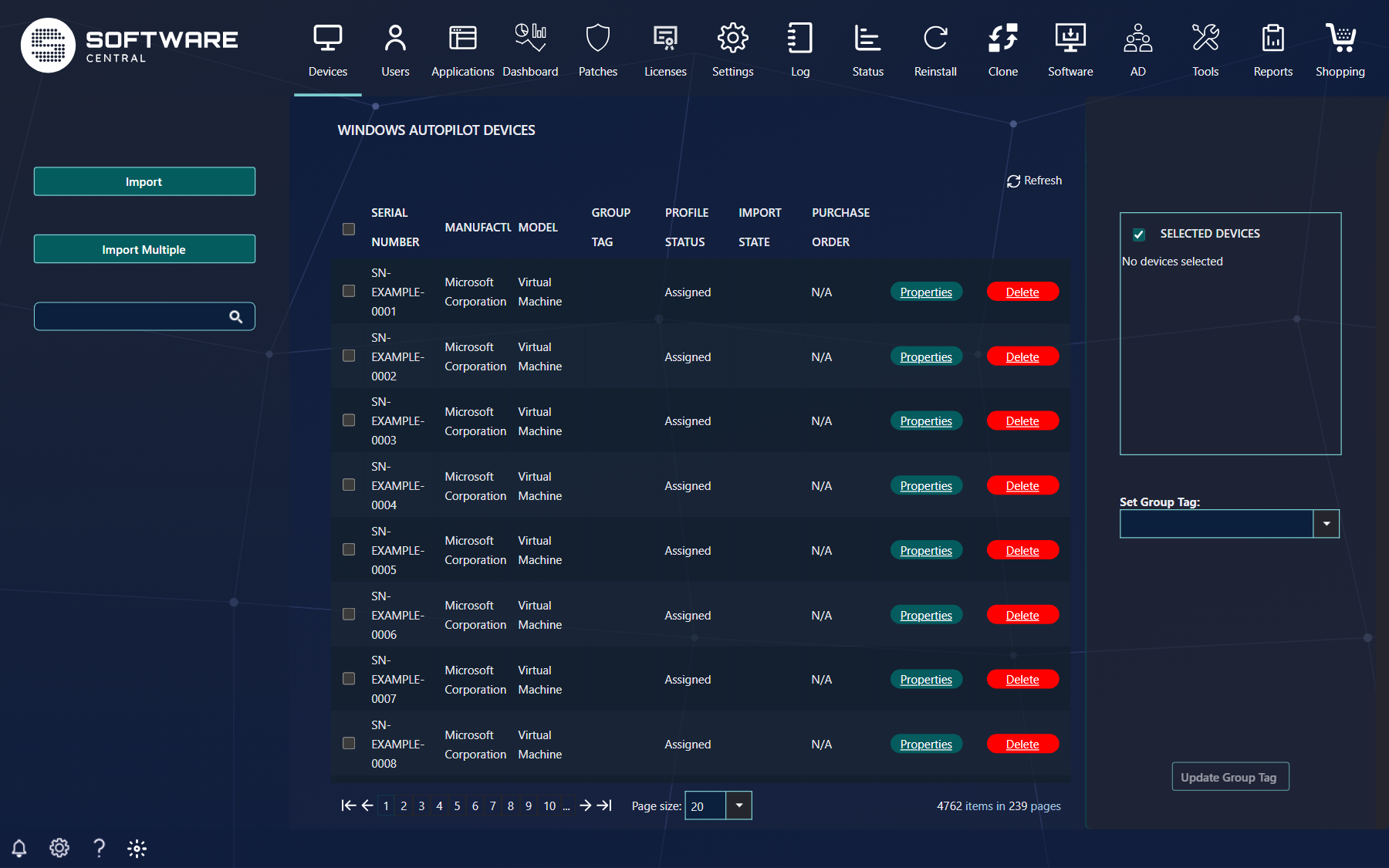
The list shows all devices that are registered in Windows Autopilot, and the devices you have imported that are not registered yet. Type part of a serial number or purchase order in the search box to filter the list.
| Column | What it shows |
|---|---|
| Serial Number | The serial number of the device. Click it to open the device's properties. |
| Manufacturer and Model | The values Windows Autopilot holds for the device. Imported devices that are not registered yet have no manufacturer or model. |
| Group Tag | The group tag of the device. Blank when the device has none. |
| Profile status | Assigned when the device has a deployment profile. Otherwise it shows the assignment status that Intune reports. Hover over the value to see the detailed status. |
| Import state | Shows Error and the name of the error when Intune could not import the device, for example Error - <error name>. It is blank otherwise. |
| Purchase order | The purchase order of the device, or N/A when there is none. |
The list is kept for your session. Click Refresh above the grid to reload all devices from Intune after a change made elsewhere.
The buttons on the right of each row are Properties and Delete. The Delete button is shown only if your role allows it (see Delete a device).
2 Set Group Tags
Group Tags are an easy way to assign policies to Autopilot devices. You can create groups that automatically add devices based on a group tag.
You can set a Group Tag on a single or multiple devices by selecting them in the main grid. Tick the check box of each device. Tick the check box in the header to select all the devices on the page. Each selected device is listed in the Selected devices panel on the right.
From the right-side menu, you can then select an existing Group Tag in the Set Group Tag drop-down. The drop-down lists the group tags that are already used by your devices. If your role allows it, you can also type a new group tag in the box.
Click on the Update Group Tag button to apply the new group tag.
 |
Note that it may take a few minutes before the group tag is updated on the selected devices. |
The header check box skips devices that have been imported but are not registered in Windows Autopilot yet.
3 Import a device
With the Import button in the left menu, you can import a single device into Windows Autopilot.
From the import window you must enter a serial number and a hardware hash for the device you want to import.
You can also use the drop-down box in the top to read these settings from an existing device in your MECM (SCCM). Choose the device, and the serial number and hardware hash are filled in for you. The drop-down is not shown when your installation is set to Intune only.
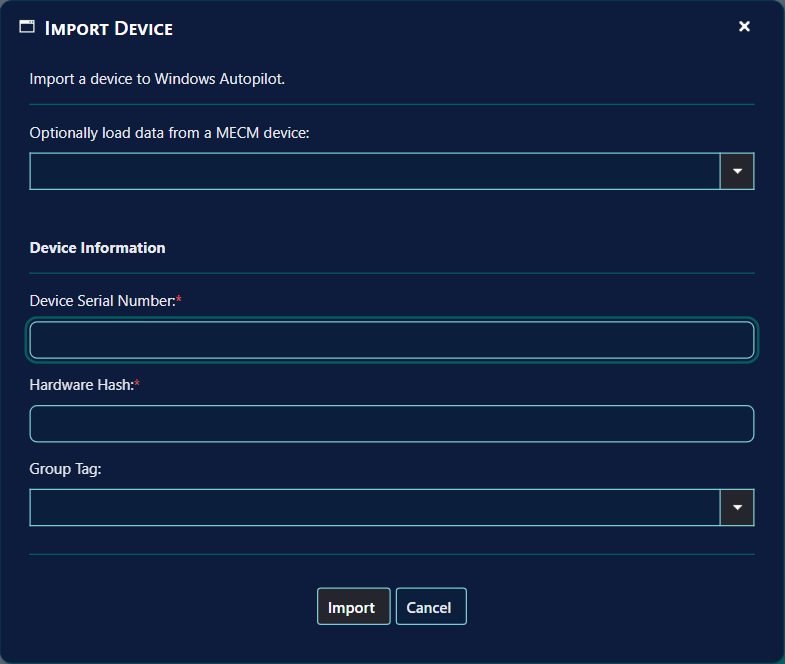
- Device Serial Number and Hardware Hash are required. The hardware hash is a block of text. The window accepts only text that can be read as base64, so paste the hash without changes.
- Group Tag is optional. Choose one from the drop-down. You can type a new one only if your role allows it.
4 Import Multiple devices
Use Import Multiple in the left menu to import many devices from one CSV file.
In the window, upload one CSV file under Upload a CSV file. Optionally choose a group tag under Select group tag. Then click Import N Devices, where N is the number of devices that the file adds.
The file can have a header line or not:
| File | Columns |
|---|---|
With the header Device Serial Number,Windows Product ID,Hardware Hash | Serial number, Windows product ID, hardware hash. Add a fourth column for the group tag if the header is Device Serial Number,Windows Product ID,Hardware Hash,Group Tag. |
| Without a header | Serial number, hardware hash, and an optional group tag as the third column. |
Columns can be separated by a comma or a semicolon.
If you choose a group tag in the drop-down, that tag is used for every device in the file. If the drop-down is empty, the group tag in the file is used.
A device is not imported when its serial number already exists in Windows Autopilot, when its serial number or hardware hash is empty, or when its group tag does not exist and your role does not allow new group tags. The window tells you how many devices were left out.
5 Device properties
Click a serial number, or the Properties button on its row, to open the properties of the device.
The window shows the serial number, manufacturer, model, the Device name, the group tag, the profile status and the assigned profile, the enrolment state, the Intune and Entra devices that belong to it, the date it was last contacted, and its purchase order.
6 Delete a device
Click Delete on the row of the device.
A window asks Do you want to delete the device with serial number followed by the serial number. Click Delete in that window to remove the device, or Cancel to keep it.
7 Best practice
- Pick an existing group tag where you can. The drop-down lists the tags your devices already have. A typed tag that differs by one letter is a second, separate group tag.
- Check the list after every import. A single import closes its window even when Intune refuses the device. The device then appears in the list only if Intune accepted it. Use Refresh to see the latest state.
- Use Import Multiple for many devices. One CSV file imports the whole batch and tells you how many devices it left out.
- Give the delete right only to people who need it. Deleting a registration removes the device from Windows Autopilot in Intune.
- Read the Import state column. An Error there means Intune could not import the device. Fix the cause, for example the hardware hash, before you import it again.
8 Troubleshooting
| Symptom | Cause | What to do |
|---|---|---|
| “A serial number is required.” | The Device Serial Number box is empty. | Enter the serial number of the device. |
| “A hardware hash is required.” | The Hardware Hash box is empty. | Paste the hardware hash of the device. |
| “A device with this serial number already exists.” | A device with the same serial number, ignoring capitals, is already in the list. | Check the list. The device is already in Windows Autopilot or already imported. |
| Import does nothing and the window stays open | The hardware hash is not text that can be read as base64. The failure is written to the Log as “Failed to import device to Windows Autopilot.” | Paste the hardware hash again, without changes. If it still fails, open the Log and find the entry for the failure. |
| The Import window closes, but the device is not in the list | Intune refused the import. The window closes without showing an error. The failure is written to the Log as “Failed to import 1 Windows Autopilot Device.” | Click Refresh. If the device is still missing, open the Log, find the entry for the failure, and correct the cause before you import again. |
| “N device(s) will not be imported, either the serial number already exists in Windows Autopilot, the CSV file entry did not have a Serial Number and/or a hardware hash, or the group tag did not exist” | The window reports how many rows of the CSV file were left out, and why they were left out. | Check the rows of the file: the serial numbers, the hardware hashes, and the group tag. Remove or correct the rows that are not valid, then upload the file again. |
| “Error - <error name>” in Import state | Intune could not import the device. The text after the dash is the name of Intune's error. | Correct the cause, for example the hardware hash. Then delete the entry and import the device again. |
| Update Group Tag is greyed out | No device is selected, or your role does not allow group tags to be changed. | Tick the check box of at least one device. If there are no check boxes, ask your IT administrator for the right to assign group tags. |
| There are no check boxes in the grid | Your role does not allow group tags to be assigned. | Ask your IT administrator. |
| Import or Import Multiple is missing | Your role does not allow importing devices. | Ask your IT administrator. |
| Delete is missing on the rows | Your role does not allow deleting imported devices. | Ask your IT administrator. |