1 The dashboard
Open Windows 10 Servicing from the Patches menu. The dashboard has four panels: Windows 10 Usage and Windows 10 Rings at the top, and Servicing Plan Monitoring, Expired and Expire Soon at the bottom.
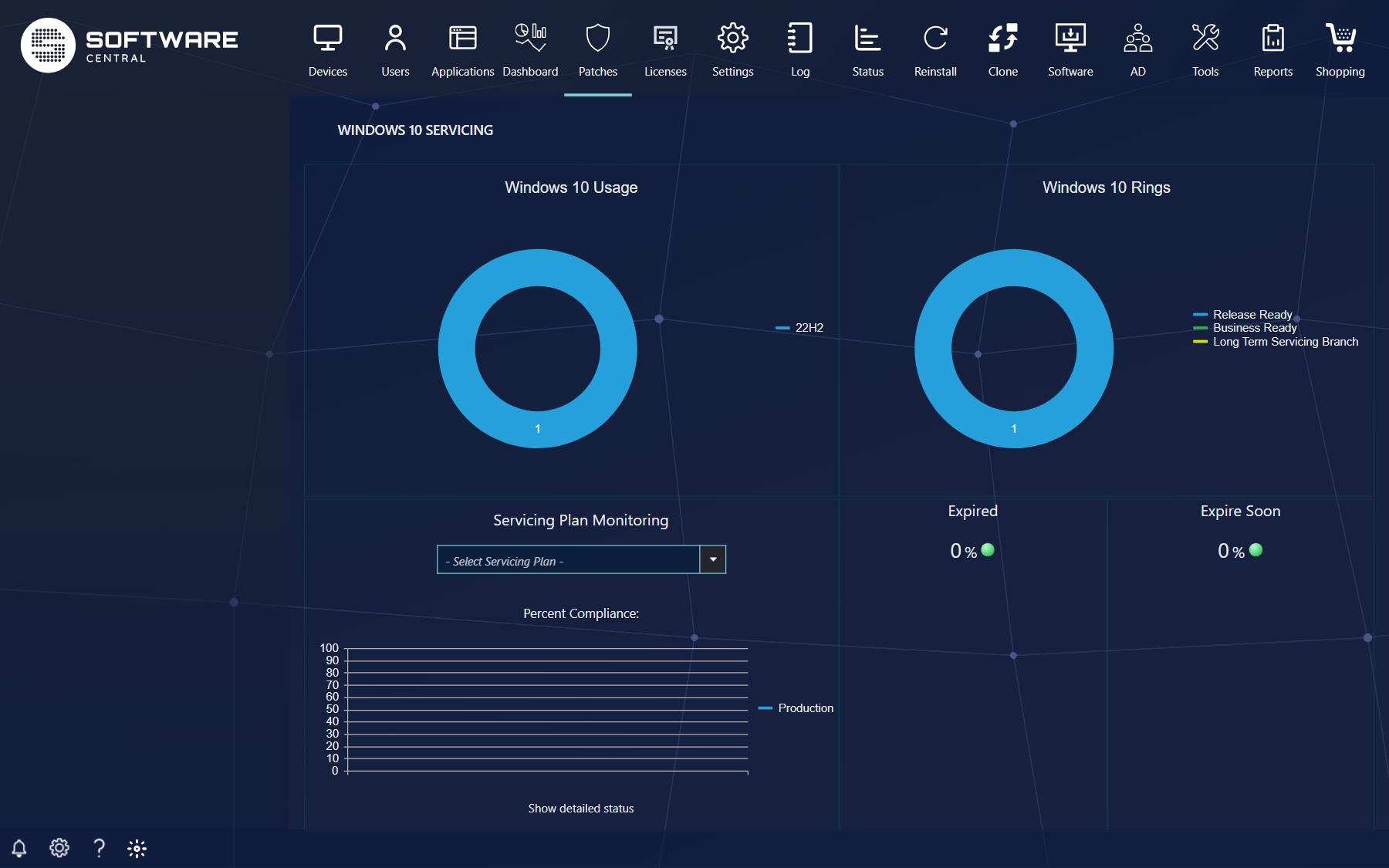
The figures are read from Configuration Manager when the page is opened and are kept for your session. They can therefore be older than the latest data in Configuration Manager.
2 Windows 10 Usage
This window gives you an estimate of the different Windows 10 build versions in your organization.
Each slice of the donut is one build, shown by its name, for example 22H2. Hover over a slice to see its name and the number of devices on that build.
Note that Windows 10 Preview versions are listed as Other.
3 Windows 10 Rings
This window gives you an overview of the Windows 10 branches in use.
The rings are Release Ready, Business Ready and Long Term Servicing Branch. Each slice counts the devices on that branch. Hover over a slice to see the number of devices.
4 Servicing Plan Monitoring
This window shows the percent compliance for a Servicing Plan.
Select a servicing plan from the Select Servicing Plan drop-down box in the window to see its compliance.
The compliance is the number of devices that succeeded in the plan's deployment, divided by the number of devices the deployment targeted, shown as a percentage on the Percent Compliance chart. Until you select a plan, the chart is empty.
5 Expired and Expire Soon
The Expired and Expire Soon panels show what percentage of your Windows 10 devices are on a build that has expired or is about to expire.
Each percentage is the number of devices on an expired (or expiring) build, divided by all the devices in the dashboard. The dot next to it is green when the percentage is 0, red for Expired above 0, and yellow for Expire Soon above 0.
6 Show detailed status
The Show detailed status link opens a window where you can see the status for each device the Servicing Plan is targeting.
The link is greyed out until you select a Servicing Plan that has a software update group. SoftwareCentral creates that group for the plan, which can take several hours after the plan's files start to download (see Run Now, Status and Deploy).

For the columns and the states in this window, see Installation status in Servicing Plans.
7 Create or edit a Servicing Plan
To create or edit a servicing plan, go to the Servicing Plans interface.
The dashboard only shows plans. Create, run, edit and delete them on the Servicing Plans page.
8 Best practice
- Check the rings before you read the compliance. A plan's compliance counts only the devices it targets. Use Windows 10 Rings to see whether the devices are on the branch you planned.
- Read Expired and Expire Soon as shares of all devices. Both percentages use every device on the dashboard. Look at Windows 10 Usage to see which builds are behind them.
- Expect the status window to appear late. The Show detailed status link needs the plan's software update group, which SoftwareCentral creates some hours after the plan starts. Until then the link stays greyed out.
- Check the date of the figures. The dashboard keeps its figures for your session, so a figure can be older than the latest data in Configuration Manager.
9 Troubleshooting
| Symptom | Cause | What to do |
|---|---|---|
| The page shows an access denied message | The Patch Management module is not enabled for this SoftwareCentral installation. | Ask your IT administrator to check the module setting. |
| The Windows 10 Usage and Rings charts are empty | There is no Windows 10 data for the site in Configuration Manager, or the data could not be read. A read failure is written to the Log as “Failed to retrive Windows 10 dashboard items”. | Check that the site has Windows 10 servicing data. If the message is in the Log, open the Log and find the entry for the failure. |
| The compliance chart shows 0 | The plan has no devices targeted yet, or no device has succeeded. | Wait for the plan to run. Check the plan's status with the Status link on Servicing Plans. |
| Show detailed status is greyed out | The selected plan has no software update group yet. | Wait for the plan to create its group, then select the plan again. See Servicing Plans for the same symptom on that page. |