1 What a naming schema does
A naming schema, also called a naming series, gives computers standard names when they are imported or reinstalled. Computers get names such as PC001, PC002 and PC003 without you typing them.
A naming schema is made up of a prefix and a counter. You can define the prefix and the length of the counter. SoftwareCentral will automatically determine the next available number when importing or renaming a computer, when this naming schema is selected.
There are two types of naming schemas:
| Type | What it is |
|---|---|
| Prefix with counter | A prefix, such as PC, followed by a counter with a fixed number of digits. SoftwareCentral finds the next free number by itself. |
| Variable based | Static text combined with values read from the computer, for example the BIOS serial number. Only used by the PrestageComputer application. |
A computer template chooses the naming schema through its Computer Name Series. See Computer Templates. A name that ends with a star in an import file also uses a naming schema; see Import Multiple Computers.
Computers can only be renamed during a reinstallation. This feature also requires that your task sequences support renaming. Read more about renaming in Reinstall Single Computer.
2 Open the list
Open the Devices menu and choose Computer Naming Schemas. The list shows all your naming schemas.

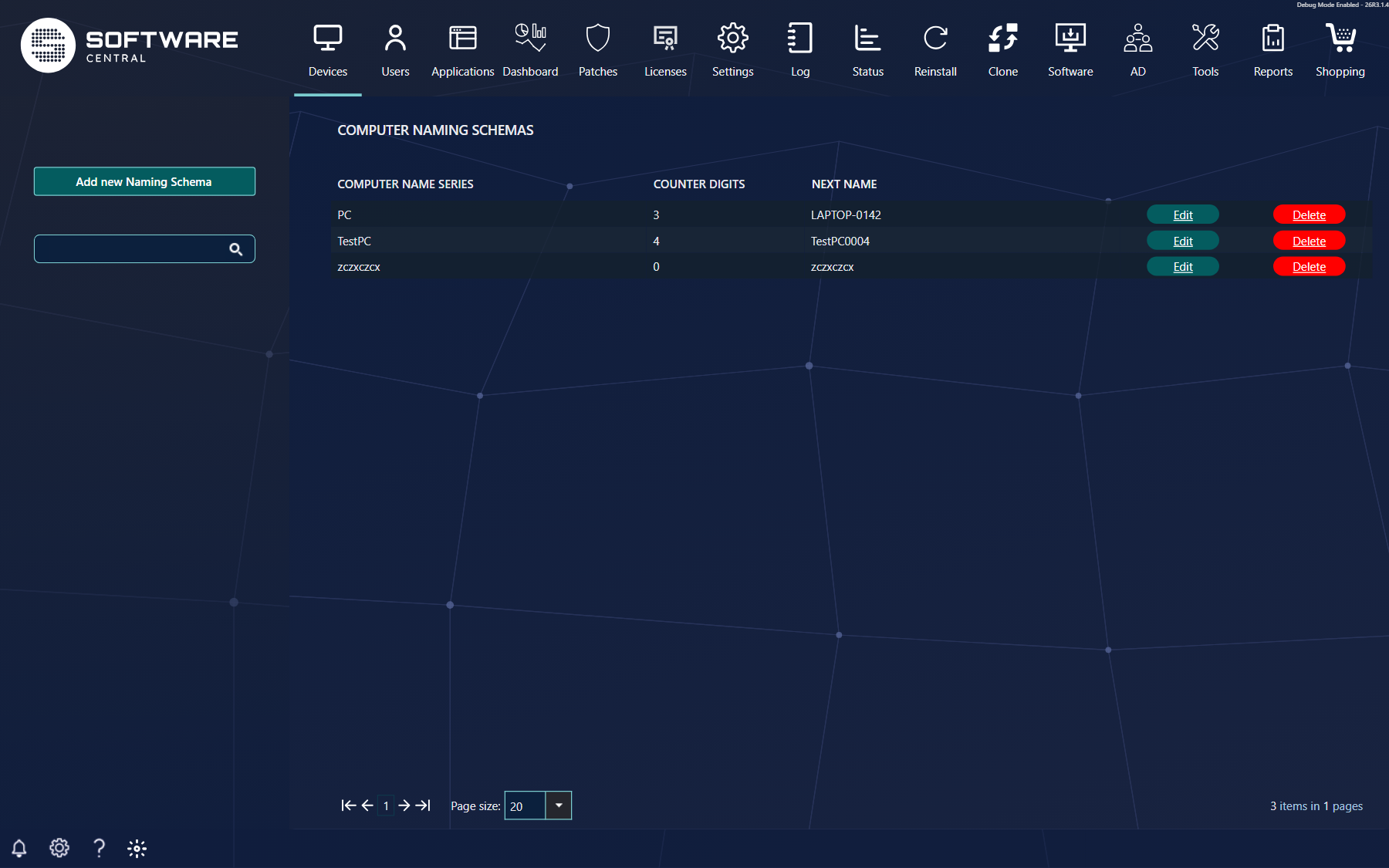
| Column or control | What it shows |
|---|---|
| Computer name series | The prefix of the schema. Click it to open the same window as Edit. |
| Counter Digits | The number of digits in the counter. |
| Next Name | The name the next computer will get. This column is empty when the Use gaps in Computer Naming Schemas setting is on; the next name is then worked out when the computer is named. |
| Edit and Delete | Change or remove the schema. See sections 6 and 7. |
| Search box | Type part of a prefix and press Enter. The tip says: Hit enter to search for all items containing the search values. |
If the list is empty, it says No computer naming series found.
3 Create a prefix with counter
Click Add new Naming Schema. A window opens on the first tab, Prefix with counter.
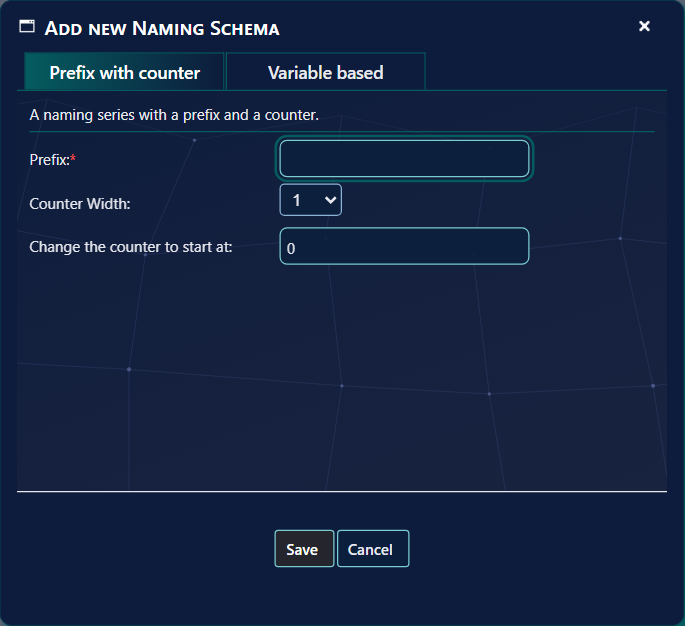
- Type the Prefix, for example PC. The prefix is required.
- Choose the Counter Width, from 1 to 10 digits. With 3 digits the names are PC001 to PC999.
- If the counter should not start at the default, type the number in Change the counter to start at. The default is 0. The number is written with leading zeros to the counter width.
- Click Save. The window closes and the schema is listed.
In this window you can set the prefix, the width of the counter and the number the counter starts at.
If you already have a naming series in your SCCM with the desired prefix and counter width, SoftwareCentral will automatically detect the next available name based on the computers in your SCCM server.
If there are one or more computers with names that match the prefix, SoftwareCentral will select the next available name. For example, if you choose the prefix PC and you already have a PC001, the counter will automatically start at PC002.
4 Create a variable based name
Click the Variable based tab in the Add new Naming Schema window. Use it when the name must include a value read from the computer, such as its serial number.
A variable based name is made up of some static values and some variables read from the computer that are imported.
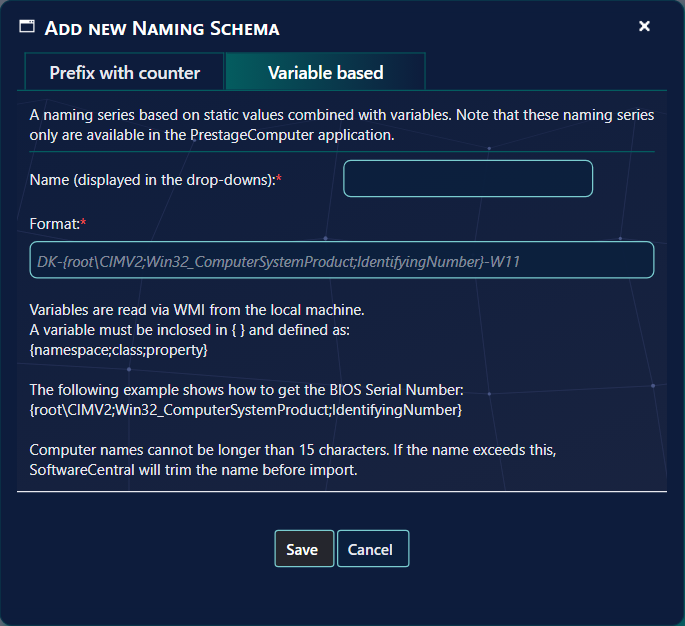
- Type the Name (displayed in the drop-downs). It can be up to 20 characters. This is the name the PrestageComputer application shows.
- Type the Format. A variable must be enclosed in
{ }and defined as{namespace;class;property}. - Click Save.
Variables are read via WMI from the local machine. The following example shows how to get the BIOS Serial Number:
{root\CIMV2;Win32_ComputerSystemProduct;IdentifyingNumber}
A location code combined with the serial number is a typical use. The user selects the location code from the computer name series drop-down box, and the PrestageComputer application adds the serial number to the name. This way the computer is imported with its final name.
| Rule | What happens |
|---|---|
| Name length | Computer names cannot be longer than 15 characters. If the name exceeds this, SoftwareCentral will trim the name before import. |
| Variable syntax | Each variable needs three parts: namespace, class and property. Anything else is refused when you save. |
| Type of schema | The type cannot be changed after the schema is created. Create a new schema for the other type. |
5 Gaps and the start value
The setting Use gaps in Computer Naming Schemas decides which number is used next when a prefix has missing numbers.
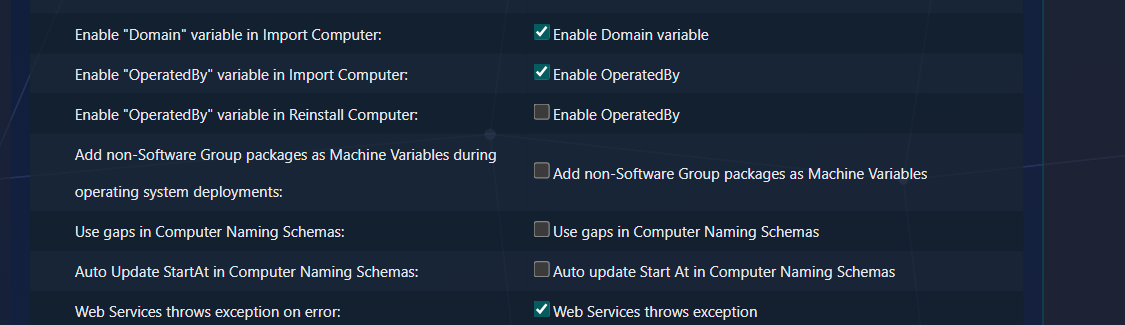
You can configure SoftwareCentral to use gaps in the sequence or to always use the highest available number. This setting is found in the Settings menu under SoftwareCentral › Variables › Use gaps in Computer Naming Schemas.
| Setting | Next name when a prefix has computers PC001, PC002 and PC004 |
|---|---|
| Use gaps is off | PC005. SoftwareCentral uses the highest number in use in ConfigMgr and adds one. |
| Use gaps is on | PC003, the first free number, when the counter starts at 1. SoftwareCentral looks at its own computers and at the names it has reserved. |
If you change the counter to start at, SoftwareCentral will not use gaps lower than this number.
The setting Auto update Start At in Computer Naming Schemas moves the start value on after each name is given out, so a number is not reused. It may leave gaps in the series. It has no effect while Use gaps is on.
6 Edit a naming schema
Find the schema in the list, by scrolling or by searching in the search box on the left, and click Edit.
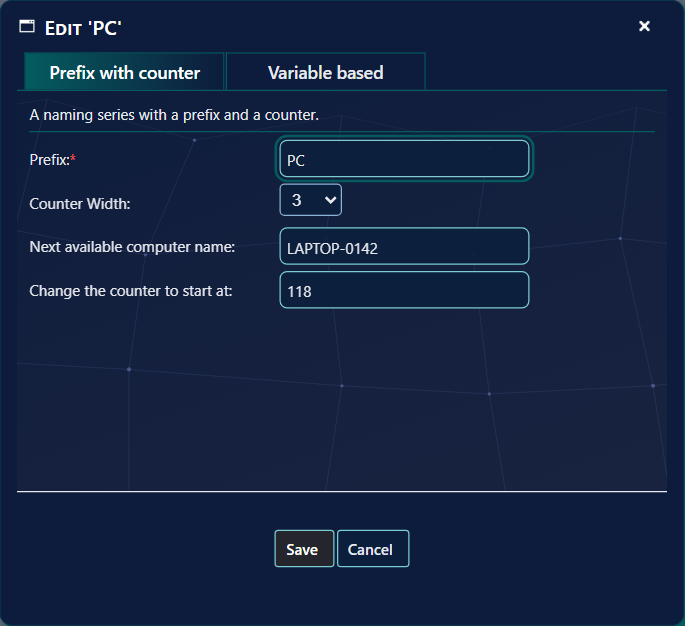
The window is the same as when you create a schema, with the values filled in. The Next available computer name row only appears when you edit an existing schema.
You cannot change the type of an existing schema: the tabs are locked to the type it was created with.
When all changes are made, click Save. SoftwareCentral returns to the overview page, and the change is listed.
7 Delete a naming schema
Click Delete next to the schema. A confirmation window asks whether to delete it.
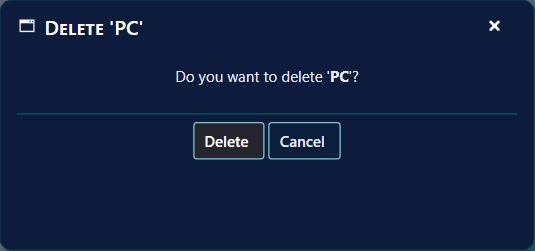
Click Delete in the window to permanently delete the computer naming schema. Computers that already have a name keep it.
If you delete a computer naming schema and create a new schema with the same prefix and counter width, SoftwareCentral will automatically detect the next available name based on the computers in your SCCM server.
8 Best practice
- Leave room in the counter. The counter cannot go past the number of digits: with 3 digits the series stops at 999.
- Keep the total within 15 characters. The prefix and the counter digits together are the computer name, and the window refuses longer ones.
- Choose gaps on purpose. With Use gaps off, a number lower than the highest one in use in ConfigMgr is never handed out again. With it on, SoftwareCentral fills the holes in its own computer list, so the number of a computer that has been removed from that list can be used again.
- Reinstall reserves the name. When a reinstall takes a name from the series, the name is reserved: with gaps on it is kept as a reserved name, and with gaps off the start value is moved past it, unless Auto update Start At is on.
- Start the counter at 1 when you use gaps, so the first name is PC001 and not PC000.
- Check the Next Name before a bulk import. When the gaps setting is off, the column shows the name the next computer will get.
- Use variable based names only for PrestageComputer. The other interfaces do not show them.
9 Troubleshooting
| Symptom | Cause | What to do |
|---|---|---|
| "Computer name prefix already exists in SoftwareCentral database." | Another naming schema already uses this prefix. | Choose another prefix, or edit the existing schema. |
| "Computer name prefix cannot be longer than 15 characters." | The prefix and the counter digits together are longer than 15 characters. | Shorten the prefix or use fewer counter digits. |
| "Please enter a name prefix." | The prefix is empty. | Type a prefix. |
| "Format is missing." | A variable based schema is saved without a format. | Type the format on the Variable based tab. |
| "Invalid format '...'." | A variable is not written as {namespace;class;property}. | Correct the variable, then save again. |
| The Next Name column is empty | The Use gaps in Computer Naming Schemas setting is on, so the next name is only worked out when a computer is named. | Open Edit to see the next name, or turn the setting off if you need it in the list. |
| The next name is lower than expected, or already in use | With gaps off, only computers in ConfigMgr with the same prefix and length are counted. A computer that is not yet in ConfigMgr is not seen. | Check that the earlier computers exist in ConfigMgr, and that their names have the same length. |
| The name is cut to 15 characters | A variable based name is longer than 15 characters. | Shorten the format so the name is 15 characters or less. |