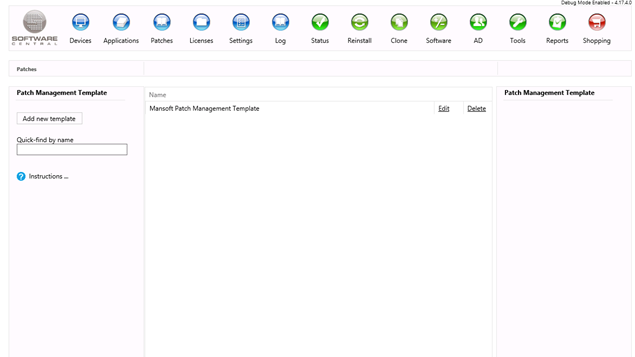
1 The Patch Management Template window
The window lists the existing templates in the middle. Use the Add new template button to create a template, and the Quick-find by name box to find one.
Each row has an Edit link and a Delete link. The files that hold the updates are managed on the Deployment Packages page, so this page is only about the templates and their flags.
2 Create a template
Click Add new template. A new window opens, where you set the template.
Type a name in Patch Management Template Name. Save becomes available when the name is not empty.
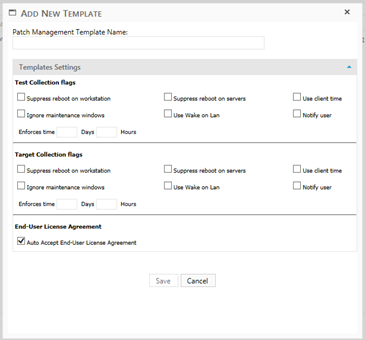
The test deployment and the deployment to the target collection each have their own set of flags. Set the flags you need in both sets:
| Flag | What it does |
|---|---|
| Suppress reboot on workstation | Determines if the workstations in the collection should be able to automatically restart. If it is not selected, the workstations restart if the deployment needs it. |
| Suppress reboot on servers | The same as for workstations, but for servers. |
| Use client time | Determines if the deployment uses server time or client time, for when the deployment is mandatory. |
| Ignore maintenance windows | Determines if the deployment ignores maintenance windows. |
| Use Wake on Lan | Determines if the deployment can use Wake on LAN. |
| Notify user | Determines if the user is notified when new updates are installed. |
| Enforces time (Days and Hours) | How long after the deployment is made before it is mandatory and is forced to be installed on the device. Each set of flags has its own boxes. |
| Auto Accept End-User License Agreement | In the End-User License Agreement section. This flag is ticked by default. If it is ticked, updates that have an EULA are accepted automatically. If it is not ticked, the update service skips these updates. |
When all the settings are set, click Save. The template is then ready for use in the update service.
3 Edit a template
Click the Edit link on the row of the template. The same window opens with the template. Make your changes there, and click Save.
4 Delete a template
Click the Delete link on the row of the template. In the window, click Delete to remove the template, or Cancel to keep it.
The window says Use the log to follow the progress of your request. The result of the delete is written to the Log.
5 Best practice
- Give the test and the target flags their own values. The test collection is where you try a setting before the target collection gets it, so set both sets on purpose.
- Check the update service after you change a template. An update service keeps the flags it copied from the template, so a template change does not reach it until you choose the template again and save.
- Think before you untick the EULA flag. It is ticked by default. Unticked, the update service skips every update that has an end-user licence agreement.
- Use Enforces time to give users a deadline. It sets how long after the deployment is made the update is forced onto the device, so set it in days and hours that match your maintenance plan.
- Name each template for what it does, so the right one is easy to choose in the update service.
6 Troubleshooting
| Symptom | Cause | What to do |
|---|---|---|
| Save is greyed out | The Patch Management Template Name box is empty. | Type a name for the template. |
| The window stays open after Save, and the Log shows “Failed to save patch management template.” | SoftwareCentral could not save the template. The error is written to the Log. | Open the Log, find the entry for the failure, and try again. |
| “No templates match your criteria” in the list | There are no templates yet, or the Quick-find by name text matches none of them. | Clear the search box, or click Add new template. |