1 Open it
Click Applications in the top menu and choose Application Manager. Which buttons you see depends on your licence and on the rights of your security role (see Who can do what).
2 Layout at a glance
The page title is Application Manager. The applications are shown as a gallery of cards; the two small icons next to the title switch between the gallery and a list (a grid with selectable columns).
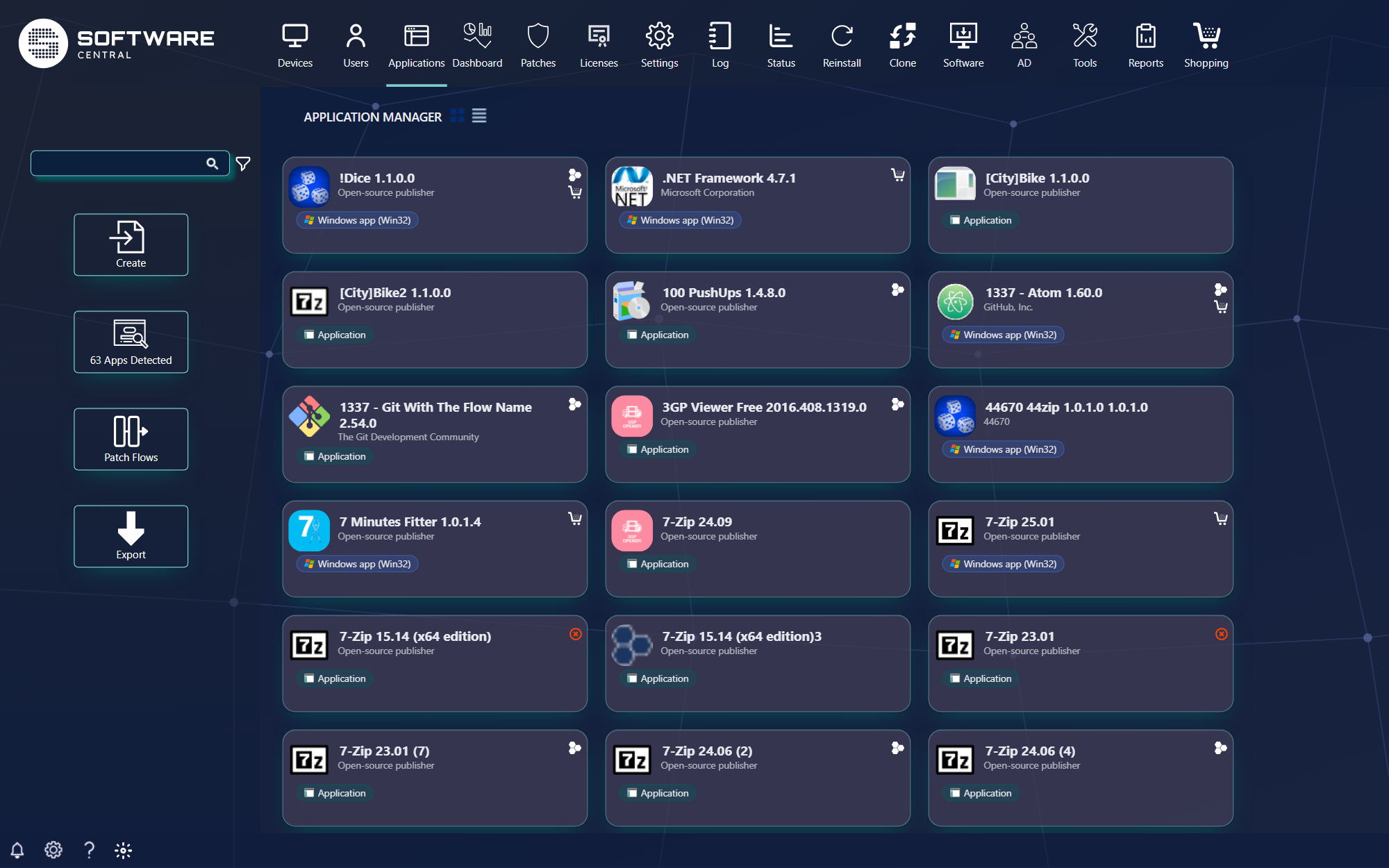
Cards, filters, the application detail with its tabs, replace, retire, migrate and deploy work exactly as described in the Apps guide. One cue on the cards is specific to Robopack: the Robopack logo, whose tooltip says Imported from Robopack, marks applications that were created by a download.
3 Create
The Create button opens Create New, where you choose what to create.
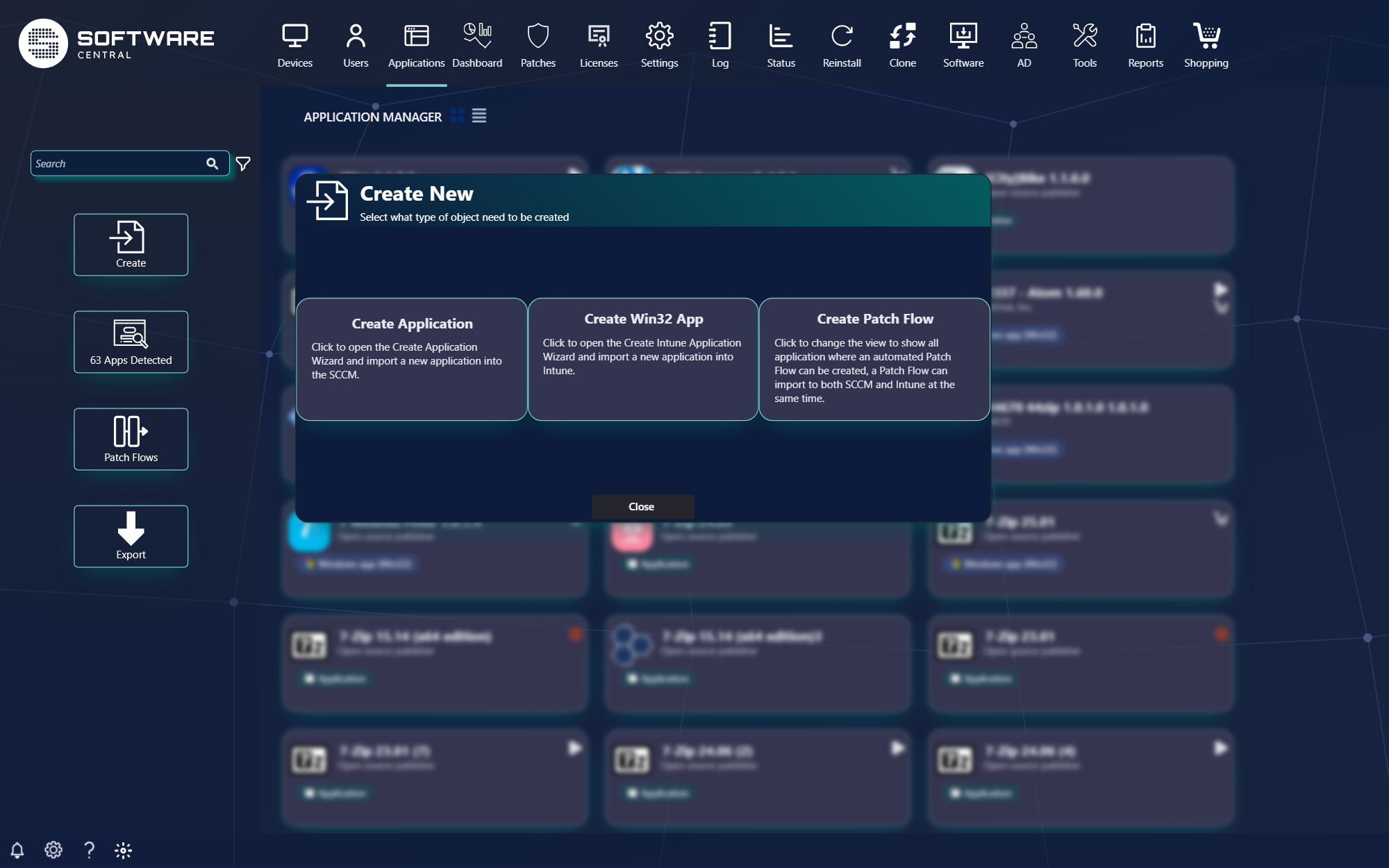
| Choice | What it does |
|---|---|
| Create Application | Opens the Create Application wizard and imports a new application into SCCM. Not shown when SoftwareCentral runs Intune only. See Create an app. |
| Create Win32 App | Opens the Create Intune Application wizard and imports a new application into Intune. |
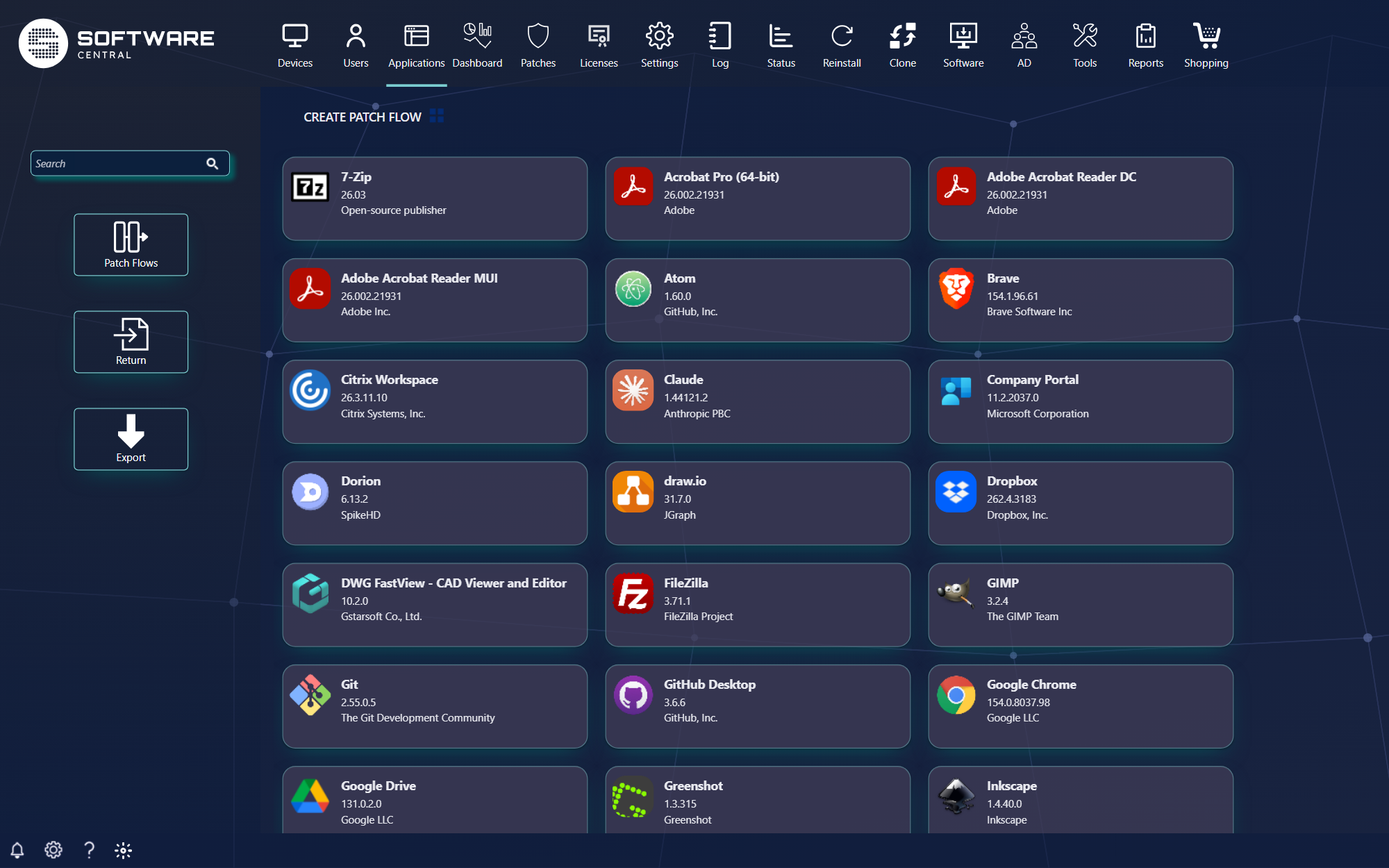
| Create Patch Flow | Changes the view to the Robopack catalogue, titled Create Patch Flow, where an automated patch flow can be created; a flow can import to both SCCM and Intune at the same time. Click an application to start the download and import wizard. Return goes back. |
4 Patch Flows
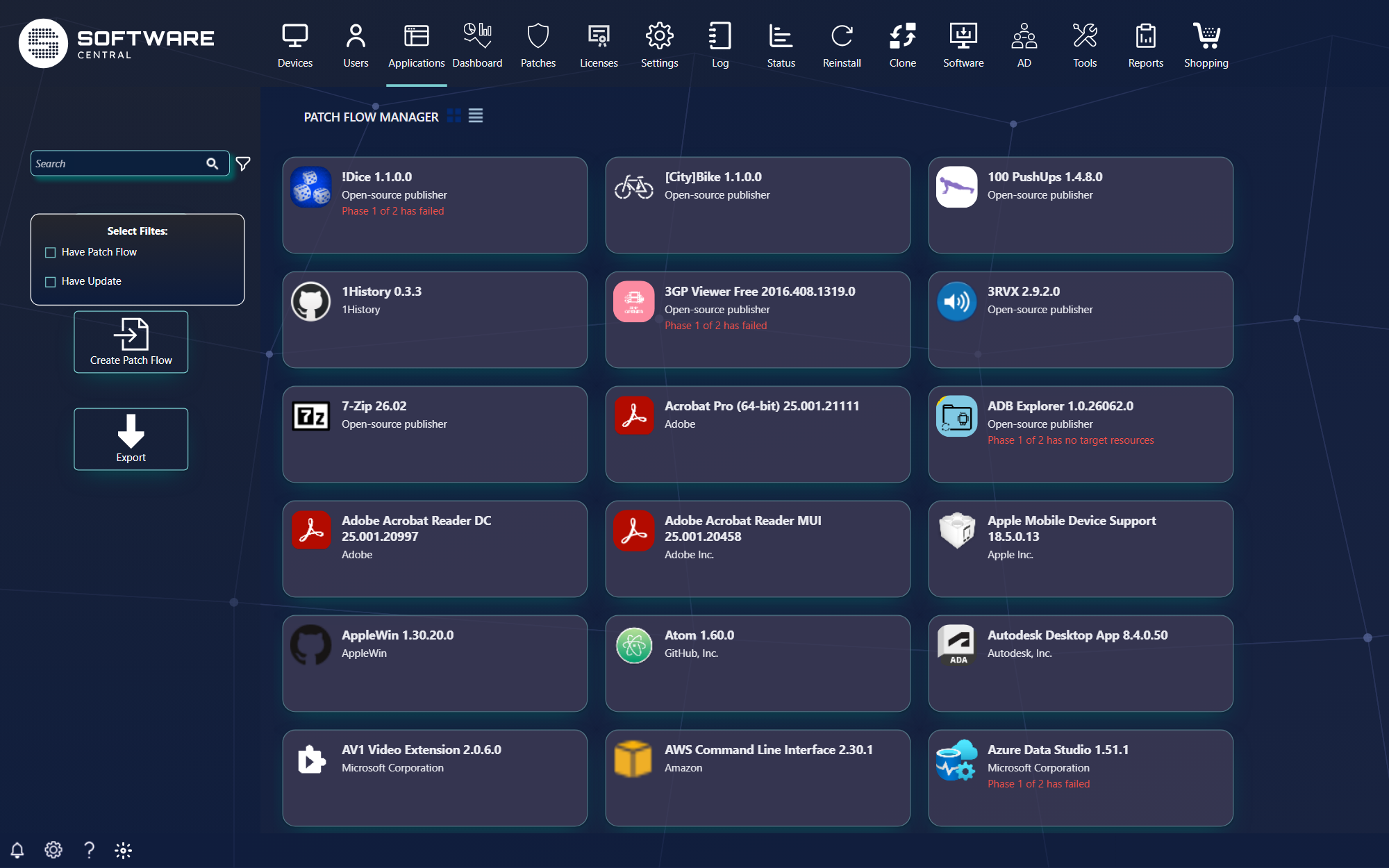
The Patch Flows button changes the view to the Patch Flow Manager: the applications that Robopack has downloaded for you, with the status of every job. Click a card to open the same detail as in Flows — Quick View, Install Overview, the Patch Flow tab with Edit, Disable and Delete, the status log — and the Delete data tab for clean-up.
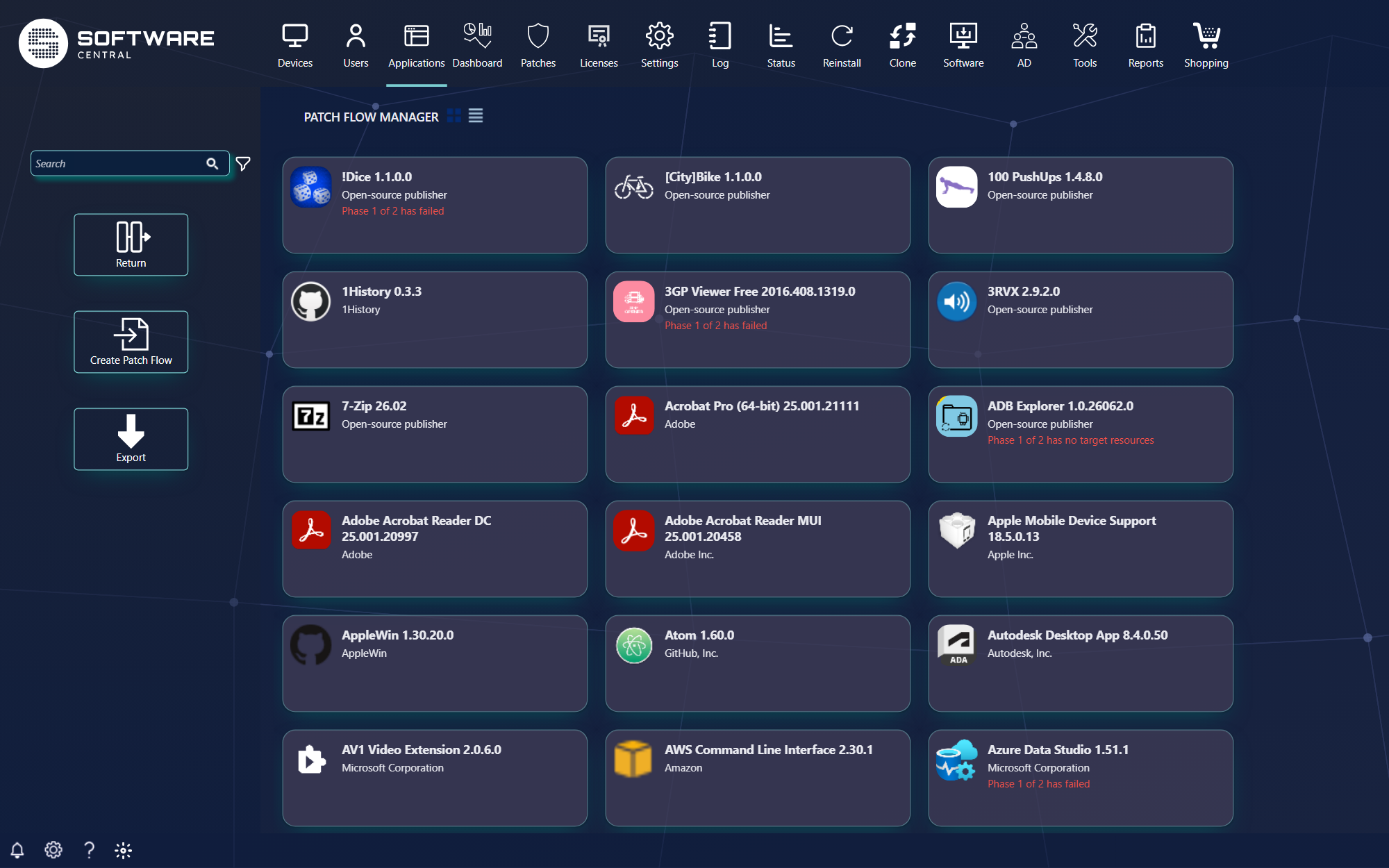
Unlike the Flows view of Application Manager Only, this list also contains applications that were downloaded without a patch flow. The filter lets you narrow it:
| Filter | Shows only… |
|---|---|
| Have Patch Flow | Applications where a patch flow is configured. |
| Have Update | Applications where a new version is available. |
5 Detected apps and Export
| Button | What it does |
|---|---|
| N Apps Detected | Opens Radar, with the number of applications currently detected. Only available when application detection is switched on in Robopack settings. |
| Export | Saves the list you are looking at as a CSV file named Application Manager followed by the date and time. All columns are included, except the icon and the check box column. |
6 The four views
The same four views exist in both editions. Only where you click is different.
| Application Manager Only | Application Manager (this page) | Guide |
|---|---|---|
| Apps | The page itself, titled Application Manager | Apps guide |
| Robopack | Create › Create Patch Flow (title Create Patch Flow) | Robopack guide |
| Flows | Patch Flows (title Patch Flow Manager) | Flows guide |
| Radar | N Apps Detected (title Detected Application) | Radar guide |
7 Best practice
- Use the Have Update filter to find applications with a newer version. The filter's tooltip reads See Applications where a new version is available.
- Look for the Robopack logo on a card. Its tooltip, Imported from Robopack, shows that the application was created by a download.
8 Troubleshooting
| Symptom | Cause | What to do |
|---|---|---|
| “No applications match your criteria” | The search values or filters match no application. | Click the × on a search value, remove a filter, or change the words. |