1 The interface
The interface is found under the Applications menu button and from it everything related to Robopack can be controlled. It consists of a grid with a list of applications, a search field and a few buttons. The newer Application Manager and the Application Manager Only views (Robopack, Flows) do the same through cards instead of a grid.
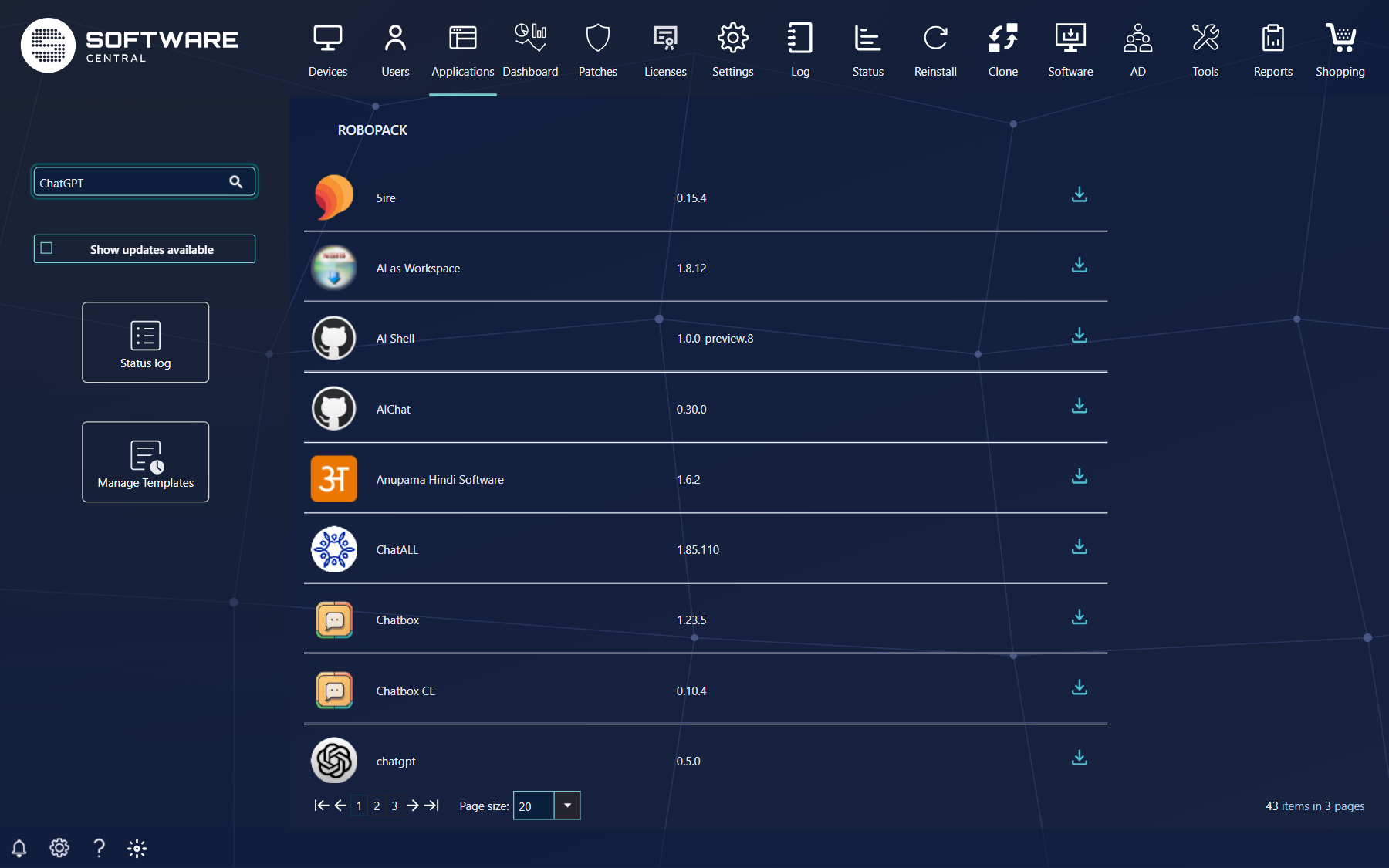
Each button in the main interface does the following:
| Button | What it does |
|---|---|
| Search for package | Type part of an application name to search the Robopack library. Press Enter or click the magnifier. |
| Only show verified software | When ticked, SoftwareCentral only lists applications that are verified by Robopack itself, meaning they are tested and working; unticked, it shows all applications in the Robopack library. In the current version this button is not shown: the list always starts with the verified applications and then adds the others that match your search. |
| Show updates available | When ticked, the grid shows only applications that you have downloaded before and for which a new version is available. The button is only shown when your installation is set to show it. For an application with a newer version, the tooltip of the Import icon reads This package has previously been downloaded or imported; for all others it reads Download and/or import this application. |
| Status log | Opens the status log, where you can see the status for all applications that have been downloaded and imported from Robopack. |
| Manage Templates | Opens the deployment template window, where deployment templates are managed. A deployment template is used to make it easier to download and import an application from Robopack. |
For each application these icons can appear:
| Icon (tooltip) | What it does |
|---|---|
| Import — Download and/or import this application | Opens the download and import wizard, where the selected application can be downloaded and imported to MECM and/or Intune. The import procedure is described in Download, import and update. An application that has a newer version than the one you imported is the update case of the same icon. |
| Status — This application has previously been imported, click to see status | Opens the import status: the status of a download and import job, and, when phased deployment is used, the installation status. Only shown for applications that have been imported. |
| Rule — This application has a Robopack Rule that automatically downloads and imports the application | Opens the window where all automated download rules for the application can be managed. Only shown when the application has a rule and your security role may manage Robopack rules. |
2 Deployment templates
A deployment template stores all the settings that are needed to easily download and import an application from Robopack.

| Action | How |
|---|---|
| Create | Click Create Template (earlier: Add new Deployment Template) and add the settings that are needed. |
| Edit | Click Edit on the template in the list and change the settings that are needed. |
| Delete | Click Delete on the template and confirm. |
A template has two groups of settings, as the two tabs of the earlier template window show; in the template wizard they are steps 2 to 5 (Deployment templates):
MECM MECM Settings
There are two sub templates to select here:
- Application template: a template that determines all the settings for how the application is imported into the MECM.
- Phased Deployment Template: a template used to create deployments for the newly downloaded application. Here a test phase can be defined, and if certain conditions are met, the deployment continues to the next phase. Click the green plus sign to create new phased deployment templates.
Intune Intune Settings
If a multiple tenant environment is used, the interface consists of a list of tenants and a button to add a new tenant to the template (Add Tenant). The settings are the same as below. There are two sub templates to select and an extra setting:
- Application template: a template that determines all the settings for how the application is imported into the Intune tenant.
- Phased Deployment Template: as for MECM. Click the green plus sign to create a new phased deployment template.
- Scope: an application in Robopack comes as a machine application, a user application or both, so to ensure the correct version is used, the scope must be defined in the template (Machine or User).
3 Phased deployment template
A phased deployment template in SoftwareCentral can contain as many phases as needed to make sure the deployment goes as smoothly as possible. It is described in full under Phased deployment templates.
- It is possible to set up mail notifications for the phased deployment.
- Each phase has a success criterion that must be fulfilled before SoftwareCentral goes to the next phase.
- It is also possible to require that someone approves before the deployment goes to the next phase.
How a phased deployment is chosen and limited for a Robopack download is described in steps 3 and 5 of the wizard.
4 Download, import and update
To download and import an application from Robopack, click its Import icon. The download and import wizard opens. Here a deployment template is selected, and the list of actions that will be executed is shown. If a default template is set the window opens as the simple summary view.

If a setting needs to be changed, or an automated rule needs to be created, click Show Advanced (earlier: Show advanced settings): all the settings from the deployment template are shown and can be changed.
| Topic | What happens |
|---|---|
| Download only | If no application template for either MECM or Intune is selected, the application is only downloaded from Robopack, and can then be imported manually. |
| Auto Download | If SoftwareCentral should automatically download and deploy new versions of the application, give the flow or rule a name (earlier: tick Create rule for auto download and import and enter the rule name; now: Patch Flow Name in the last step). SoftwareCentral checks once every 30 minutes whether a new version of the application has been released in Robopack, and when there is one, the settings from the first download are used again for the new version. See Automated patch flows. |
5 The service job
When everything is ready, click Download and Import Software (or Create Patch Flow) and SoftwareCentral creates a new job for the SoftwareCentral Windows service; it is this Windows service that does the download and import. SoftwareCentral triggers the service to run the job, and when this is done it can take some time before the application is ready. You can follow the process either directly from the import status view, or in the SoftwareCentral log.
This is a step-by-step description of the download and import process, and of where there can be problems:
- SoftwareCentral asks Robopack to test and make the application ready. If Robopack has tested it before and found no problem, SoftwareCentral downloads it. If it is the first time, Robopack starts the testing of the application and SoftwareCentral waits for the result; if no result comes within 15 minutes, SoftwareCentral queues the service job and tries again later. In some cases the applications fail in Robopack, and then the service job does not continue: the application is not downloaded or imported.
- SoftwareCentral then looks at which scope is selected and tries to download the application from the Robopack server. In some rare cases, with applications that are not verified, this step can fail. The Robopack team gets a notification and will see if anything can be done, and SoftwareCentral tries again later to download the application.
- SoftwareCentral then uses the information from Robopack and imports the software into MECM and/or all the selected Intune tenants. In the import process the phased deployment, if used, is also created.
6 Status log
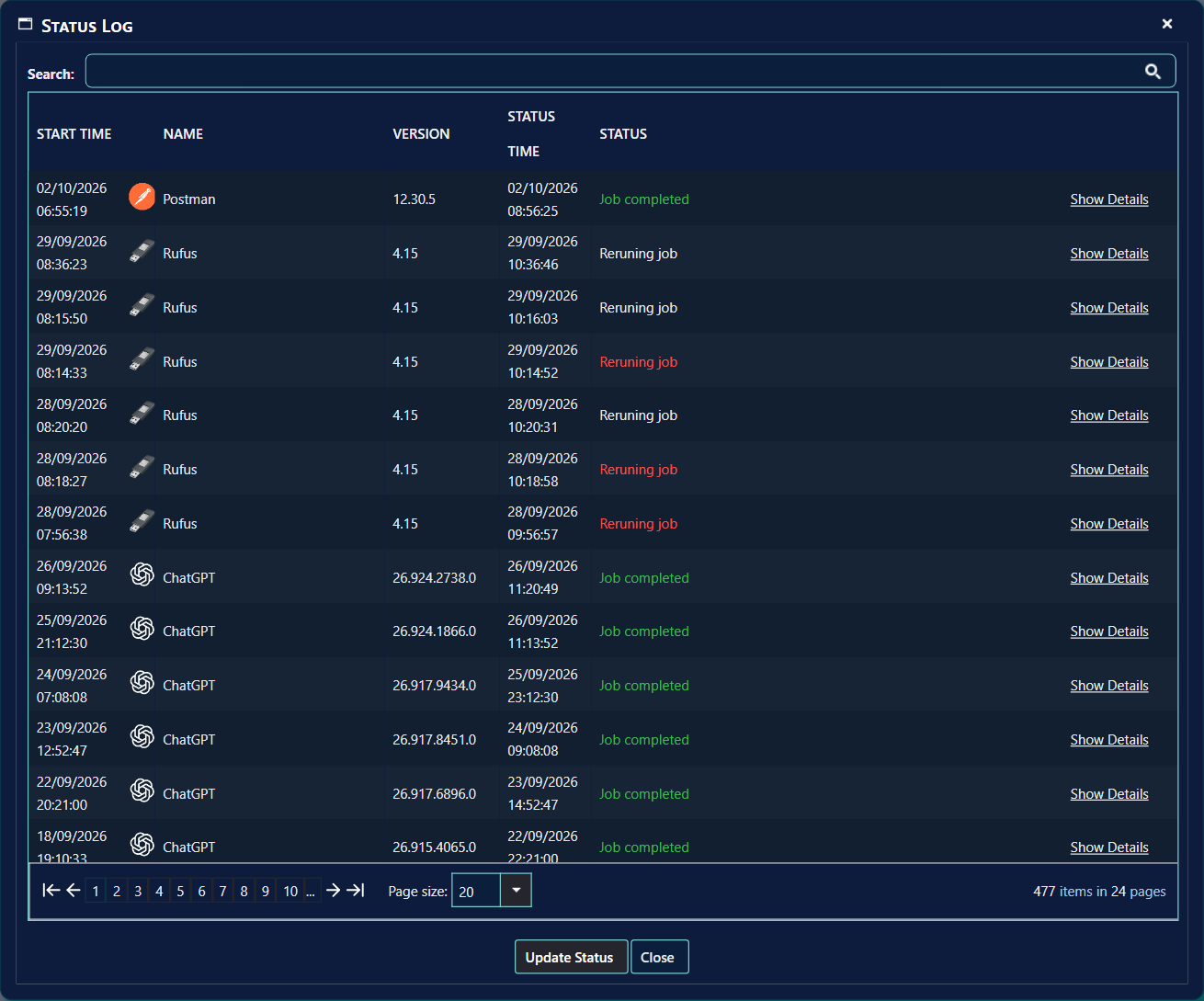
The status log is a list of all the applications that have been downloaded and imported from Robopack. From this list you can see the status of the service jobs, and click Show Details for a detailed view of that specific job.
7 Import status
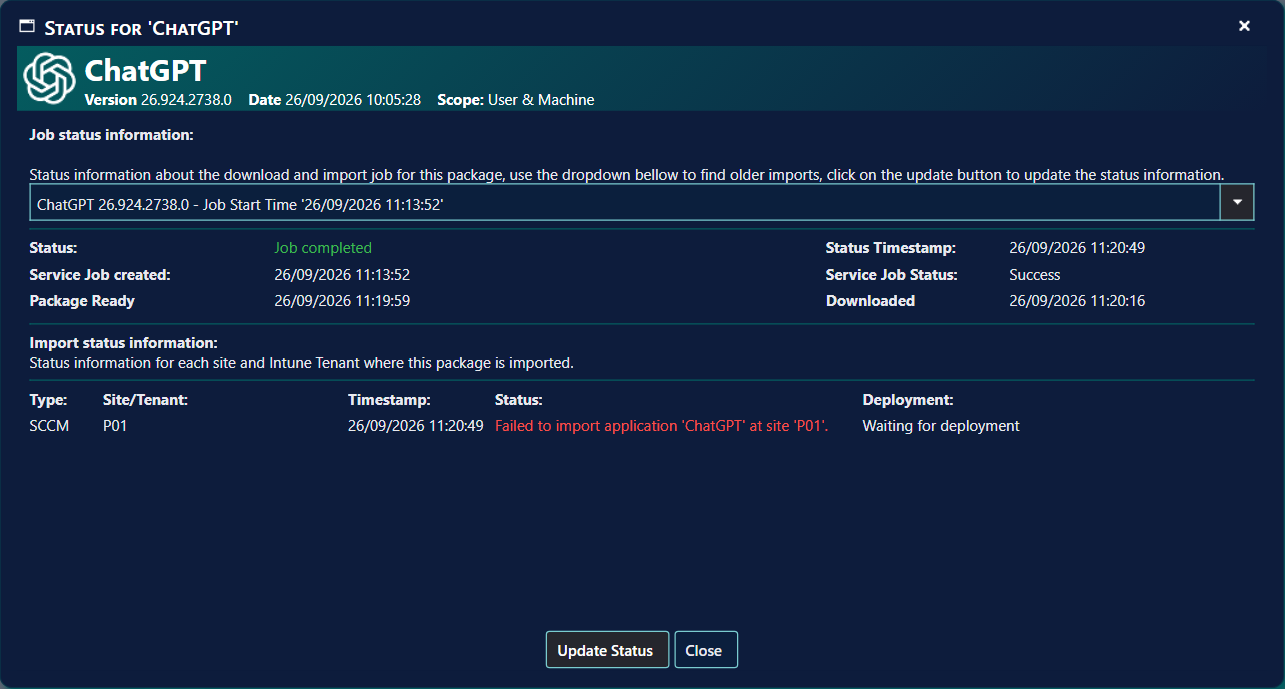
When an application is downloaded and/or imported from Robopack, SoftwareCentral shows a status window where the status of the Windows service job can be monitored. In the drop-down menu, older service jobs can be selected to see the status of that specific service job.
| Button | What it does |
|---|---|
| Update Status | Updates the status directly in the interface. |
| Rerun Job | Only shown when the service job has expired, failed, was cancelled or is still pending. SoftwareCentral then tries again to download and import the software; entries that already imported successfully are left as they are. |
From this window you can also open the status of the ongoing phased deployments by clicking the status link for each phased deployment.
8 Download rule
If an automated download rule has been created for an application, the Rule icon appears in the list for that application, and when you click it the window below is shown. A rule is what a Patch Flow is called in this window.
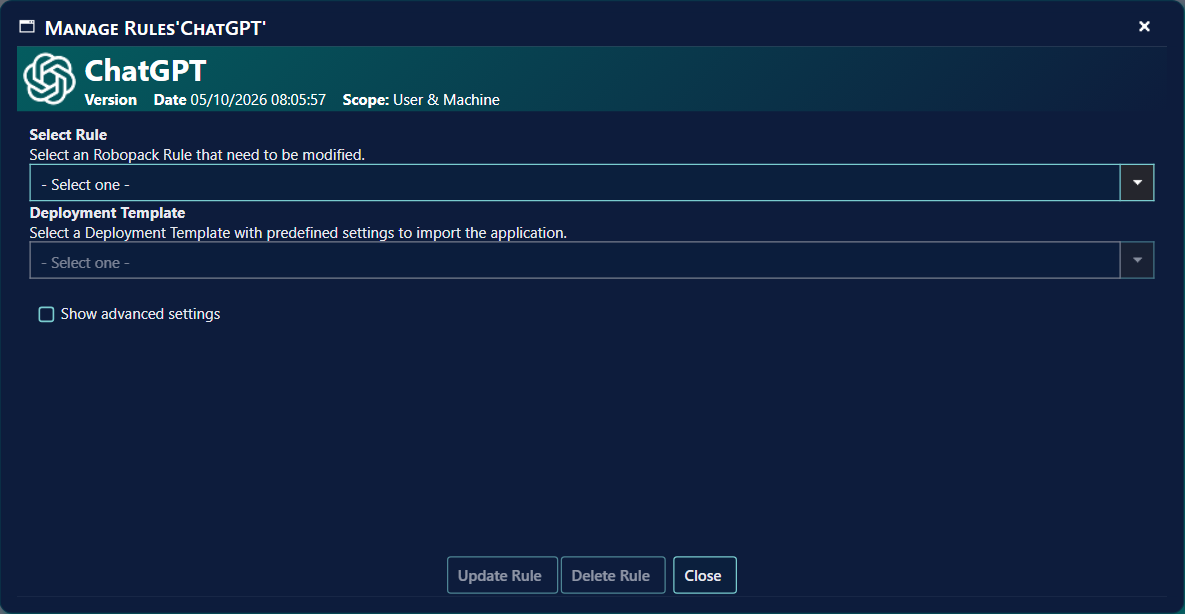
- A rule is selected in the first drop-down menu (Select Rule).
- From here the rule can also be updated (Update Rule) or deleted (Delete Rule) if necessary. The Rule enabled tick box switches it on and off.
- It is possible to open the status log (Open Status log) and see only the status jobs that are linked to that specific download rule.
The same actions are available on the Patch Flow tab of the Flows view (Edit, Disable, Delete).
9 What is new in the settings
Since this page was first written, the Robopack module has gained settings and behaviour that are described in their own pages:
| New | Read |
|---|---|
| The six-step wizard, the simple view and the summary lines | Download and import wizard |
| Replace settings: Replace in Software Groups and Applications Groups, Replace in Shop, Move resource to new install collection, Supersede the previous version, Uninstall the previous version first, Replace in Enrollment Status Pages, Move Endpoints to new install group | Step 2 and step 4 |
| Limits for the phased deployment: Limit devices to install collections, Limit devices to program name, Limit endpoints to the following groups; and the Permanent Collection | Step 3 and step 5 |
| Use WinGet, Save settings as template, Patch Flow Name | Step 6 |
| Lock Template, Default Template, Create Auto Download rule if it does not exist | Deployment templates |
| Default Deployment Template, Default Robopack Script Template, Robopack API Url and Key, Application Detector Enabled, Robopack Package Share, Patch Flow versions to keep | Robopack settings |
| Phase control (Go to next phase, Pause, Approve Phase, Skip Phase) and deleting old data | Downloaded apps |
| Finding software that is installed but not managed | Radar |
| Unattended updates, best practice and troubleshooting | Automated patch flows |
See also: Auto Update Plus.
10 Best practice
- Let the service look for new versions. The service checks Robopack for new versions every 30 minutes, so you do not have to start the check yourself.
- Use Rerun Job only when the job has stopped. The button is only shown when the service job is Expired, Failed, Cancelled or Pending.
- Keep the templates you use in place. A Patch Flow looks up its application template and phased deployment template each time a new version comes in. A missing template stops the import or the rollout.
11 Troubleshooting
| Symptom | Cause | What to do |
|---|---|---|
| The Status window shows the service job as Expired, Failed, Cancelled or Pending, and the Rerun Job button is shown. | The service job did not finish. | Click Rerun Job. The status shows “Reruning job”, and entries that were already imported are left as they are. |
| The log says: “The SCCM application template with ID '...' that the rule uses was not found, so version '...' is downloaded but not imported to SCCM. Select an existing application template in the Patch Flow.” | The application template the Patch Flow uses has been deleted. | Edit the Patch Flow and select an existing application template. |
| The log says: “Phased Deployment template with id '...' was not found”. The new version is imported but not rolled out. | The phased deployment template the Patch Flow uses has been deleted. | Select an existing phased deployment template in step 3 (SCCM) or step 5 (Intune) of the wizard. |
| The application list stays empty. | The Robopack API URL or key is not set, so SoftwareCentral cannot reach Robopack. | Set both under Settings › Extra Modules › Robopack. See Robopack settings. |