1 The two functions
The Deployment Manager does two jobs. Use the first to start a deployment and the second to follow it.
| Function | What you do |
|---|---|
| Deploy software and operating systems | Click Create Deployment Plan in the left menu. The window that opens lets you install or uninstall software, or reinstall computers. |
| Monitor all your deployments | All your deployments are listed in the centre of the window, including those made from Manage Software, Reinstall Computer or Import Computer. Click View to see the status of each computer. |
2 Deploy software and operating systems
Click Create Deployment Plan in the left menu. The window offers Deploy Software, to install or uninstall software, and Deploy Operating System, to reinstall computers. The steps are in Deployment Plan.
3 Monitor your deployments
Every deployment you have made is listed in the centre of the Deployment Manager, with its status. Click View on a row to open the Deployment Monitor, which shows the status of each computer in that deployment.
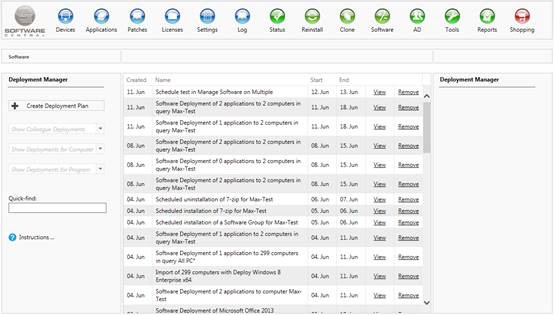
4 Remove a deployment from your list
To remove a deployment from your list, open the Deployment Jobs tab and click Delete at the end of its row. SoftwareCentral asks Remove Deployment Plan 'name' from your list? Click Remove to confirm, or Cancel to keep it.
You should remove finished deployments, so that your list only shows the ones you still need. The tab and its columns are described in The Deployment Manager window.
5 Where to go next
| To do this | Read |
|---|---|
| See every tab, filter and button in the window | The Deployment Manager window |
| Create a deployment of software or an operating system | Deployment Plan |
| Follow a deployment, see each computer's status | Deployment Monitor |
| Set how the Deployment Manager behaves | Deployment Manager Configuration |
| The whole Deployment Manager, in one place | Deployment Manager |
6 Best practice
- Remove finished deployments. Deployment jobs stay in your list until you delete them. Your administrator can also remove old jobs automatically: the Settings option Automatically remove Deployment Jobs older than (months) removes them after the number of months you enter, and 0 keeps all of them.
- Check the schedule before you remove a plan. Removing a plan does not stop a scheduled installation. Stop it under Tools › Edit Schedule first if you do not want it to run.
- Give the deploy buttons to the people who deploy. Create Deployment Plan appears only for roles with the DeploymentSoftware or ReinstallOperatingSystem button.