1 Open the list
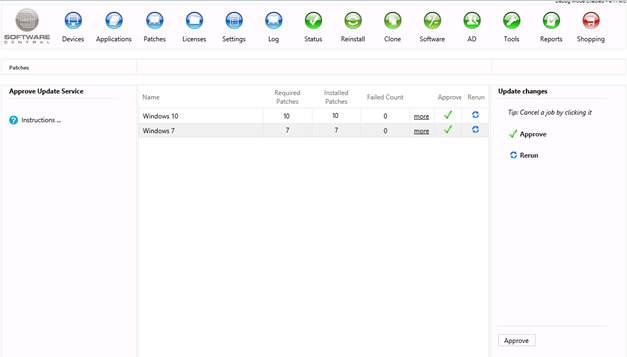
Open the Patches menu in the top bar to see the Approve Update Service interface.
The list shows every update service that has been deployed to a test collection and has not been approved yet. Each update service appears once. An update service must be approved before it can run again and find new patches.
2 Read the counts and buttons
Each row gives three counts for the patches in the update service, and three buttons.
| Column | What it tells you |
|---|---|
| Required Patches | How many patches in the deployment are required by the client. |
| Installed Patches | How many of the patches are installed. |
| Failed Count | How many of the patches have failed to install. |
| Button | What it does |
|---|---|
| more | Opens the details window for the deployment. See Details of a deployment. |
| Approve (green tick) | Moves the update service to the Approve list in the panel on the right. Nothing is approved until you click the Approve button at the bottom of the panel. |
| Rerun (blue arrows) | Moves the update service to the Rerun list in the panel on the right. Nothing is rerun until you click the Approve button at the bottom of the panel. |
3 Approve an update service
When the test deployment has completed with success, and the patches are ready to be deployed to the target collection, click the green tick (Approve) in the row.
The update service moves to the Approve list in the panel on the right. Click the Approve button at the bottom of the panel. A new update service with the same patches is created for the target collection.
To take an update service back out of the list, click it in the panel. The tip reads Tip: Cancel a job by clicking it.
4 Rerun an update service
If some or all of the patches have failed, run the update service again. Click the blue arrows (Rerun) in the row, then click the Approve button at the bottom of the panel.
A rerun creates a new test deployment with the same patches for the test collection. It also asks the computers in the test collection to refresh their policy, so they pick up the deployment sooner.
5 Details of a deployment
Click more on a row. A new window opens with a chart of the deployment.
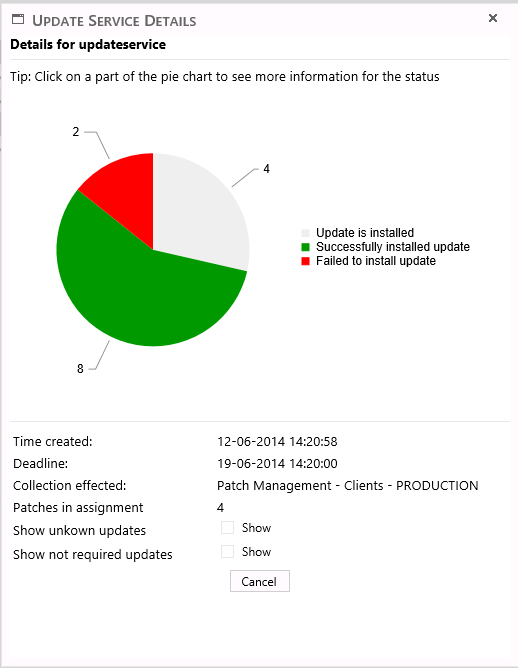
The chart shows how many patches are in each status. Under the chart the window shows the deployment information:
| Field | What it shows |
|---|---|
| Time created | When the update service was created. |
| Deadline | The deadline of the deployment. |
| Collection effected | The collection the deployment affects: the test collection, or the target collection after approval. |
| Patches in assignment | How many patches the update service contains. |
Patches whose status is unknown, or that are not required, are left out of the chart by default. To add them, tick the checkboxes under the chart:
| Checkbox | What it adds to the chart |
|---|---|
| Show unkown updates | Patches whose status is unknown. The label is spelled this way in the product. |
| Show not required updates | Patches that are not required on the clients. |
6 Status of the patches
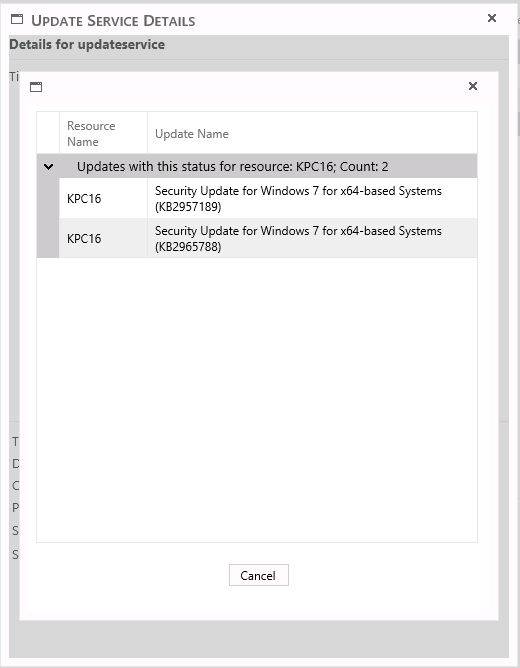
Click a part of the pie chart to see which clients and patches have that status. The tip in the window reads Tip: Click on a part of the pie chart to see more information for the status.
7 Best practice
- Look at the failed count before you approve. Approving copies the same patches to the target collection, so a failure on the test collection is likely to appear there too.
- Rerun first when the cause is a client that was offline. A rerun asks the test computers to refresh their policy, which is often enough to pick up a missed deployment.
- Check both lists in the panel before you click Approve. One click runs the reruns and the approvals together, and nothing is sent before that click.
- Leave the two checkboxes off for the normal view. Turn on Show unkown updates or Show not required updates only when you need to see why a patch is not in the chart.
- Sign out and sign in again if an update service is missing. The list is kept in your web session, so it can stay out of date until the session is renewed.
8 Troubleshooting
| Symptom | Cause | What to do |
|---|---|---|
| The list is empty, with the text No updates have to be approved | No update service is waiting for approval. Either none has been deployed to a test collection, or all of them are already approved. | Create or manage the update service in Manage Update Service. It appears here once it has been deployed to the test collection. |
| The status window shows No updates to show. | No patch on the selected resource has that status. | Click another part of the chart, or tick Show unkown updates or Show not required updates. |