1 Overview
SoftwareCentral provides a patch management module to ease the installation of updates from Windows Update. This page describes how to configure SoftwareCentral to connect to the WSUS server.
SoftwareCentral uses the settings that are already applied in Configuration Manager and on the WSUS server. Only one setting has to be entered in SoftwareCentral: the WSUS Server name.
2 Enter the WSUS server
Open Settings, expand Extra Modules in the left menu and select Patch Management.
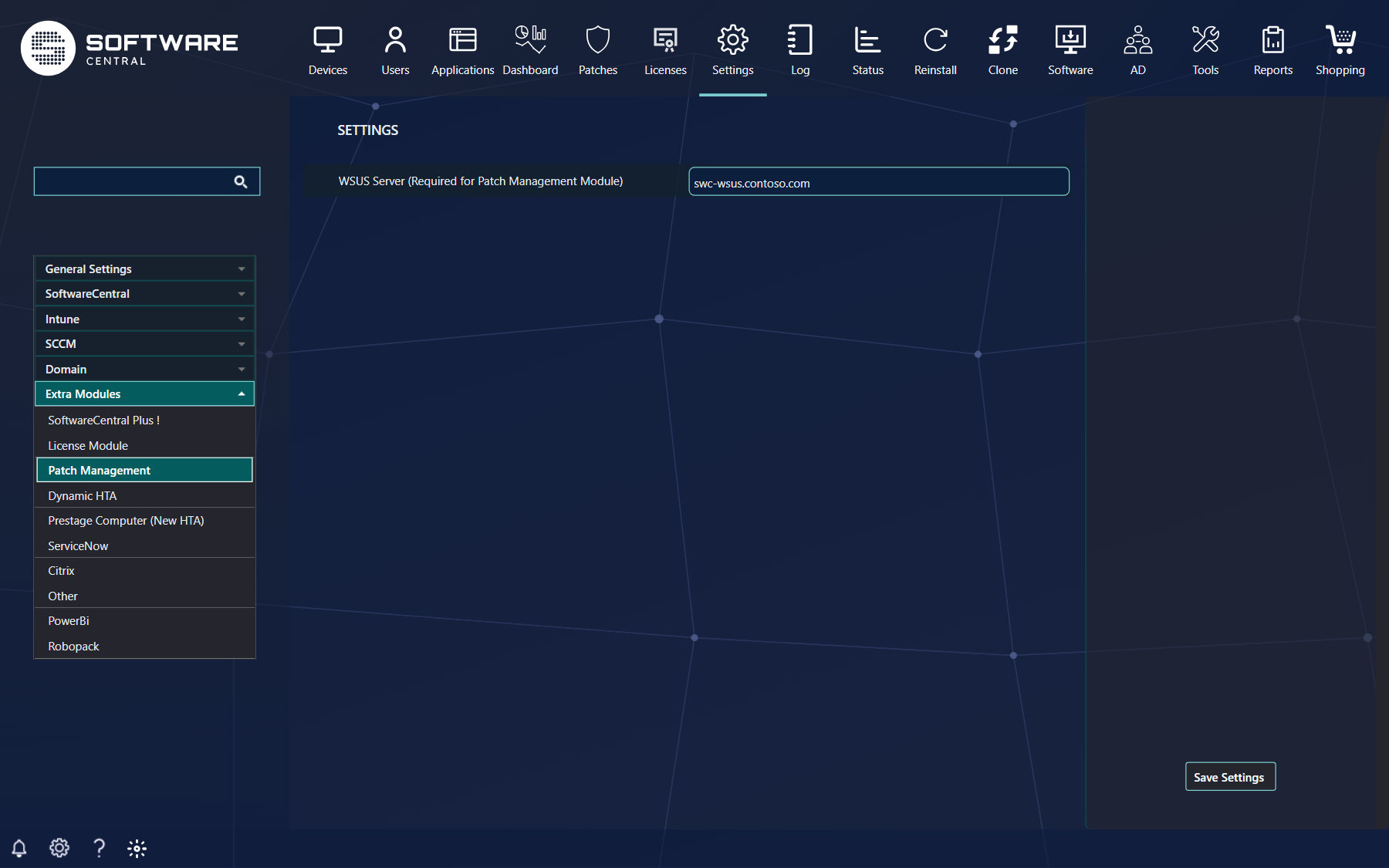
Enter the fully qualified name of the WSUS server, and click Save Settings. The setting is saved with the other settings on the page.
3 What uses the server name
- Patch Management Settings reads and saves the language choices for this server name.
- The Synchronize button on that page asks Configuration Manager to synchronize the software update point with this name.
- The servicing plan wizard reads the language list with the same name.
Enter the name before you use Patch Management Settings, so that the language choices and the synchronization both use the right server.
4 Best practice
- Copy the name from Configuration Manager. Use the name of the software update point as Configuration Manager shows it, not a short name or an IP address, because the name is matched exactly.
- Save first, then test with Synchronize. Open Patch Management Settings and press Synchronize once. A success or a failure is written to the Log.
- Keep SoftwareCentral connected to Configuration Manager. The synchronization is requested through the Configuration Manager site, so the site must be reachable from the SoftwareCentral server.
- Check the languages after you change the name. The language choices are read from, and saved for, the server that is named here.
5 Troubleshooting
| Symptom | Cause | What to do |
|---|---|---|
| The Log shows "Failed to sync softupdate Point at site '...' on server '...'." | The WSUS Server name is empty, or it does not match the software update point in Configuration Manager. | Open Settings › Extra Modules › Patch Management, enter the software update point name exactly as Configuration Manager shows it, and click Save Settings. |
See also Patch Management Settings and Settings.