1 Create the item
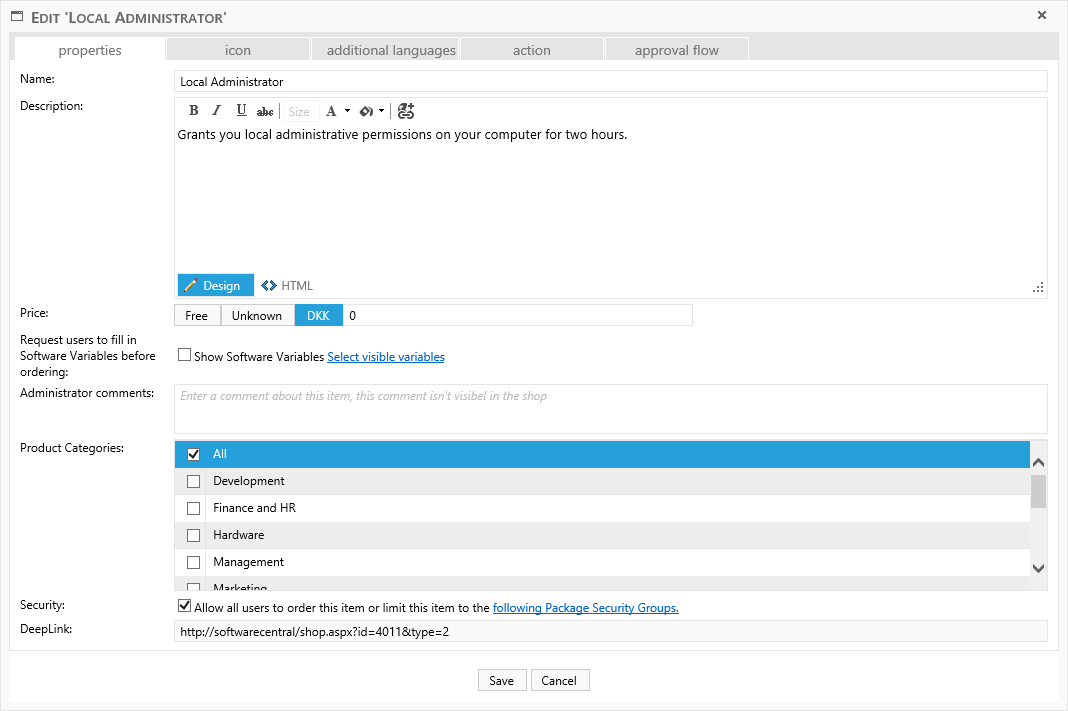
The first step is to create the actual item from the Custom Shop Items interface:
2 Add an approver
In order to trigger the approval flow, we must add an approver. If the request does not need to be approved, you can skip this step.
The item will require approval from the manager.
Go to the Approval Flow tab:
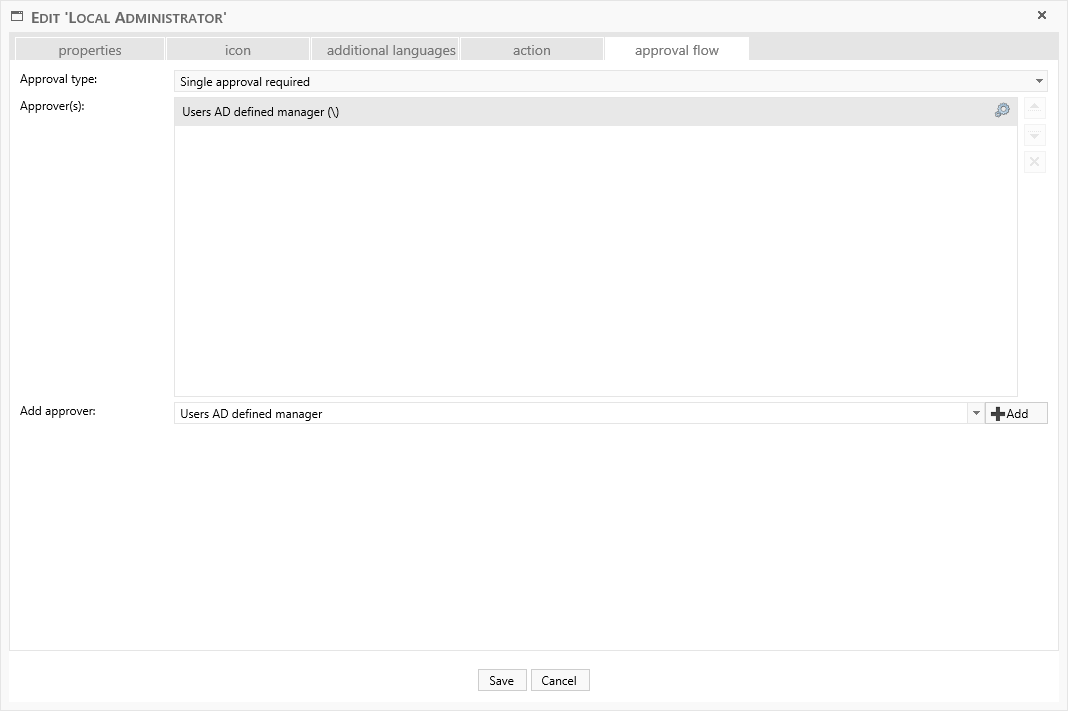
Select the approval type from the drop-down. In this example we use Single approval required, meaning that just one approver has to approve the order. You can read more about approval flows under Approval Flow.
If you don’t select an approver but simply click the Add button, it will add the Users AD defined manager. This means that each user’s own manager will approve this item, giving a more dynamic flow.
Click Save to add the item.
3 The scripts
Next we need to add the script that will give the user the local administrative permissions. Below is an example of the script. Note that there are two examples, one for local usage and one for the SoftwareCentral Cloud.
Script for local usage
This script will need a few modifications, described below the example.
GrantLocalAdministrativePermission.vbs
'================================Version 2.0===============================
' NAME: Grant Local Administrative Permission
'
' AUTHOR: SoftwareCentral
' DATE  : 03-03-2017
'
' COMMENT:
' This script adds "strUsername" to the defined local group on the computer with name "strComputerName"
' Parameters required from SoftwareCentral: "Hostname", "Username", ("Action" if approval is required)
'
' ** SET THE swcAddress VARIABLE **
' ** SET THE strLocalGroupName VARIABLE **
' ** SET THE hoursBeforeExpiration VARIABLE **
'==========================================================================
'======================Variables that can be modified======================
' ** The SoftwareCentral address. E.g.: http://softwarecentral or http://localhost:8080
swcAddress = "http://localhost:8080"
' ** The local group name. E.g.: "Administrators"
strLocalGroupName = "Administrators"
' ** Number of hours before the user will lose the local administrative
hoursBeforeExpiration = 2
' ** Force the user to log off when permissions are given
forceLogOffAtStart = False
'** Force the user to log off when permissions are removed
forceLogOffAtEnd = False
'Get the current date time
strStartDate = RIGHT(String(2, "0") & Day(Date), 2) & "/" & RIGHT(String(2, "0") & Month(Date), 2) & "/" & Year(Date) & "_" & Right("0" & Hour(Time), 2) & ":" & Right("0" & Minute(Time), 2) & ":" & Right("0" & Minute(Time), 2)
'==========================================================================
'Load properties from SoftwareCentral
strComputerName = WScript.Arguments.Named("Hostname")
strUsername = WScript.Arguments.Named("Username")
'Create output streams for log messages
Set fso = CreateObject ("Scripting.FileSystemObject")
Set stdout = fso.GetStandardStream (1)
Set stderr = fso.GetStandardStream (2)
'The object that will make the call to the WS
Set oXMLHTTP = CreateObject("Microsoft.XMLHTTP")
'The object that will receive the answer from the WS
Set oXMLDoc = CreateObject("Microsoft.XMLDOM")
If WScript.Arguments.Named("Action") <> "declined" Then
    GrantLocalAdmin()
End If
Function GrantLocalAdmin()
    'Set the name of the subroutine that will handle the response
    oXMLHTTP.onreadystatechange = getRef("HandleStateChange")
    'Initialize the request
    oXMLHTTP.open "POST", swcAddress & "/Api/WS_ActiveDirectory.asmx/AddToLocalGroup", False
    'Content type
    oXMLHTTP.setRequestHeader "Content-Type", "application/x-www-form-urlencoded"

    'Send the request to the Web Service
    oXMLHTTP.send _
 "strComputerName=" & strComputerName &_
 "&strUsername=" & strUsername &_
 "&strLocalGroupName=" & strLocalGroupName &_
 "&strStartDate=" & strStartDate &_
 "&hoursBeforeExpiration=" & hoursBeforeExpiration &_
 "&forceLogOffAtStart=" & forceLogOffAtStart &_
 "&forceLogOffAtEnd=" & forceLogOffAtEnd
End Function
Sub HandleStateChange()
    Dim szResponse
    'When the call has been completed (ready state 4)
    If oXMLHTTP.readyState = 4 Then
        szResponse = oXMLHTTP.responseText
        oXMLDoc.loadXML szResponse
        'If the WS response is not in XML format, there is a problem
        If oXMLDoc.parseError.errorCode <> 0 Then
            stderr.WriteLine "ERROR in GrantLocalAdministrativePermission.vbs:"
            stderr.WriteLine oXMLHTTP.responseText
            stderr.WriteLine oXMLDoc.parseError.reason
        Else
            stdout.WriteLine oXMLDoc.text
        End If
    End If
End Sub
Change the variable called “swcAddress” on line 18 to your address for SoftwareCentral.
The other variables can be changed as you like and you can add other functions to the script.
Save the script.
Script for Cloud usage
You must provide login information for the script.
- Set companyName to your company name.
- Set domainUser to a user in your Active Directory with access to the web service.
- Set password to the corresponding password for your domain user.
GrantLocalAdministrativePermissionCloud.vbs
'================================Version 1.0===============================
' NAME: Grant Local Administrative Permission Cloud
'
' AUTHOR: SoftwareCentral
' DATE  : 21-12-2017
'
' COMMENT:
' This script adds "strUsername" to the defined local group on the computer with name "strComputerName"
' Parameters required from SoftwareCentral: "Hostname", "Username", ("Action" if approval is required)
'
' ** SET THE swcAddress VARIABLE **
' ** SET THE strLocalGroupName VARIABLE **
' ** SET THE hoursBeforeExpiration VARIABLE **
'==========================================================================
'======================Variables that can be modified======================
' ** The SoftwareCentral address. E.g.: https://softwarecentral.cloud
swcAddress = "https://softwarecentral.cloud"
' ** The local group name. E.g.: "Administrators"
strLocalGroupName = "Administrators"
' ** Number of hours before the user will lose the local administrative
hoursBeforeExpiration = 2
' ** Force the user to log off when permissions are given
forceLogOffAtStart = False
'** Force the user to log off when permissions are removed
forceLogOffAtEnd = False
'Get the current date time
strStartDate = RIGHT(String(2, "0") & Day(Date), 2) & "/" & RIGHT(String(2, "0") & Month(Date), 2) & "/" & Year(Date) & "_" & Right("0" & Hour(Time), 2) & ":" & Right("0" & Minute(Time), 2) & ":" & Right("0" & Minute(Time), 2)
'==========================================================================
'Load properties from SoftwareCentral
strComputerName = WScript.Arguments.Named("Hostname")
strUsername = WScript.Arguments.Named("Username")
'================== Log in paramaters start ===================
strSwcLogInUrl = "https://softwarecentral.cloud:443/Api/WS_Cloud.asmx"
strLogInWebServiceMethod = "LogIn"
strLogOutWebServiceMethod = "LogOut"
companyName = "YourCompany"
domainUser = "domain\username"
password = "password"
'=================== Log in paramaters end ====================
'Create output streams for log messages
Set fso = CreateObject ("Scripting.FileSystemObject")
Set stdout = fso.GetStandardStream (1)
Set stderr = fso.GetStandardStream (2)
'The object that will make the calls to the Web Services. It is important to use the same oXMLHTTP object for all requests.
Set oXMLHTTP = CreateObject("Microsoft.XMLHTTP")
Set oXMLDoc = CreateObject("MSXML2.DOMDocument")
If WScript.Arguments.Named("Action") <> "declined" Then
    GrantLocalAdmin()
End If
Function GrantLocalAdmin()
    If LogIn Then
        'Call the Web Services after a successfull log in.
        AddToLocalGroup

        'Log out after all Web Services has been called.
        LogOut
    End If
End Function
Function AddToLocalGroup
    oXMLHTTP.open "POST", swcAddress & "/Api/WS_ActiveDirectory.asmx/AddToLocalGroup", False
    oXMLHTTP.setRequestHeader "Content-Type", "application/x-www-form-urlencoded"
    oXMLHTTP.send _
        "strComputerName=" & strComputerName &_
        "&strUsername=" & strUsername &_
        "&strLocalGroupName=" & strLocalGroupName &_
        "&strStartDate=" & strStartDate &_
        "&hoursBeforeExpiration=" & hoursBeforeExpiration &_
        "&forceLogOffAtStart=" & forceLogOffAtStart &_
        "&forceLogOffAtEnd=" & forceLogOffAtEnd
    If oXMLHTTP.readyState = 4 Then
        szResponse = oXMLHTTP.responseText
        oXMLDoc.loadXML szResponse
        If oXMLDoc.parseError.errorCode <> 0 Then
            stderr.WriteLine oXMLHTTP.responseText
            stderr.WriteLine oXMLDoc.parseError.reason
        Else
            stdout.WriteLine oXMLDoc.text
        End If
    End If
End Function
Function LogIn
    oXMLHTTP.open "POST", strSwcLogInUrl & "/" & strLogInWebServiceMethod, False
    oXMLHTTP.setRequestHeader "Content-Type", "application/x-www-form-urlencoded"
    oXMLHTTP.send _
        "companyName=" & companyName &_
        "&domainUser=" & domainUser &_
        "&password=" & password
    If oXMLHTTP.readyState = 4 Then
        szResponse = oXMLHTTP.responseText
        oXMLDoc.loadXML szResponse
        If oXMLDoc.parseError.errorCode <> 0 Then
            stderr.WriteLine oXMLHTTP.responseText
            stderr.WriteLine oXMLDoc.parseError.reason
        Else
            If oXMLDoc.text = "true" Then
                stdout.WriteLine "Logged in"
                LogIn = True
            Else
                stderr.WriteLine "Wrong username and or password."
            End If
        End If
    End If
End Function
Function LogOut
    oXMLHTTP.open "POST", strSwcLogInUrl & "/" & strLogOutWebServiceMethod, False
    oXMLHTTP.setRequestHeader "Content-Type", "application/x-www-form-urlencoded"
    oXMLHTTP.send
    If oXMLHTTP.readyState = 4 Then
        szResponse = oXMLHTTP.responseText
        oXMLDoc.loadXML szResponse
        If oXMLDoc.parseError.errorCode <> 0 Then
            stderr.WriteLine oXMLHTTP.responseText
            stderr.WriteLine oXMLDoc.parseError.reason
        Else
            If oXMLDoc.text = "true" Then
                stdout.WriteLine "Logged out"
                LogOut = True
            End If
        End If
    End If
End Function
4 Add the script to the item
Now we go back to SoftwareCentral and open our Custom Shop Item again using the edit button:

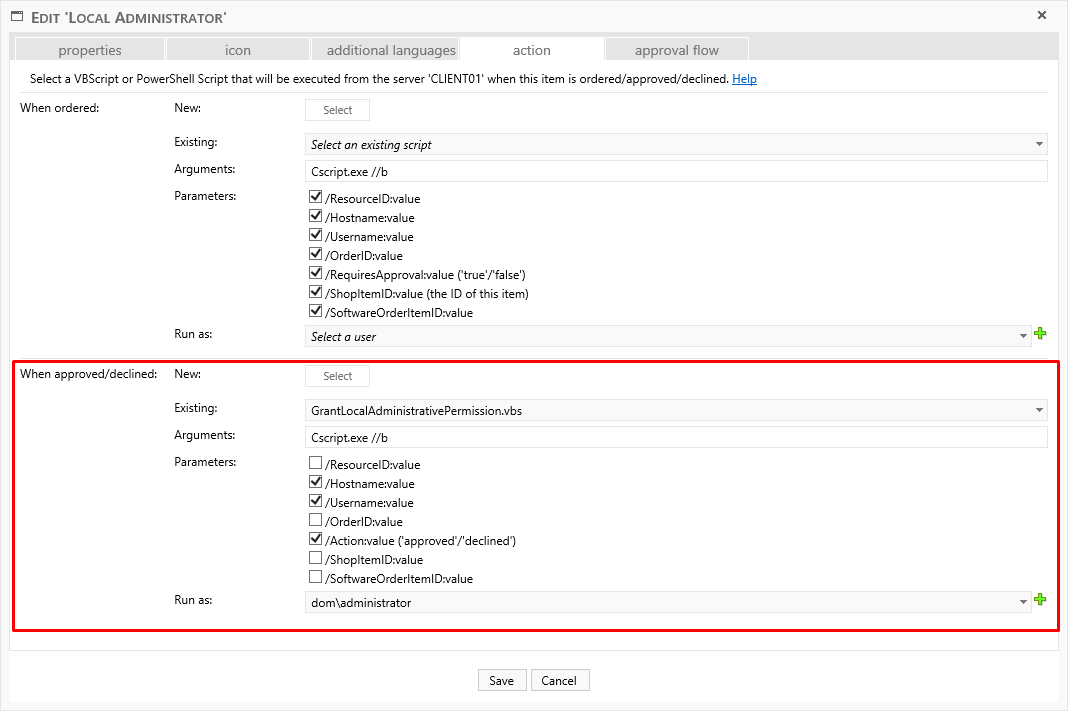
The “Edit Custom Shop Item” window is now open again. Go to the “Action” tab:
This interface is described in more detail in Custom Actions.
For this example, we will add our script, “GrantLocalAdministrativePermission.vbs”, to the
“When approved/declined” option. Under “New” we click the “Select”
button and browse to our modified script. (Note that the script will be copied to the
Uploads\CustomScripts folder.)
We need the parameters “Hostname”, “Username” and “Action” for this script, as seen in the picture above.
Each script needs a Run as user, unless it is set to run locally. We must select a user under “Run as”. We select a user that is a member of the “SoftwareCentral Administrator” group, so that it has access to all computers and all users.
We can also choose a user with limited access. To configure a user’s access, see Web Service Security.
Click Save to save the changes.
5 Without approval
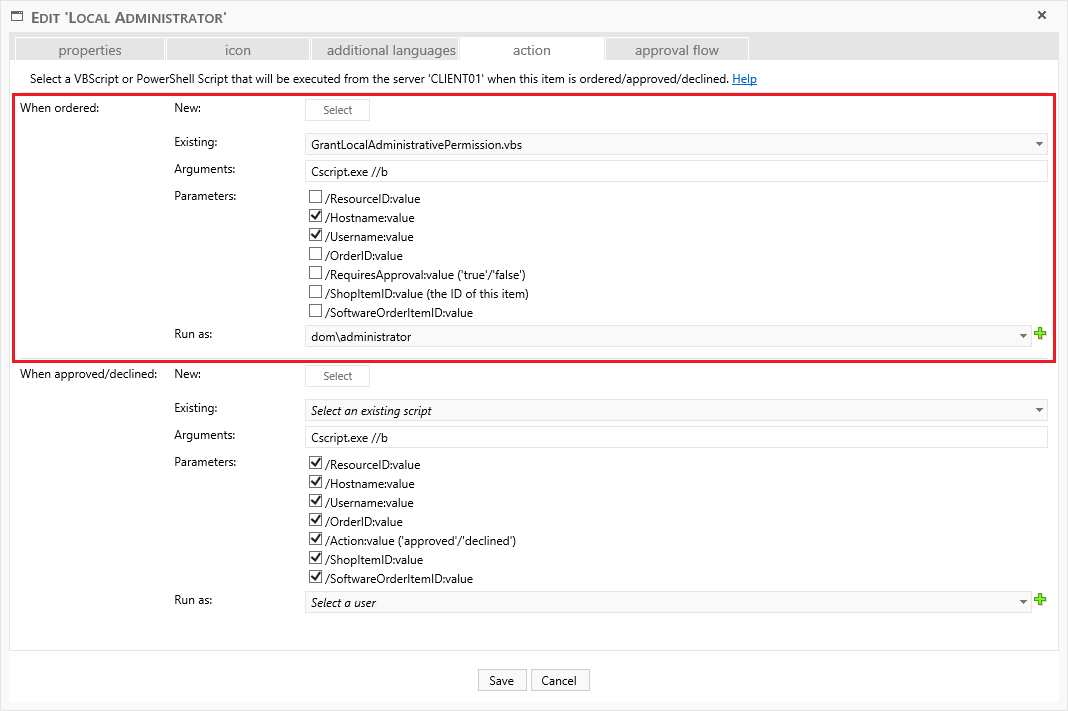
If we want the rights to be given as soon as the user orders them, without approval, we can set the action settings like this:
6 Order and check the log
Now we will go to the shop and order the item:

We will place the order and go to the “Manage Orders” or “Approvers View” page in SoftwareCentral:
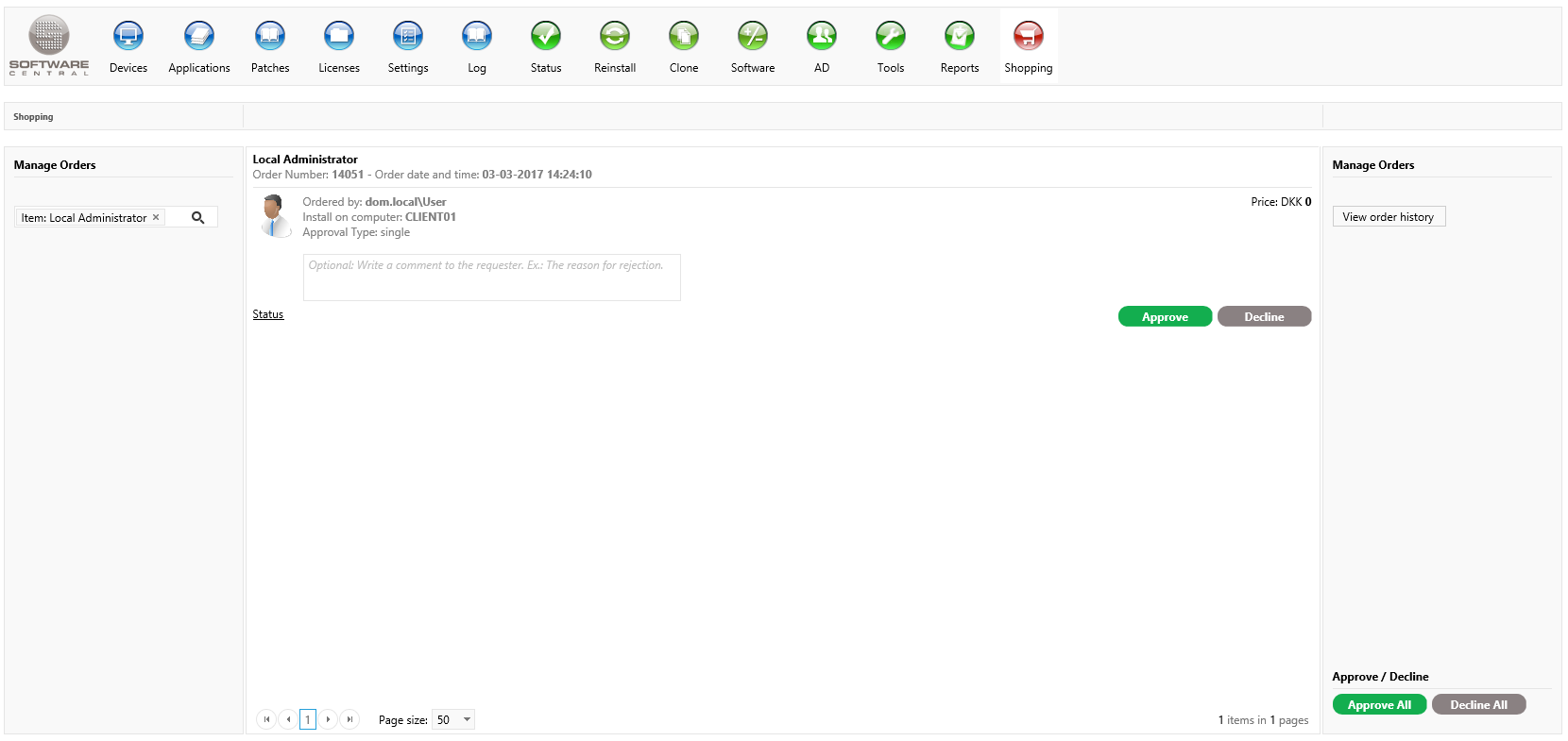
The job will run immediately after the order was approved.
If the order is approved, we can see from the log that our script was executed and that a request was made to the web service. The web service then reports Job created to add user with the user, the group and the computer. We will also see that a GrantLocalAdministrator and a RemoveLocalAdministrator job has been created.
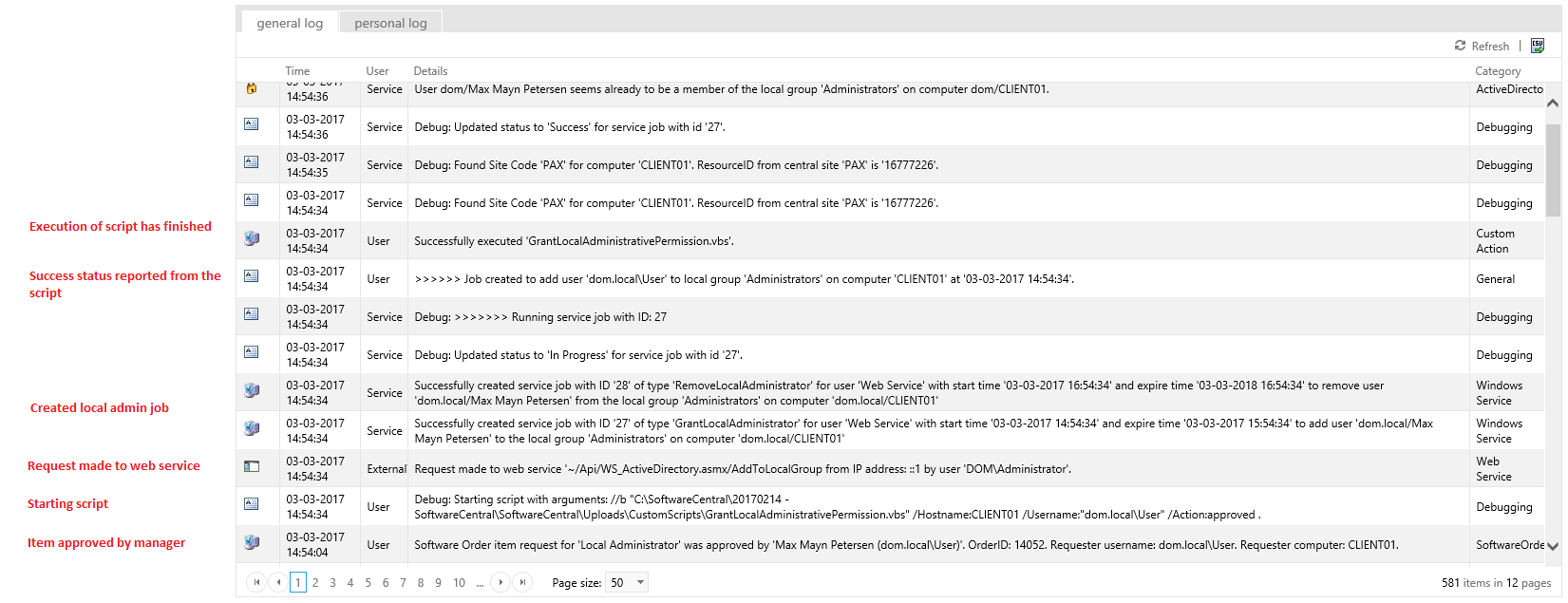
If the script fails for some reason, we can see error messages from the script in the log as well:

7 Best practice
- Keep the number of hours short. The grant job starts the permission, and the removal job is created for the end time. Set hoursBeforeExpiration to 0 only for a permanent grant: then no removal job is created.
- Choose a Run as user with the least access that still works. The example uses an administrator group member; a user with limited access also works if you configure it in Security.
- Test with one test computer and one test user before the item is open to everyone. A declined order also runs the When approved/declined script, with the Action value declined; the example script then does not add the user.
- Check the general log after every test. The messages in the table below tell you what went wrong.
8 Troubleshooting
| Symptom | Cause | What to do |
|---|---|---|
| “This function is only available with the Active Directory Module.” | The Active Directory Module is not enabled for this SoftwareCentral installation. | Use this example only with the Active Directory Module, or do not use it. |
| “No computer account found with the name '…' in the AD.” | The computer that placed the order does not have a computer account in Active Directory. | Check that the computer is in Active Directory and that its name matches the order. |
| “More than one computer account found with the name '…' in AD.” | Two computer accounts in Active Directory have the same name. | Remove or rename the duplicate account in Active Directory. |
| “User does not exist. Local group job will not be created.” | The user name in the request is not an Active Directory user. | Check the requester's account. The Username parameter is filled in from the order. |
| “Username is undefined, Local group job will not be created.” | The script did not receive a user name. | Tick /Username:value on the action and run the script again. |
| “Group name is undefined, Local group job will not be created.” | The group name in the script is empty. | Set strLocalGroupName in the script, for example "Administrators". |
| “'hoursBeforeExpiration' cannot be negative.” | The number of hours in the script is below 0. | Set hoursBeforeExpiration to 0 or a positive number. |
| “Invalid start time '…'. Must be of format 'dd/MM/yyyy_HH:mm:ss'.” | The start-time lines of the script have been changed. | Restore the start-time lines of the script as they are in the example. |
| “This role is not allowed to access this computer or the computer does not exist.” | The Run as user cannot see this computer in SoftwareCentral, or the computer is not known to SoftwareCentral. | Use a Run as user with access to the computer. See Security. |
| “Failed to add user '…' to local group '…' on computer '…'.” in the log | The web service call failed. The reason is written after this message. | Read the reason in the log under the same time, and check the rows above in this table. |
| “ERROR in GrantLocalAdministrativePermission.vbs:” in the log | The web service did not answer with XML, for example because the address in swcAddress is wrong. | Check swcAddress in the script. The address must be the address of SoftwareCentral. |
| “Wrong username and or password.” (cloud script) | The company name, domain user or password in the cloud script is wrong. | Check companyName, domainUser and password in the script. |