Every application in the shop has its own shop settings. They decide what the card and the details show, what a
shopper is asked when ordering, and who approves. This page follows the window tab by tab.
The cardThe detailsOrdering
1 Opening the shop settings
Open an application's shop settings from Software Administration or from the application lists, the
same way as for the classic shop. Both shops use the same settings; the new shop simply shows more of them.
2 Software Properties
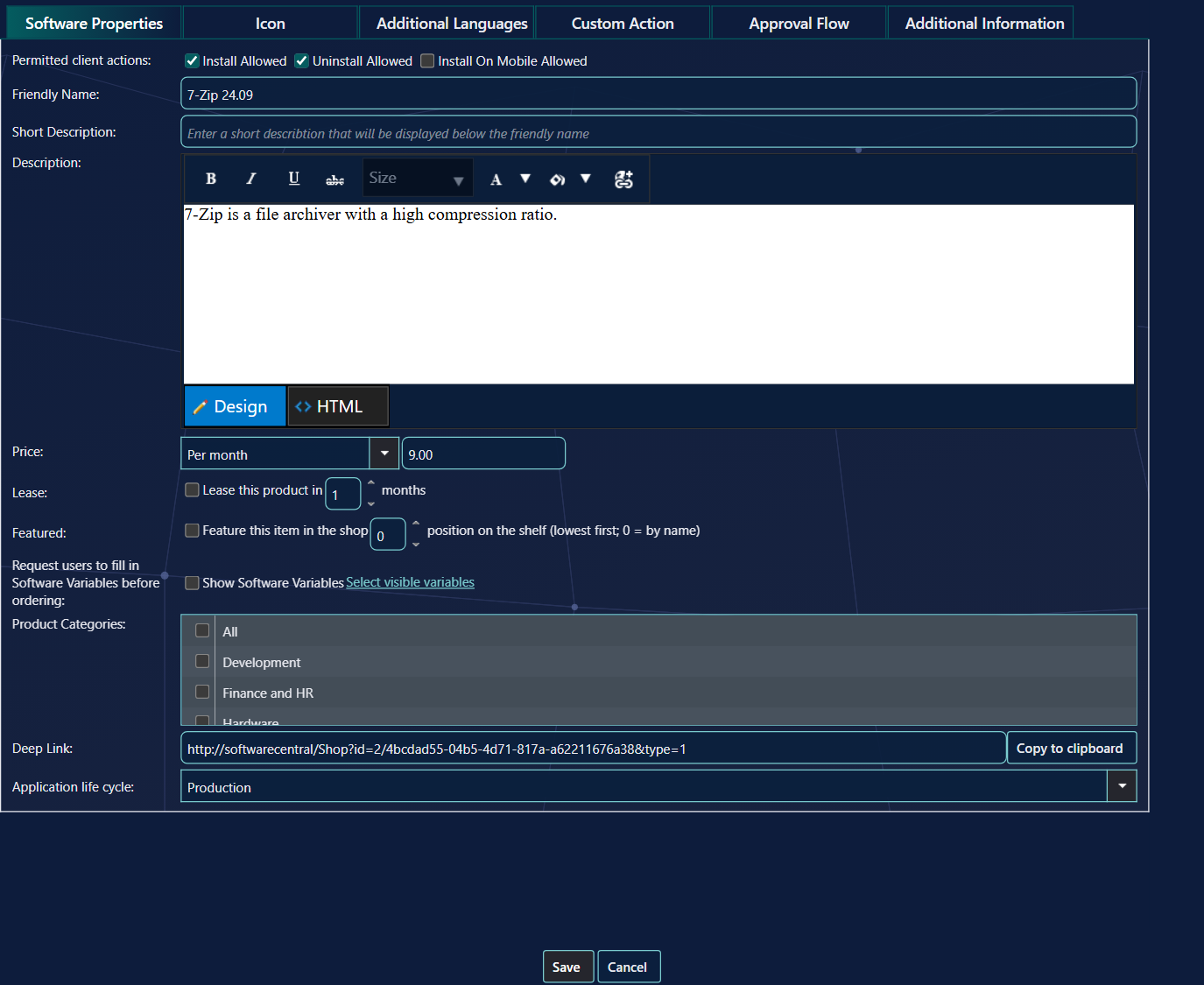
Software Properties.
Field
In the new shop
Permitted client actions
Which buttons the card can have: Install, Uninstall, and whether the application can be ordered for a phone.
Friendly Name
The name on the card and in the details.
Short Description
The second line on the card, instead of the publisher.
Description
The text on the card (shortened) and in full in the details.
Price
The price and how it is paid — per month, per year, once — or Free or Price unknown.
Lease
Makes the button Lease for the number of months given. Shoppers are reminded in the bell before a lease ends.
Featured
Puts the application on the Featured shelf, at the position given. See Featured and Trending.
Show Software Variables
Asks the shopper the questions you select before the application goes into the basket. See the user guide, Order details.
Product Categories
The categories the category filter finds it under.
Deep Link
A link that opens the shop on this application, for example for an intranet page or a mail.
Application life cycle
Maintenance and Inactive close the application for new orders; the card shows the status instead of Install.
3 Icon and languages
Tab
In the new shop
Icon
The picture on the card and in the details. Without one, the card shows the first letters of the name.
Additional Languages
The name and description in each shop language. A shopper whose language is empty sees the default text. Get Default Values copies it in as a starting point.
4 Additional Information
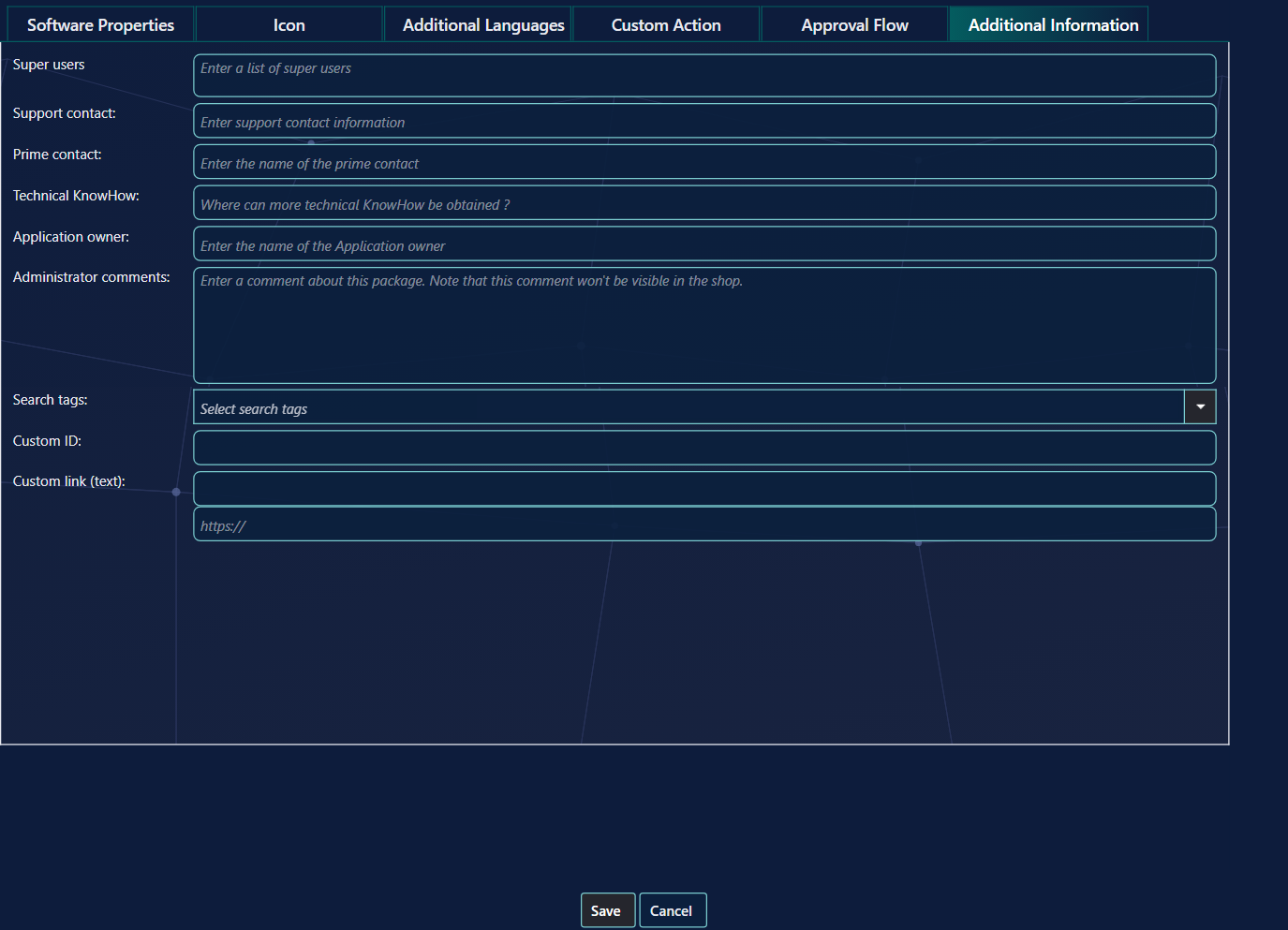
Additional Information. The last rows are your own info fields.
Field
In the new shop
Super users, Support contact, Prime contact, Technical KnowHow, Application owner
Rows in the details — the people shoppers can ask. Empty rows are not shown.
Custom Action runs your own scripts when the application is ordered, approved or declined —
unchanged from the classic shop. Approval Flow decides who approves; see
Approvals and mails.
Check it as a shopper
After changing an application, look at it in the shop. Changes appear within about a minute and a half.
6 Best practice
Keep the name and the short description short. Together they can be at most 251 characters. A longer pair is refused, and nothing is saved.
Choose Free or Price unknown when there is no price. The price box is then switched off, so no amount is entered.
Untick Lease to remove the lease. The lease length is kept only while the box is ticked.
Give each script action a domain account. Enter the user as CONTOSO\jdoe. The password is checked against the domain when you click Save, and a wrong one stops the save.
7 Troubleshooting
Symptom
Cause
What to do
“Length of name and short description can only be 251 characters combined.”
The name and the short description together are longer than 251 characters. Nothing is saved.
Shorten the name or the short description, then click Save.
“Invalid username or password for script 'When ordered'.” (or 'When approved/declined'). If no domain is given, the message also says “Please enter the domain in the username.”
The user name or the password of the script is not accepted by the domain. Nothing is saved.
Enter the user as CONTOSO\jdoe, check the password, then click Save.
“A valid user is required for script actions 'When ordered'.”
A script file is set for the action, but its user name or password is missing. Nothing is saved.
Enter both the user name and the password for the script, then click Save.
“Something went wrong saving the properties for this package. See the log for details.”
An unexpected error stopped the save. The error is written to the log as a critical entry, “Failed to save package properties.”
Ask your administrator to read that entry in the log, then try again.
The price, lease, life cycle and categories are greyed out and cannot be changed.
Your role lets you view this application, but not change its properties.
Ask an administrator who can change software properties to make the change.