Approval flows are set per application and work the same in the new and the classic shop. What is new is where
approvers decide — the approvals page — and how much shoppers can see of where their order is.
Approval flowsApprovers and groupsMails
1 An application's approval flow
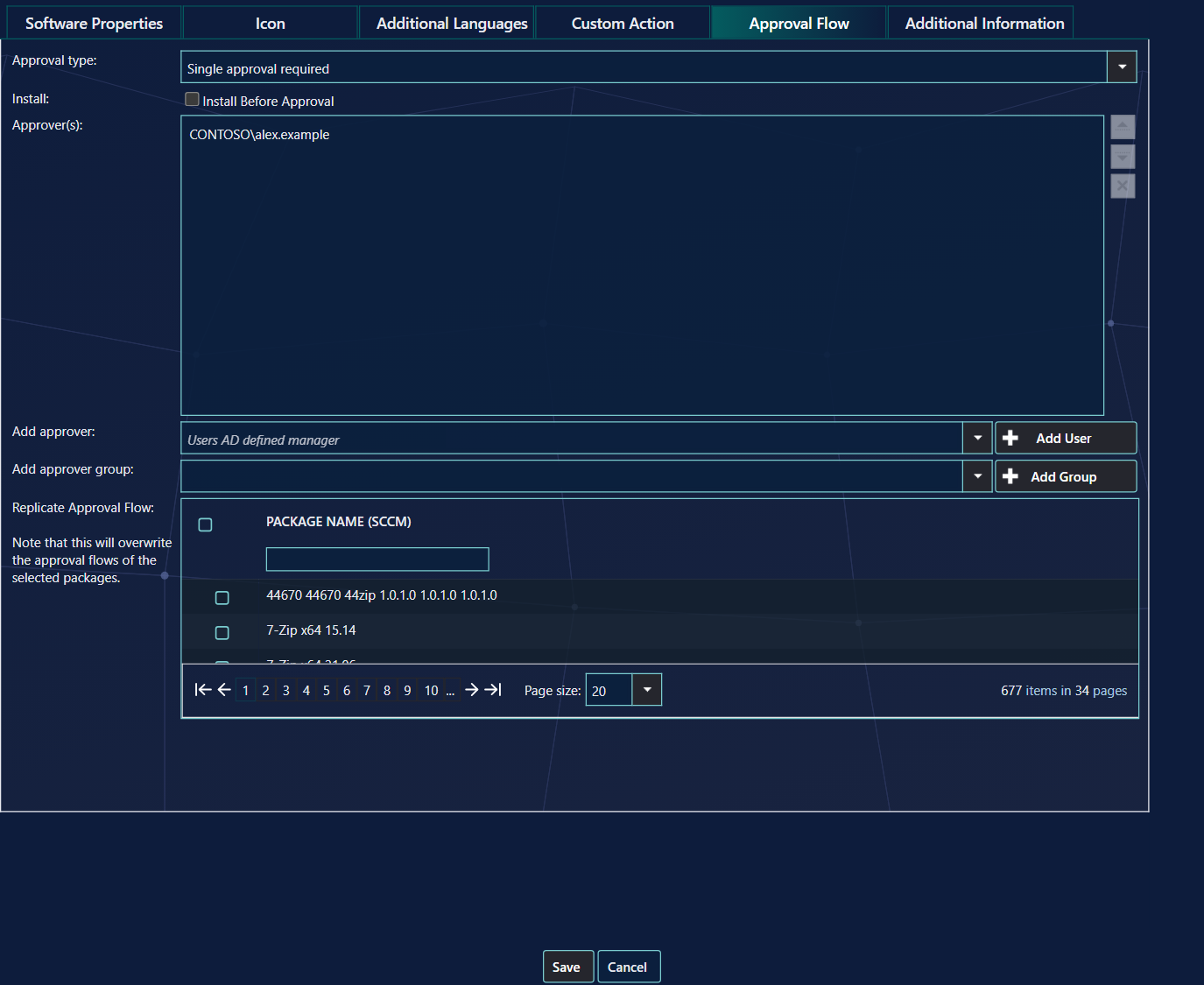
The Approval Flow tab of an application's shop settings.
Approval type
Meaning — and what shoppers and approvers read
No approval
The order is deployed at check-out.
Single approval required
Any one of these approvers can approve.
Multiple
Every approver must approve.
Sequential
Each approver must approve, in order — the list order, top to bottom.
Option
What it does
Install Before Approval
Deploys at once and runs the approval afterwards. Combine it with an automatic decline (section 3) so an order nobody approves does not stay forever.
Conditions
An approver can have a condition, so they are only asked when it applies.
Replicate Approval Flow
Copies this flow to the applications you tick. It overwrites their own flows.
2 Who can approve
Approver
How it works
A person
Add User. Approvers come from the fixed-approver group, or from a CSV file (Settings › Shop).
The user's manager
Users AD defined manager asks the shopper's own manager. A shopper without a manager does not see applications that need one, unless the application lets them choose an approver in the order details.
A group
Add Group. Any member can decide for the group, and every member is mailed. Shoppers and approvers can see who is in the group, if you allow it (Settings › New Shop).
An approver the shopper chooses
A question in the order details lets the shopper pick the person who approves; the order then always needs that approval.
Temporary approvers: when allowed (Settings › Shop), an approver going on holiday chooses a colleague
and a period on the approvals page; in that period the colleague can decide what waits for them.
3 Reminders and automatic declines
Settings › Shop
What it does
Days before sending reminder to approver
Mails the approver again about an order that is still waiting.
Days before automatically declining orders installed before approval
Declines them when nobody has decided in time. 0 = never.
Days before automatically declining all other orders
The same for every other waiting order. 0 = never.
Allow installation of previously approved items
Someone approved for an application before is not asked again.
Automatic declines run once a day and appear in the history as declined by Auto Rejector.
4 The approvals page
Approvers decide on the approvals page; the user guide page Approving orders
describes it. It shows the requester's user name, or their full name when you tick
Show the requester's full name to approvers (Settings › Shop). Shoppers follow each step in the
shop and in My Account.
5 The mails
Mail template
Sent to — when
Order confirmation
The shopper, at check-out.
Notify approver
Each approver whose turn it is; for a group, every member.
Item approved
The shopper.
Item rejected
The shopper.
Item sent back
The shopper, with the approver's message.
Item pending for too long
The approver: the reminder.
Notification of procurement
The address set in the template, when an order is fully approved — for example the team that buys licences.
Edit the texts in the Mail Template Editor. A template you switch off sends nothing. The links in the
approval mails open the approvals page; the rollout switch decides whether that is the new one.
6 Best practice
Set both automatic decline periods. At 0 an order that nobody decides is never declined automatically. Each period accepts 0 to 365, and 0 switches it off.
Set the install-before-approval period too. Orders installed before approval have their own period. If an approver rejects one, the software is uninstalled.
Check the flow before you replicate it.Replicate Approval Flow overwrites the approval flows of the applications you select, and the window says so.
Give every approver a mail address. When approvers are looked up in Entra ID, a person without a mail address cannot be added.
7 Troubleshooting
Symptom
Cause
What to do
The approval flow you changed is not kept, and the window shows no message.
Saving the approval flow failed. The error is written to the log as a critical entry, “Failed to save approval flow for package with id”, followed by the application's ID.
Ask your administrator to read that entry in the log, then set the approval flow again.
“This user does not have a mail address registered in Entra ID.”
The person has no mail address in Entra ID. This check applies when approvers are looked up in Entra ID.
Add a mail address for the user in Entra ID, then add the user as an approver again.
The number of days for the reminder does not change when you save.
The value is not a whole number, so the setting is not changed. The warning “Failed to save 'Days before sending reminder to approver' - it must be a number” is written to the log.
Type a whole number in Days before sending reminder to approver, then save again.
An order is declined, and its history shows Auto Rejector.
The order was not decided within the automatic decline period in the settings. Orders installed before approval have their own period.
If this is not wanted, set the period to 0, or to a longer number of days.
Clicking Add User does nothing for a person who is already in the list.
The person is already an approver in this flow, so they are not added twice.