Messages appear in a row at the top of the new shop, above the shelves. Use them for what shoppers should
know before they order: planned maintenance, a new version everyone gets, a change in how to order.
WriteTarget and scheduleSee who read it
1 The list
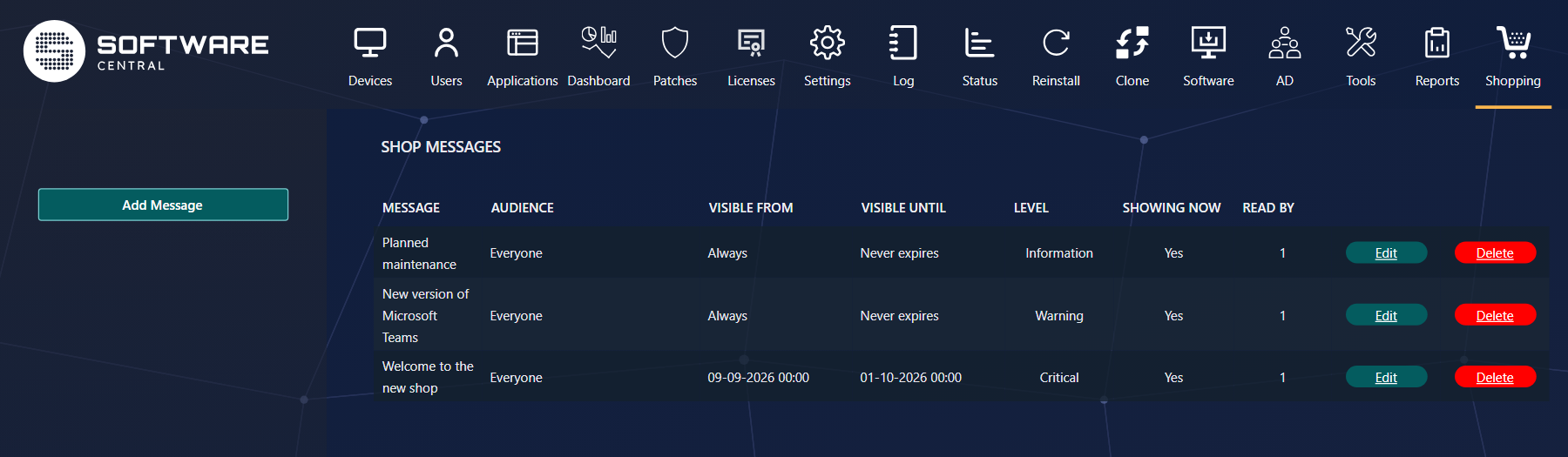
Shopping › Manage Shop Messages.
Column
What it tells you
Message
The title, or the start of the text.
Audience
Everyone, or the group that sees it.
Visible from / until
When it is shown. Always and Never expires mean no limit.
Level
Information, Warning or Critical — blue, orange or red in the shop. Critical messages come first.
Showing now
Whether shoppers can see it at this moment.
Read by
How many shoppers have hidden it after reading. Only the number is shown, never who.
2 Writing a message
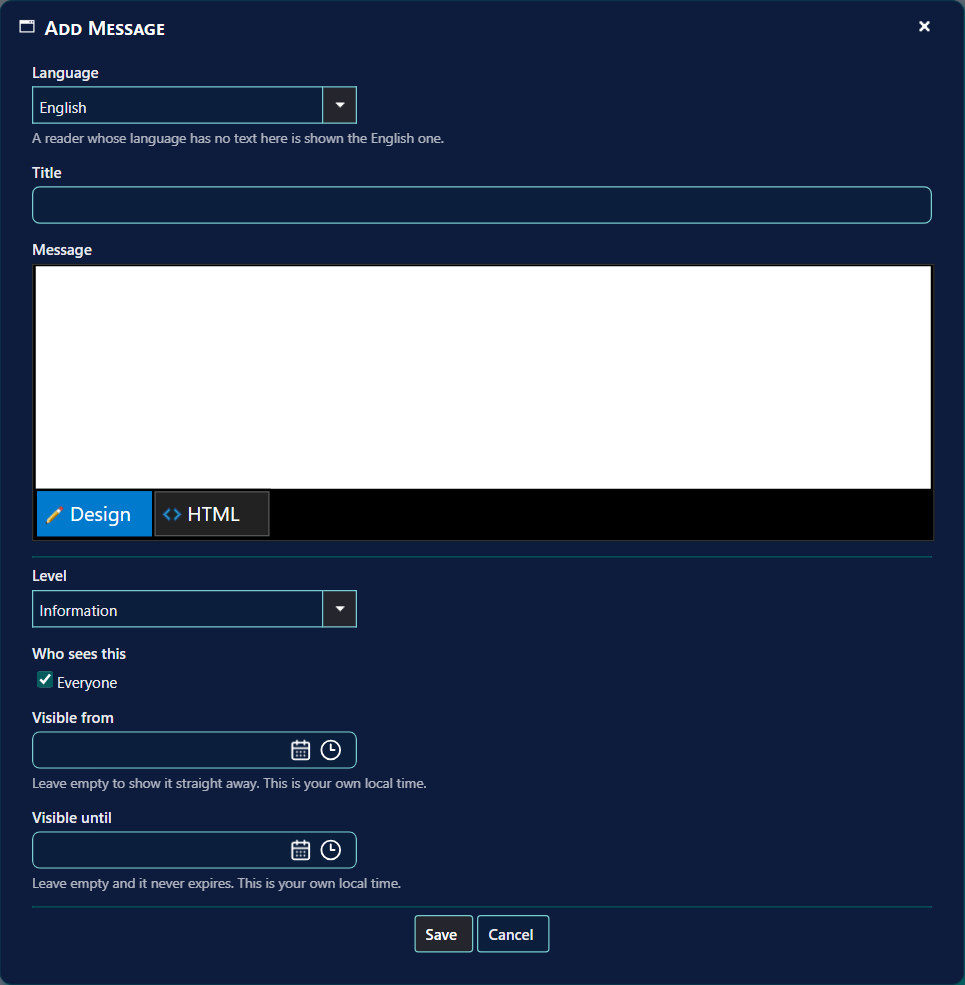
Add Message.
Field
What it does
Language
Write the title and text in each language you want. A shopper whose language has no text sees the English one.
Title
The bold first line. Without one, the shop shows Message from your IT department.
Message
The text, with formatting and links.
Level
How urgent it is.
Who sees this
Everyone, or untick it and choose an Active Directory or Entra group.
Visible from / until
Leave them empty to show it straight away and keep it. The times are your own local time.
Click Save. The shop shows new and changed messages within about a minute and a half.
3 Read and hidden messages
A shopper who closes a message with × does not see it again, on any device. The shop's information
button shows the hidden messages again when they want to re-read them.
When you change
Shoppers who hid it
The title or the text
See it again — the message has changed, so it counts as unread.
The level, audience or period
Do not see it again.
Tip
For news that replaces an older message, write a new message and delete or end the old one, rather than
rewriting the old one.
4 Other texts in the shop
Text
Where you edit it
The message after checking out
Settings › Shop › Check out message.
Button texts (Install, Uninstall, Lease…)
Settings › Shop › Install button text.
The classic shop's left-menu message
Settings › Shop › Customize left menu. The new shop shows it only while this list is empty; Import the current shop message turns it into a message here.
5 Best practice
Leave the times empty when there is no limit. An empty Visible from shows the message straight away, and an empty Visible until means it never expires. The times are your own local time.
Deleting asks first. The shop asks you to confirm before a message is deleted.
Import the current shop message rather than retyping it. The import copies the text in every language it has. The original is left in place, because the classic shop still reads it.
6 Troubleshooting
Symptom
Cause
What to do
A message is not shown in the shop.
It is outside its Visible from or Visible until period, or its Who sees this audience does not include the shopper.
Check the times and the audience. The Showing now column shows whether shoppers can see the message at this moment.
The shop shows Message from your IT department as the heading.
The message has no title. That text is the default shown in its place.
Enter a Title for each language the message is written in.