1 The designer
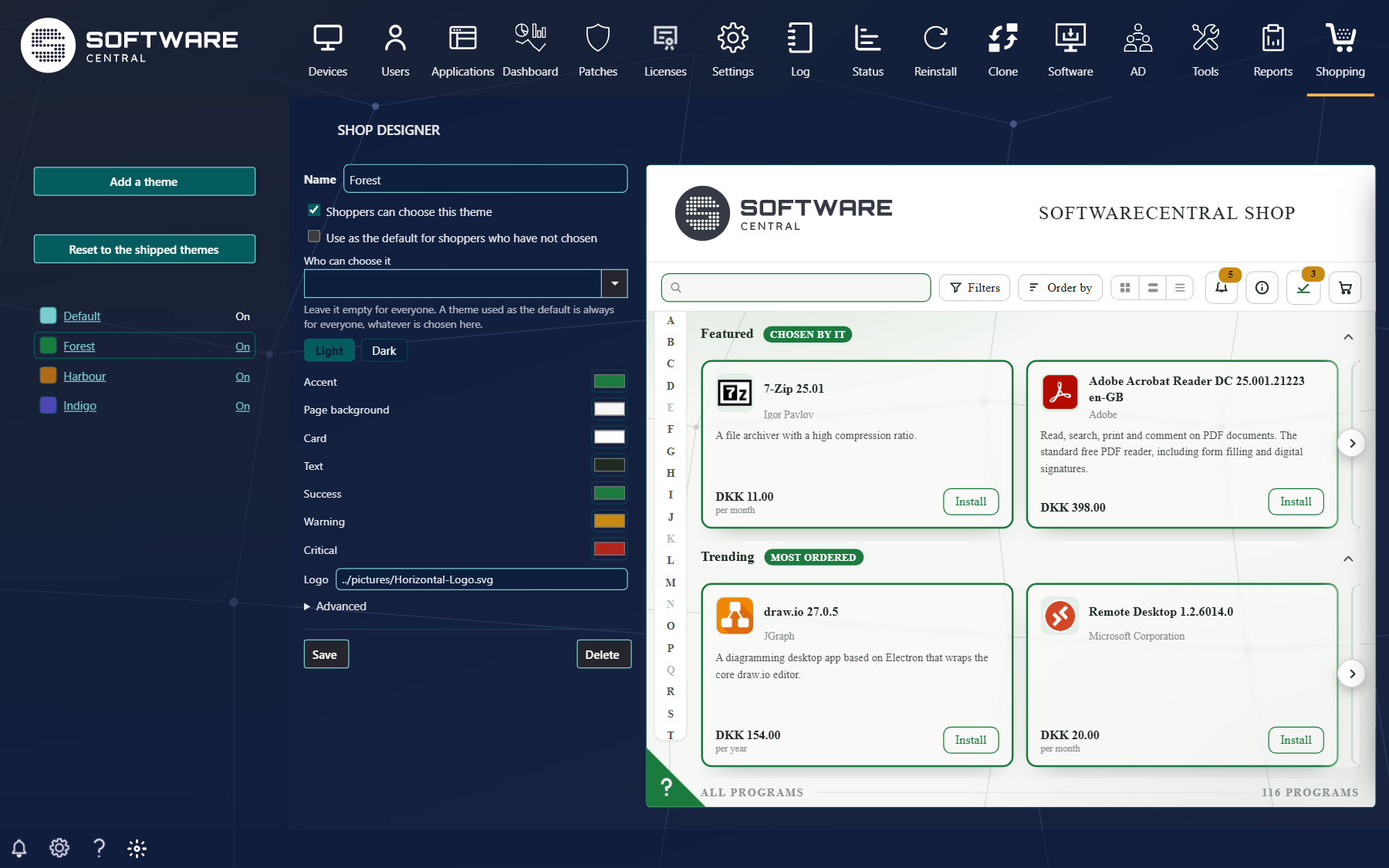
| Part | What it does |
|---|---|
| The themes (left) | Click a theme to edit it. On means shoppers can choose it. |
| Add a theme | Starts a new theme. |
| Reset to the shipped themes | Replaces your themes with the ones SoftwareCentral comes with. |
| The theme (middle) | Its name, who may use it, and its colours. |
| The preview (right) | The real shop, with your own catalogue, in the colours you are editing. Nothing can be ordered from the preview. |
2 A theme
A theme has two sets of colours: Light and Dark, one for each of the shop's two modes. Switch between them with the two buttons and set:
| Colour | Used for |
|---|---|
| Accent | Buttons, links, the selected view and the shelf labels. |
| Page background | Behind everything. |
| Card | The application cards, panels and windows. |
| Text | All ordinary text. |
| Success, Warning, Critical | Installed, pending and failed states, and the message levels. |
| Logo | A logo for this theme and mode, when the standard one does not suit the colours. |
The shop works out the rest — borders, hover colours, softer text — from these. Under Advanced you can set any of those yourself. Click Save to publish the theme; the preview shows it before you do.
3 Default and who may choose
| Option | What it does |
|---|---|
| Shoppers can choose this theme | Offers it under Colour theme in the shop's settings panel. |
| Use as the default for shoppers who have not chosen | The look everyone gets until they choose another. The default is always for everyone. |
| Who can choose it | Limit a theme to a group, for example a department with its own colours. Leave it empty for everyone. |
When no theme is offered, the shop has its standard look and the colour-theme choice is hidden. Themes also apply to the approvals page and My Account.
4 Logo, title and more
The standard logo and the shop's title are set under Settings › Shop. Glass cards, the A–Z position and the default view are in New shop settings. The backgrounds — the patterns behind the shop — are each shopper's own choice.